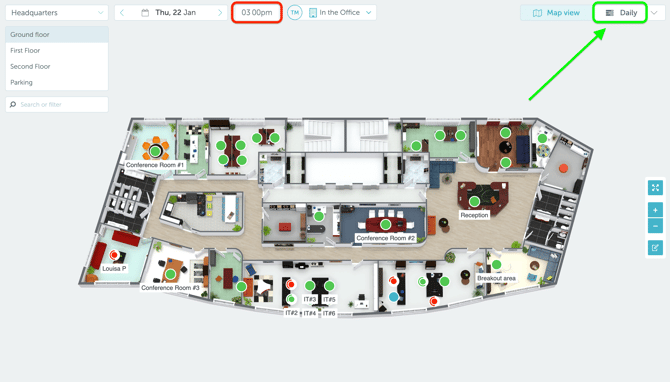
One of the most significant recent updates to the Yarooms Map View is the way users check space availability throughout the day.
⏮️ Previously, the Map View included a Time Selector at the top of the screen, which allowed users to see the availability of spaces at a specific moment on a selected day. While this worked for certain use cases, many users found it confusing when trying to book a space for later in the day.
At the time, the Map View reflected availability only for the selected time. For example, if you arrived at the office at 9:00 AM, a desk might appear available, even if it was already booked starting at 10:00 AM. To check availability at a different time, users had to manually adjust the Time Selector, which often led to misunderstandings during the booking process.
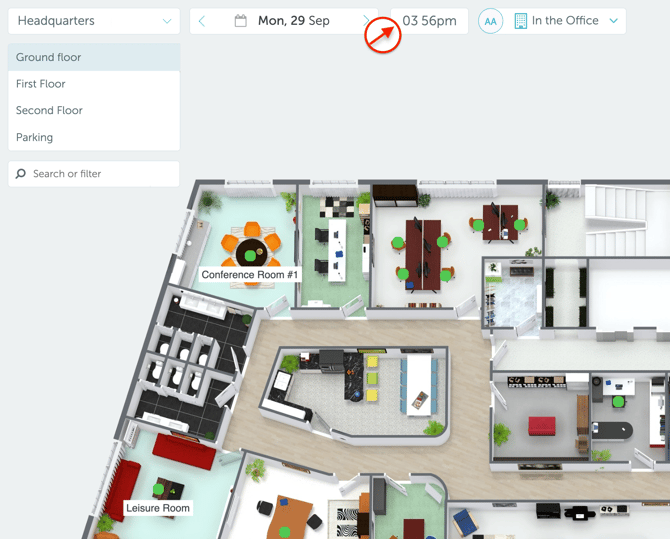
To address this and provide a clearer, more reliable booking experience, the Time Selector was removed on November 10th, 2025, and replaced with a more effective tool for viewing a space’s availability throughout the day - The Availability Bar.
🆕 Checking availability with the Availability Bar
When you click on a space on the map, the Availability Bar appears and displays that space’s availability for the entire day, broken down into available and busy time intervals. This allows you to immediately see not only whether a space is free right now, but also when it becomes occupied later in the day.
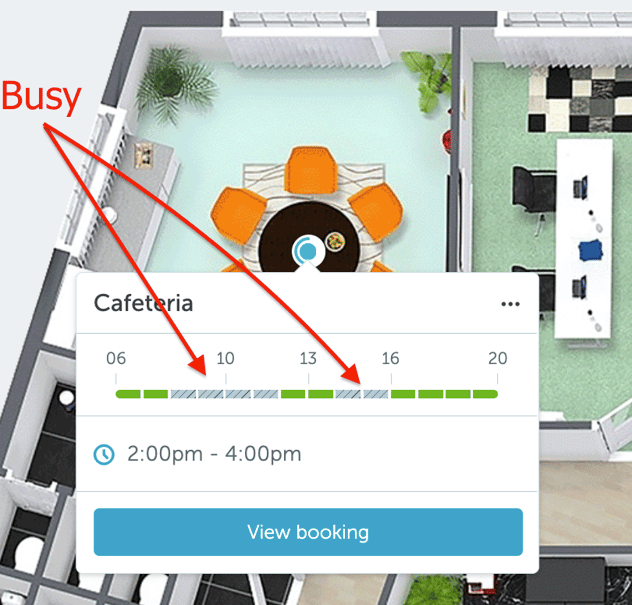
From the Availability Bar, you can also create a booking directly by selecting one of the available (green) time slots, without having to change views or manually adjust the time.
This approach eliminates the uncertainty caused by single-time availability checks and makes it easier to choose the right space for your needs.
🔀 Using the Timeline View for full floor availability
The Timeline View was and still is the most effective tool for checking availability across an entire floor, as it displays all spaces side by side along with their bookings throughout the day.
Unlike the Map View, the Timeline View does not show the physical layout of the floor or the exact position of each space, making it less suitable when location context is important. For that reason, it works best as a complementary view rather than a replacement - especially when users already know the spaces they are looking for.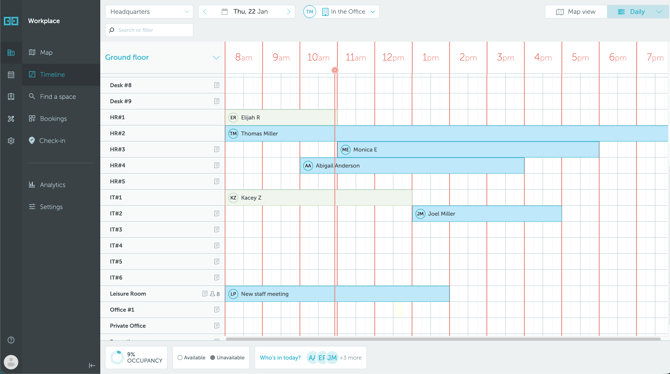
For users who previously relied on the Time Selector to check floor-wide availability at a specific moment, the Timeline View remains a reliable and accurate alternative.
🔄 Feeling impacted by the Time Selector change?
If you were using the Time Selector and feel like something was taken away, the overall workflow is still the same. You’re still on the Map View, still choosing the space you want to book, and still checking its availability.
The only change is which button you click at the top of the screen. Instead of clicking the button on the left (the Time Selector), you now click the button on the right (the Daily button) to open the Timeline View. It’s still two steps, just a slightly different click, with the same outcome.
So, simply pick the space from the Map View, remember its name, and check its availability in the Timeline View.