
Jump to:
1. How to activate badge printing
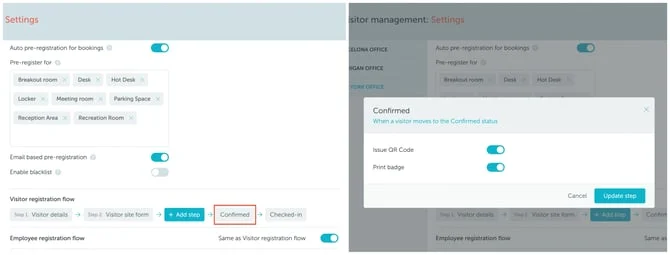
Go to Visitor Management → Settings → Edit location → Visitor Registration Flow and press “Confirmed” to toggle Print badge on.
2. How to set up your printer
Note:
Requirements:
- Wi-Fi enabled capability (available from factory)
- Both “Direct Mode” and “Infrastructure Mode” enabled
- Fixed IP address assigned to the printer within your network
- Tested with Brother QL-820NWBc printer using rolls: DK-2251, DK-22205, and DK-11202
Step 1: Find direct mode printer IP
- Start printer and open Wi-Fi menu
- Navigate to “Wi-Fi status” and select it
- Navigate to “Direct mode status” and note the IP address
Step 2: Find direct mode printer password
- Open Wi-Fi menu and navigate to “Direct Manual Setting”
- Write down the SSID (network name) presented
- Write down the password presented
Step 3: Connect laptop to printer via Direct Mode
- Connect your laptop to the printer’s Direct Mode Wi-Fi network using credentials from Step 2
- Enter the IP address from Step 1 in your browser
- Click the secured version link
- Login using the password on the printer’s underside
- Visit Network → Wireless section
- Select your local Wi-Fi network and submit
- Configure wireless security details and save
Step 4: Find infrastructure mode printer IP
- Open Wi-Fi menu and navigate to “Wi-Fi status”
- Navigate to “Infrastructure mode status” and note the IP
Step 5: Complete setup in YAROOMS
- Go to Visitor Management → Reception
- Select the Badges tab
- Enter the infrastructure mode IP in the Printer IP field
- Configure remaining fields as needed
3. How to print badges in bulk from the dashboard
When you expect a group, you can prepare all their badges in advance instead of printing each visitor at check-in. From Visitor Management → Dashboard, select the visitors and generate a single print-ready PDF with one badge per page.
- Filter the dashboard to the visitors you need (by date, location, host, visitor type, status, or purpose of visit).
- Select visitors with the row checkboxes, or use select all to take everyone in the current view.
- Click Print badges. YAROOMS generates a PDF with one badge per page, in dashboard order.
- Print the PDF on your badge printer, or download it and print on any office printer.
The bulk PDF uses the same badge template, size, logo, and company name as your automatic badges, so pre-printed badges match the ones printed at check-in.
Note:
- Bulk selection is available only in locations where badge printing is enabled.
- Pending-registration visitors cannot be selected for printing, since their details may be incomplete.
- You can regenerate a batch at any time (for example, after correcting a name), and print follow-up badges for late additions by selecting only the new visitors.