Jump to:
Where to Download the YAROOMS Mobile App and How to Log In?
You can download the YAROOMS mobile app from the App Store or Google Play.
To log in, you can:
- Scan the QR code from your YAROOMS web account. First, log in to your web account, go to Account Settings (bottom left corner), and select “Mobile App.” Press “Generate QR code”. In the mobile app, tap “Scan now” and scan the QR code. This will log you into the app instantly.
- Log in by entering your domain name, email, and password. These are the same credentials you use to log into the web app.
Getting Around the YAROOMS Mobile App
Location
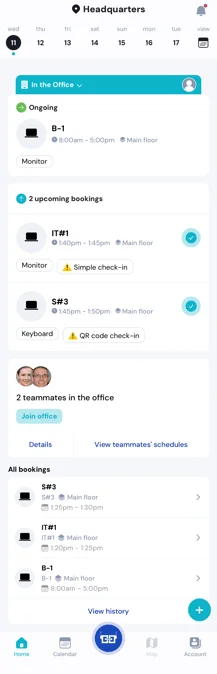
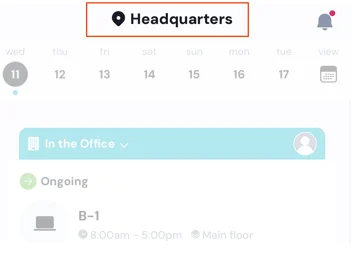
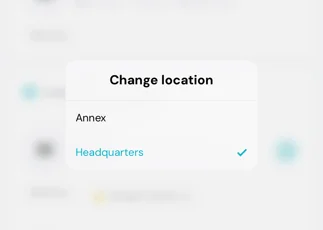
At the top of the YAROOMS app, you’ll see your office location. This is where you’ll search for and book workspaces. To change it, tap the location and choose another from the menu.
Calendar
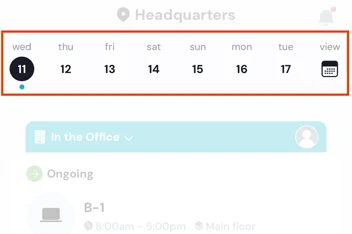
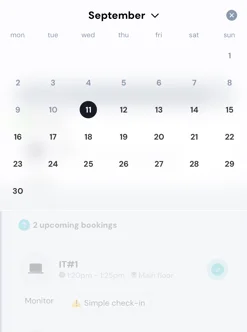
Just below the location, you’ll find the calendar, where you can check past bookings or view future plans for yourself and your colleagues. Tap the calendar icon on the right to open the full monthly view. To switch between future months, slide up and down.
Work Status
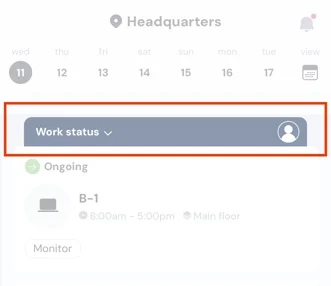
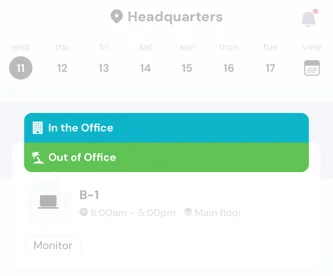
The work status section is just below the calendar and shows if you’re working in the office, from home, or are out of office. To change your status, tap it and select your option from the drop down menu.
Bookings
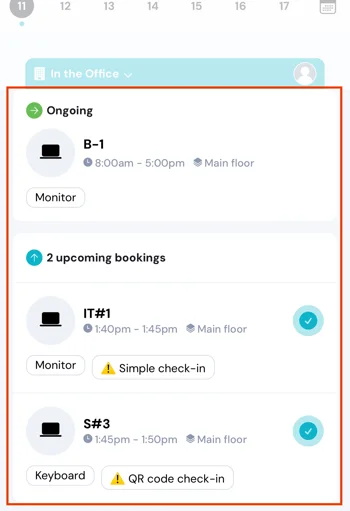
Below the work status, you’ll find the list of your upcoming workspace bookings for the day. Depending on your company’s policies, some bookings may require you to check-in.
Teammates in the Office
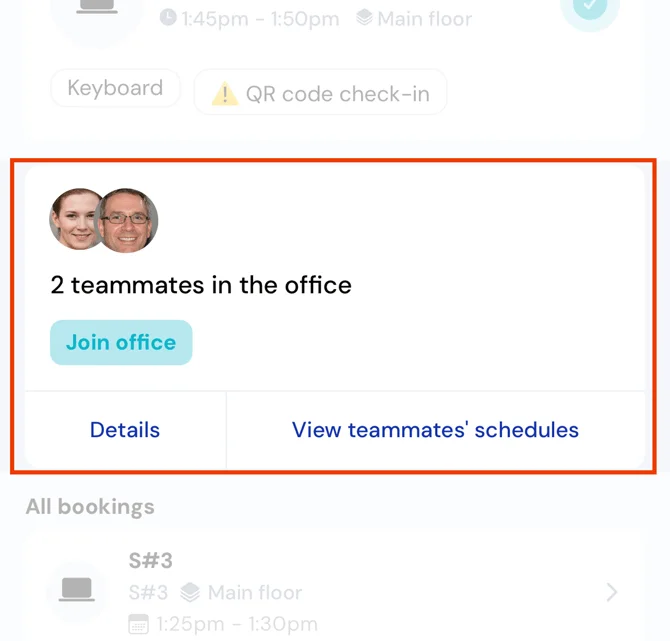
The next section, “Teammates in the office,” shows which colleagues from your user team (defined and set by your admin) are working on-site that day. If someone is on this list, it means they’ve marked themselves as “in the office,” booked a workspace, and checked in.
All Bookings
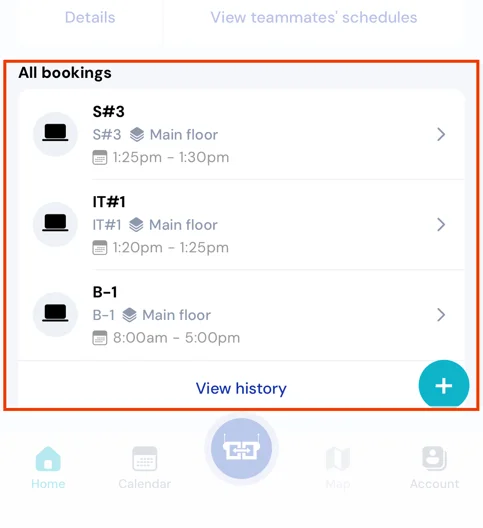
The “All bookings” section shows your most recently completed bookings. To see your full booking history, just tap the “View History” button below.
Book a Space
By tapping the + icon at the bottom right, you can start a new space booking.
Bottom Menu
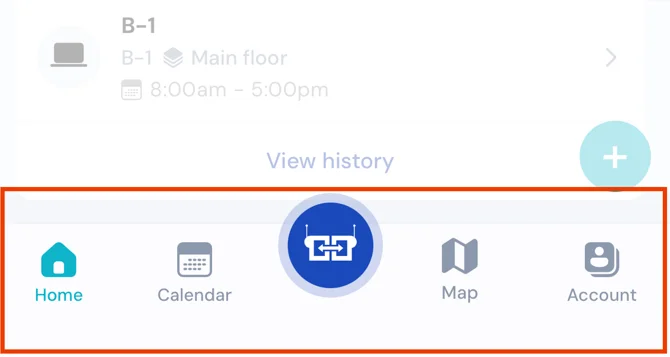
- Home: The main page of your YAROOMS mobile app, with all the features mentioned earlier.
- Calendar: An expanded monthly calendar showing your bookings and your teammates’ bookings, so you can easily find them in the office.
- Yarvis: Yarvis, our advanced AI workplace assistant, streamlines complex workspace reservations. Utilizing generative AI technology, Yarvis efficiently processes diverse requests, including workspace searches, bookings, and booking information retrieval, delivering results in a matter of seconds. Learn more about Yarvis here.
- Map: An interactive tool that you can use within the YAROOMS mobile app to view your workplace’s floor. With the Map feature, you can book a space by tapping on the dots placed on designated places throughout your workplace.
- Account: View your account settings or log out from the app.
How to Book a Space with the YAROOMS Mobile App?
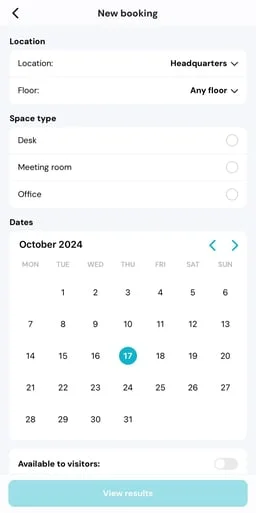
To start a new booking, tap the + icon at the bottom right. Select the location, floor, space type (desk, meeting room, parking space, etc.), and the dates for your booking (you can choose multiple days).
Depending on the space type you’re booking, you may need to provide additional details (for example, the required capacity for a meeting room or amenities/features (e.g., a standing desk)) so YAROOMS can find the best match for you. If you don’t need anything specific, simply move on to the next step.
If you’re booking for visitors, toggle the “available to visitors” option to find suitable spaces. Then, press “View results.” YAROOMS will display a list of spaces that match your criteria.
Select a space from the list and complete the booking process. At this step, you can:
- Create a recurring booking by toggling “Repeat.”
- Book the space for a colleague or visitor using the “Book for” field.
- Add additional notes if needed.
- Choose an event type for color-coded display on the booking calendar.
- Request additional services (e.g., an extra monitor) from the predefined list.
- Add a video conferencing link (this will create a Teams/Zoom/Google Meet meeting and attach it to the YAROOMS booking; updates to the YAROOMS meeting will sync with the Teams/Zoom/Google Meet meeting).
- Make the booking incognito (your name and booking details will be hidden from others)
Once you’ve set up the booking as you want, press “Book now.” You’re all done!
How to Check-In to Your Desk with the YAROOMS Mobile App
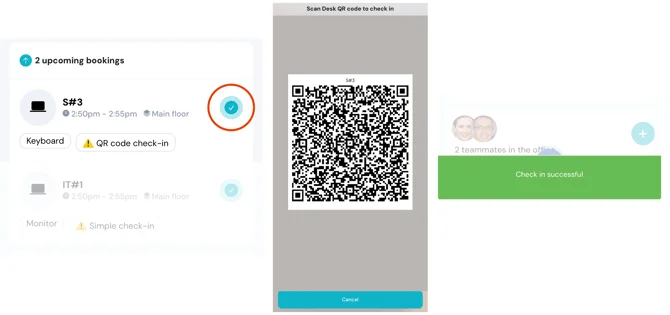
Depending on the rules set by your YAROOMS account administrators, the desk you’re trying to check-in for may require either a Simple check-in or a QR code check-in:
- Simple check-in: can be performed both from mobile and web with the simple tap of a button.
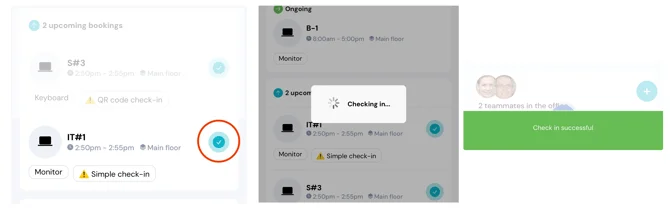
- QR code check-in: can only be done from the YAROOMS mobile app, by scanning the desk’s QR code. This code is typically placed on the desk.