
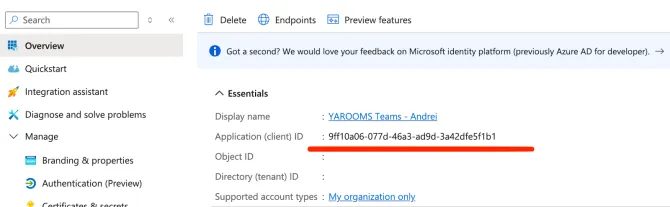
1. Go to Azure App Registration
Identify your Application (client) ID (ex: 9ff10a06-077d-46a3-ad9d-3a42dfe5f1b1) and copy it
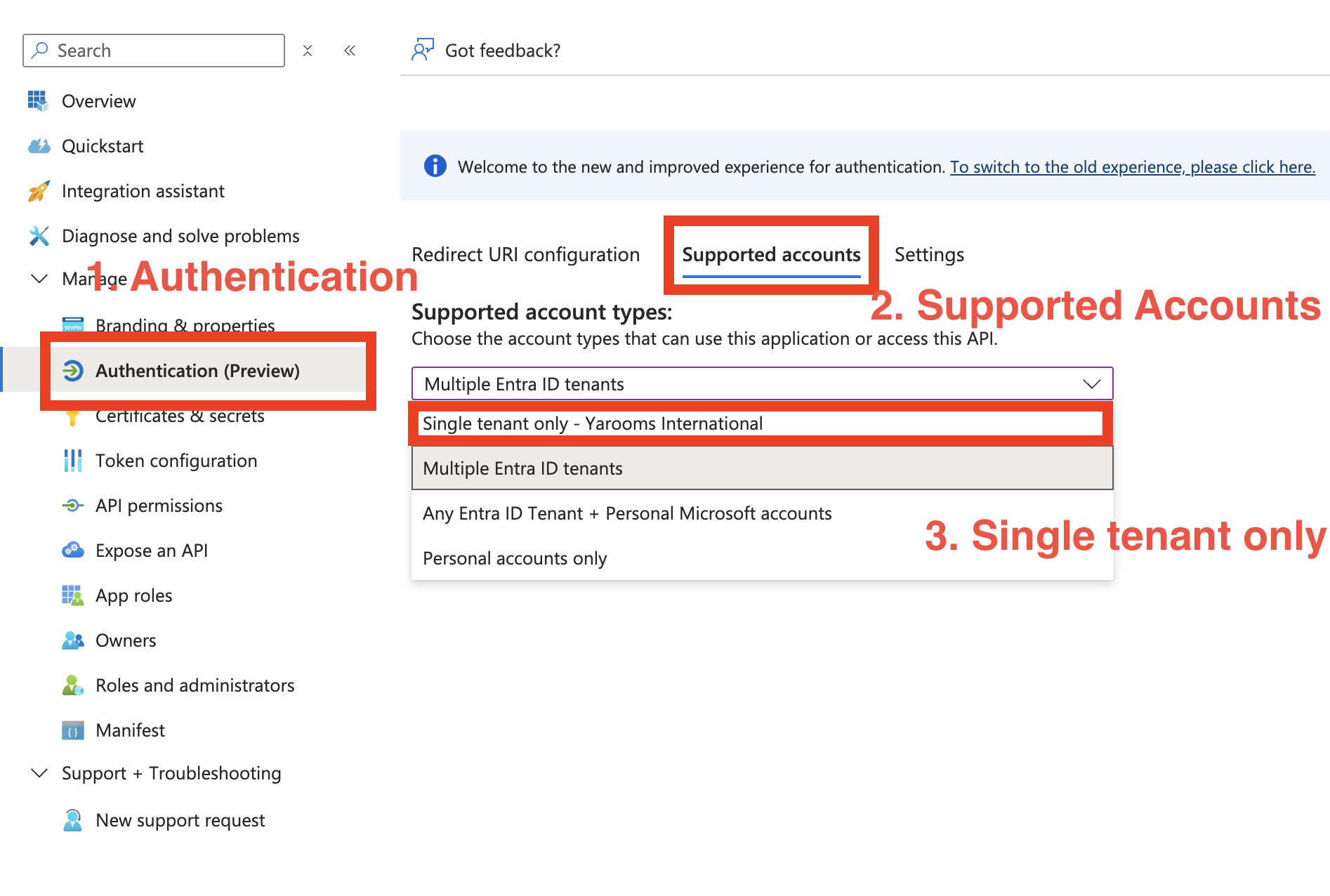
2. In “Authentication (Preview)”, set “Supported accounts” to “Single tenant only”
Open the Supported accounts tab and select Single tenant only - Yarooms International.
3. Next, go to “Expose an API” in the App’s edit screen
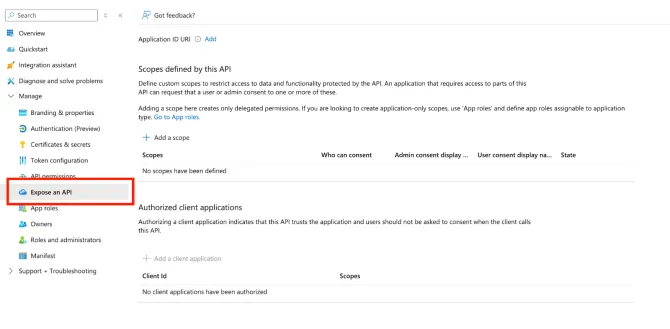
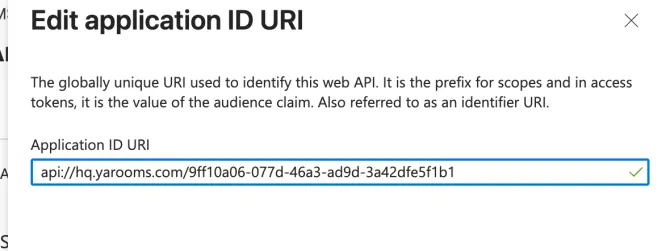
Application ID URI, click on “Add”, and enter the following:
Note:
api://tenant.yarooms.com/application_client_id
Example: api://CompanyName.yarooms.com/9ff10a06-077d-46a3-ad9d-3a42dfe5f1b1
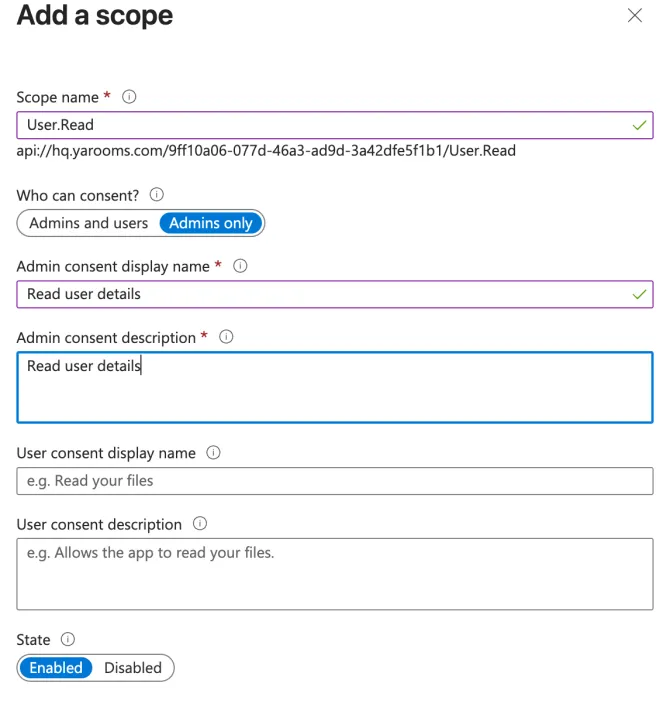
+ Add a scope and enter with the following:
- Scope name: User.Read
- Who can consent? Admins only
- Admin consent display name: Read user details
- Admin consent description: Read user details
- State: Enabled
Add a client application
- d3590ed6-52b3-4102-aeff-aad2292ab01c AND check Authorized scopes
- bc59ab01-8403-45c6-8796-ac3ef710b3e3 AND check Authorized scopes
- 0ec893e0-5785-4de6-99da-4ed124e5296c AND check Authorized scopes
- 4765445b-32c6-49b0-83e6-1d93765276ca AND check Authorized scopes
- 5e3ce6c0-2b1f-4285-8d4b-75ee78787346 AND check Authorized scopes
- 1fec8e78-bce4-4aaf-ab1b-5451cc387264 AND check Authorized scopes
- 27922004-5251-4030-b22d-91ecd9a37ea4 AND check Authorized scopes
Explanation of client Ids:
- D3590ed6-52b3-4102-aeff-aad2292ab01c -> Microsoft 365 mobile application / Outlook desktop application
- Bc59ab01-8403-45c6-8796-ac3ef710b3e3 -> Outlook on the web
- 0ec893e0-5785-4de6-99da-4ed124e5296c -> Microsoft 365 desktop application
- 4765445b-32c6-49b0-83e6-1d93765276ca -> Microsoft 365 web application
- 5e3ce6c0-2b1f-4285-8d4b-75ee78787346 -> Teams web application
- 1fec8e78-bce4-4aaf-ab1b-5451cc387264 -> Teams mobile or desktop application
- 27922004-5251-4030-b22d-91ecd9a37ea4 -> Outlook mobile application
Note: All of the client IDs listed above were sourced from this Microsoft documentation
.
Note: Not all client IDs are required for every YAROOMS registered application. For example, if you’re setting up an application for Microsoft Teams / Login SSO, the Outlook client IDs are not needed, and vice versa.
4. Next, go to your YAROOMS account
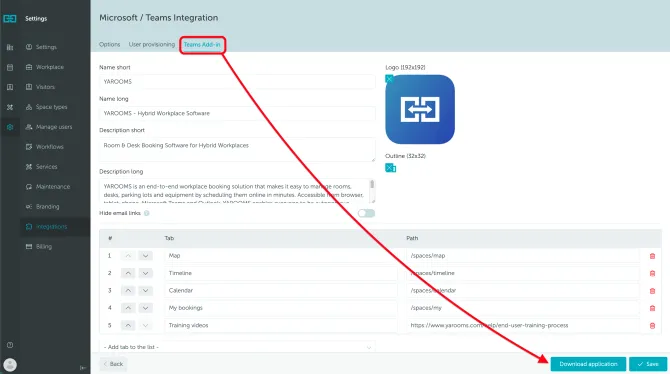
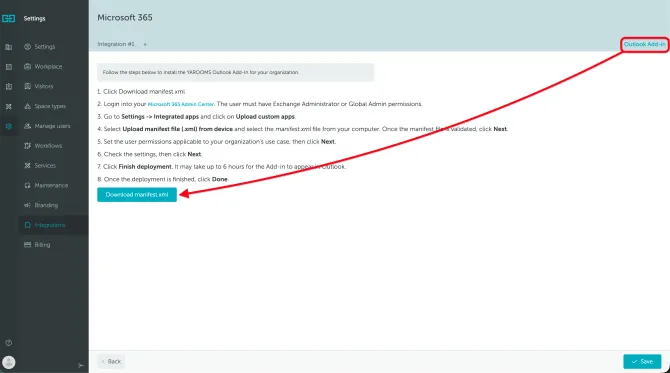
Re-download your:
- Microsoft/Teams integration (Teams Add-in)
and/or
- Microsoft 365 Calendar sync application (Outlook Add-in).
5. Upload the new versions to their respective platforms:
Microsoft/Teams Integration (Teams Add-in)
- http://admin.teams.microsoft.com/
- Teams apps / Manage apps
- Identify your Yarooms app (should be Custom app / Yes) and click on it
- New version / Upload file and select your .zip file
Microsoft 365 Calendar sync (Outlook Add-in)
- https://admin.microsoft.com/adminportal/home?#/homepage
- Show All, Settings -> Integrated apps
- Select YAROOMS from deployed apps
- Update add-in and select your manifest.xml