
Jump to:
What you will need
- A YAROOMS account with an active subscription
- Claude Pro, Team, or Enterprise plan (connectors are not available on the free plan)
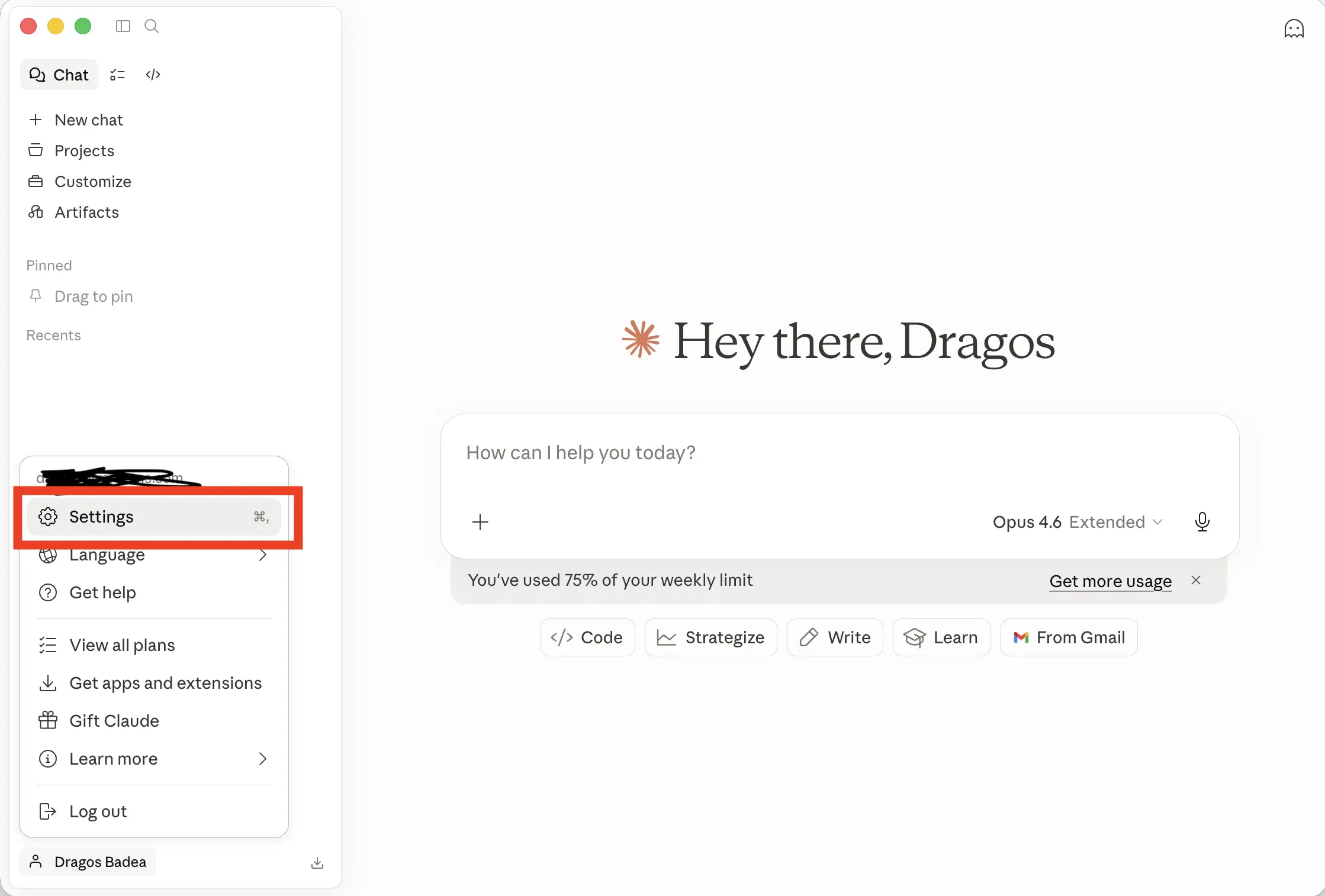
Step 1: Open Settings
Open Claude and click your name in the bottom-left corner to open the menu. Click Settings.
Step 2: Go to Connectors
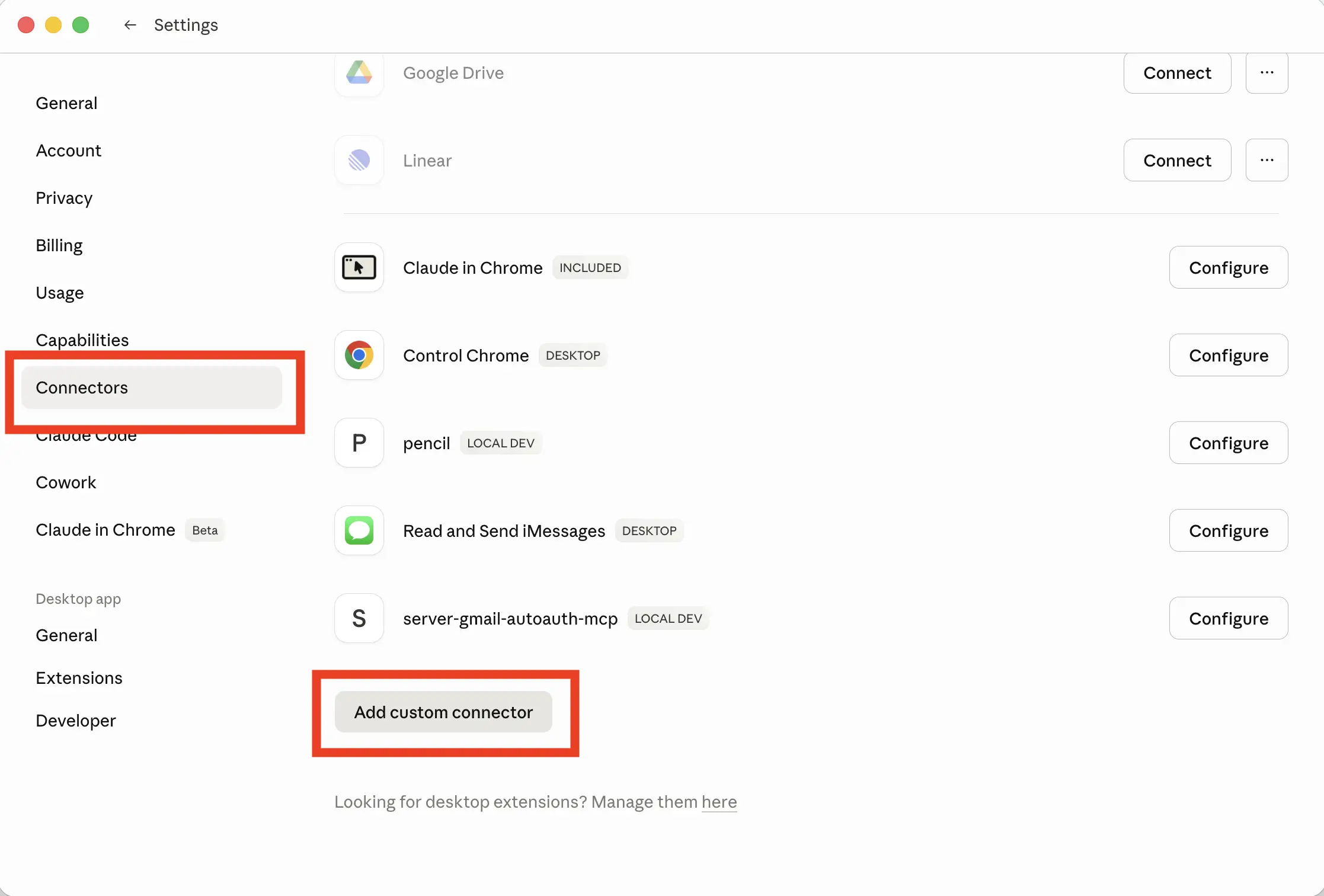
In the Settings sidebar, click Connectors. Then click the Add custom connector button at the bottom of the page.
Step 3: Add the YAROOMS connector
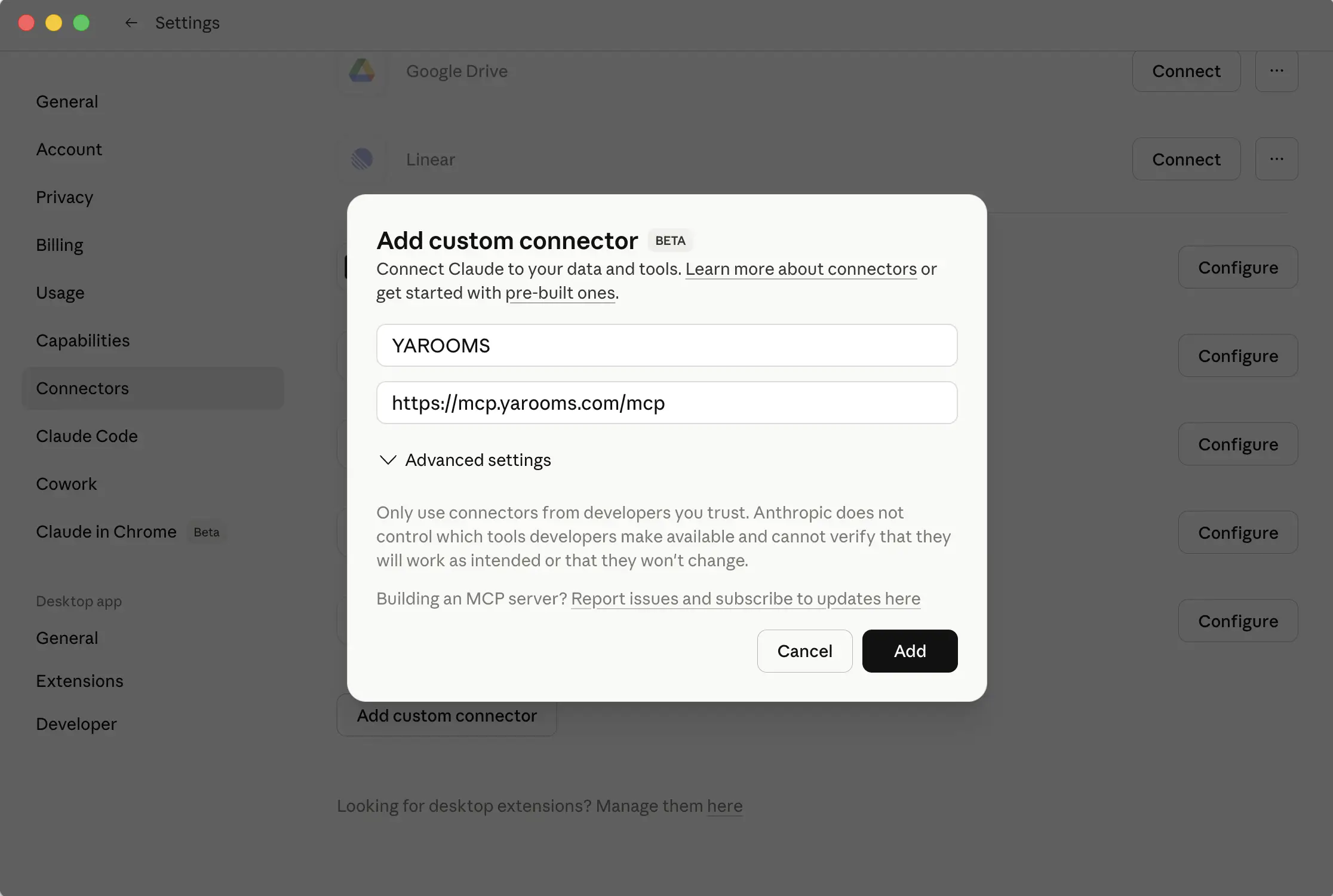
In the dialog that appears, enter the following:
- Name: YAROOMS
- URL:
https://mcp.yarooms.com/mcp
Click Add.
Step 4: Connect to YAROOMS
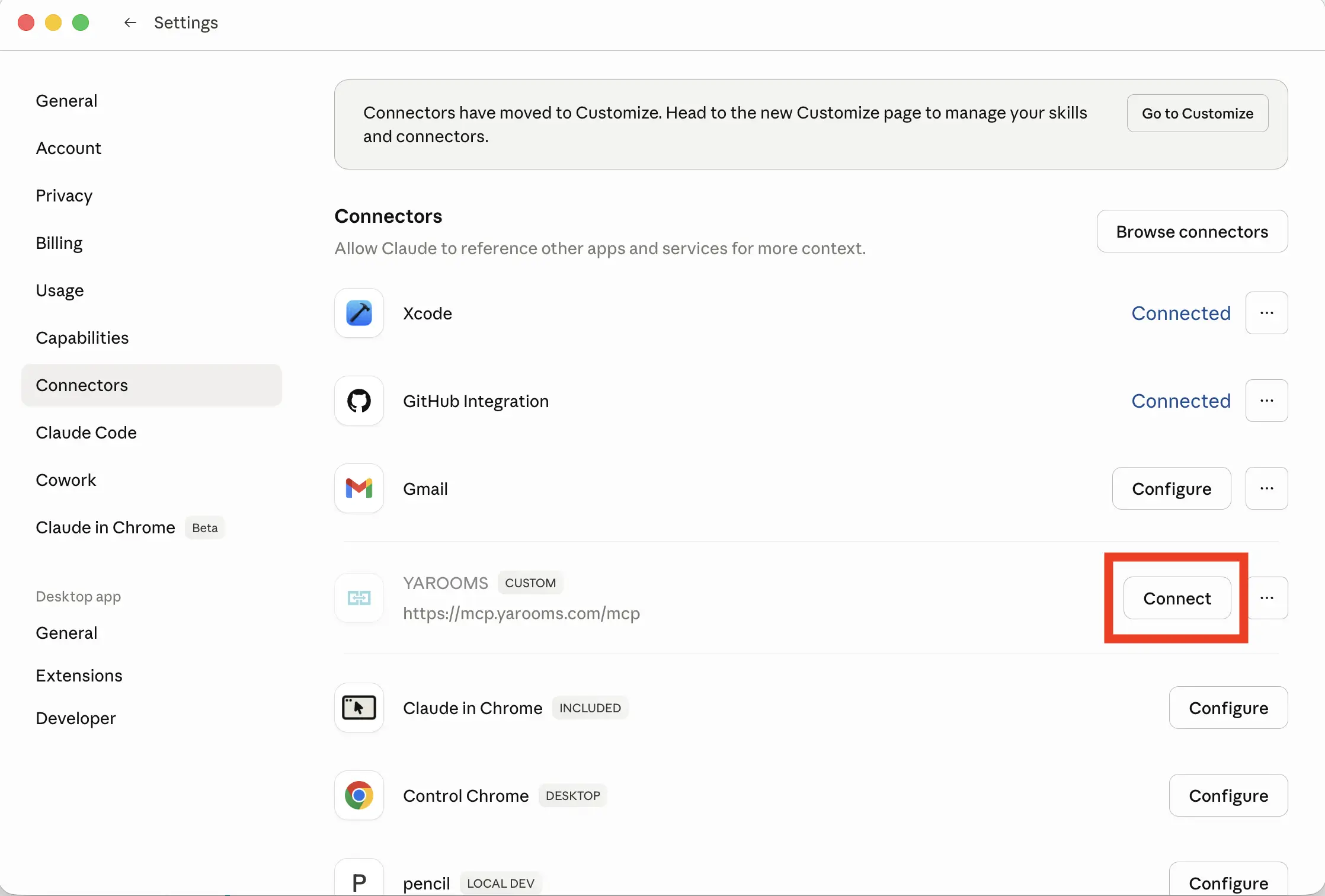
YAROOMS now appears in your connectors list. Click the Connect button next to it to start the authentication flow.
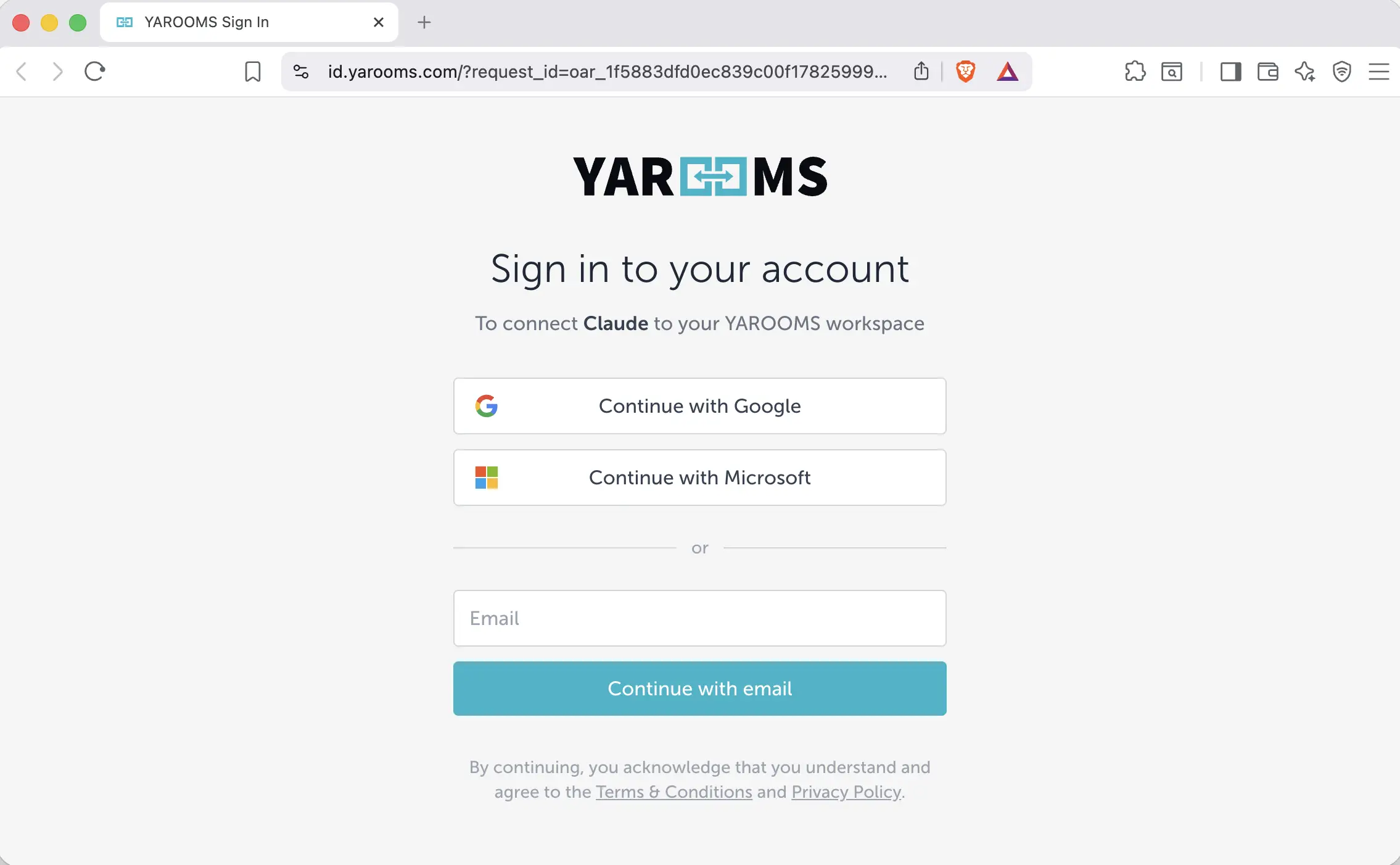
Step 5: Sign in to your YAROOMS account
A YAROOMS sign-in page will open in your browser. Log in using your preferred method: Google, Microsoft, or email.
Step 6: Verify the connection
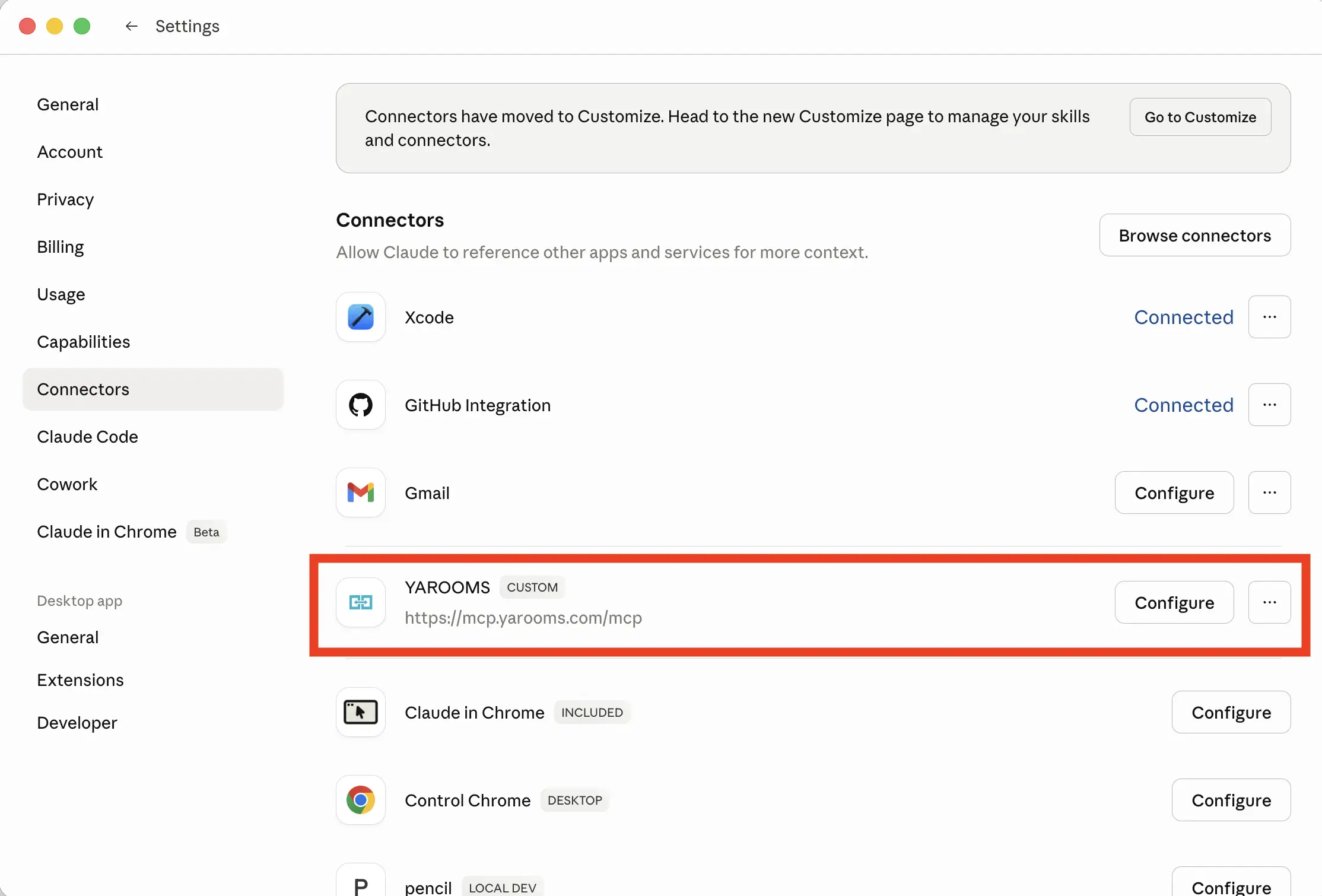
After signing in, you are returned to Claude Settings. The YAROOMS connector should now show a Configure button instead of “Connect”, which means the connection is active.
Step 7: Start using YAROOMS in Claude
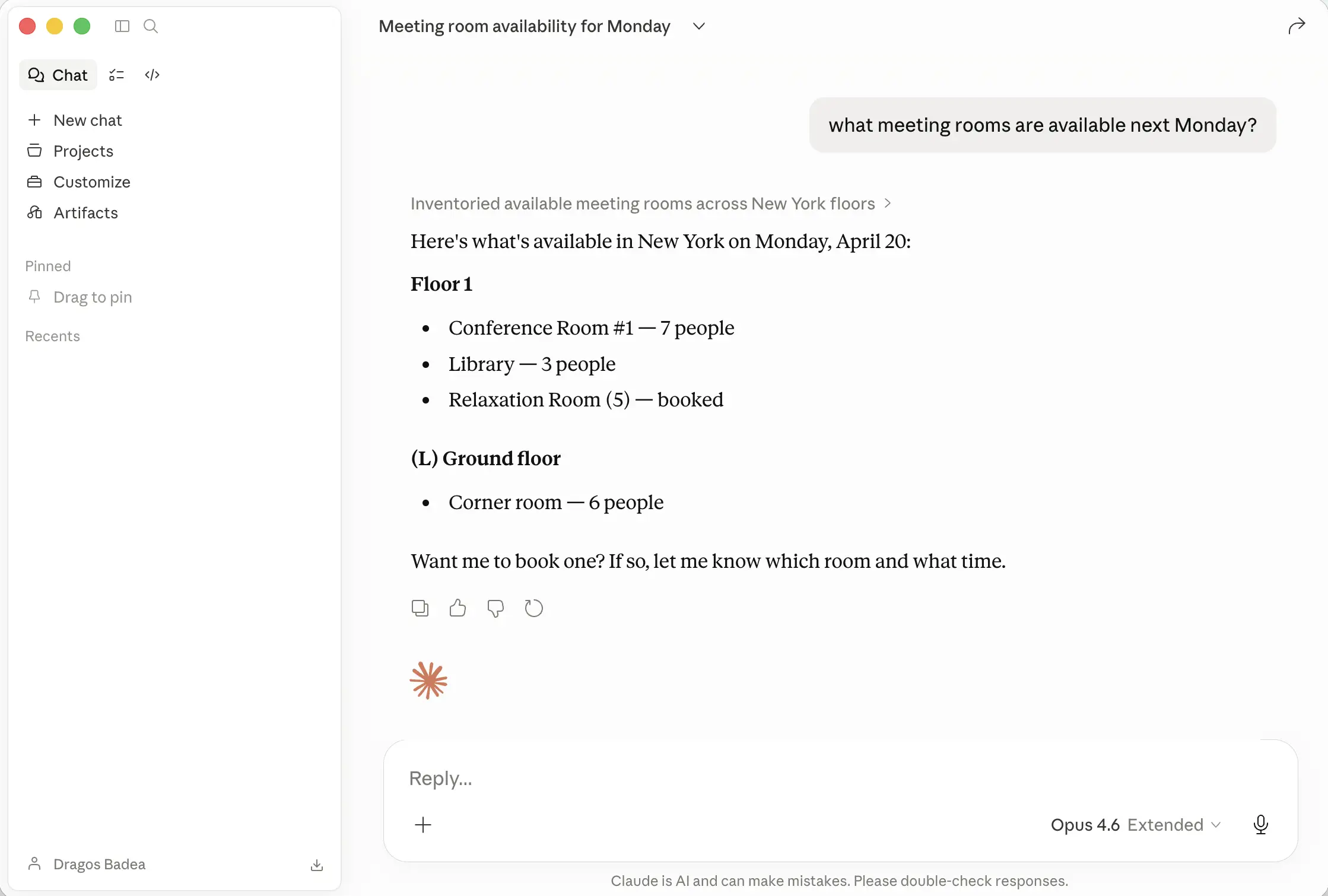
Open a new conversation and ask Claude to do something in YAROOMS. For example:
What meeting rooms are available next Monday?
Claude will check your YAROOMS account and respond with real-time availability.
Troubleshooting
| Symptom | Cause | Fix |
|---|---|---|
| Connectors option not visible in Settings | Your Claude plan does not support connectors | Upgrade to Claude Pro, Team, or Enterprise |
| “Authentication failed” | OAuth login did not complete | Remove the connector and add it again, then complete the login flow |
| “User not found” | Your email does not match a YAROOMS account | Ask your YAROOMS admin to verify your account exists |
| Claude does not use YAROOMS tools | The connector may be inactive | Check Settings > Connectors and verify YAROOMS shows “Configure” (not “Connect”) |