Room States
YAROOMS Door shows your rooms’ status using 3 colour codes: Green if it’s unoccupied, Orange if it’s awaiting check-in and Red if it is currently booked.
- Green - Available
- Orange - Waiting for Check-in
- Red - Occupied
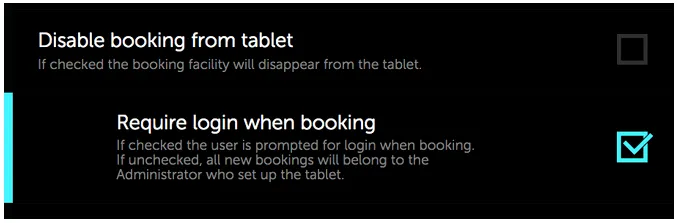
Require login when booking
Another feature that can be activated if the booking function is enabled on your tablet requests user login before being able to make bookings directly from the room’s tablet.
To do this, simply go to the Settings menu on your tablet and make sure that bookings from the tablet are enabled, then check the “Require login when booking” box.
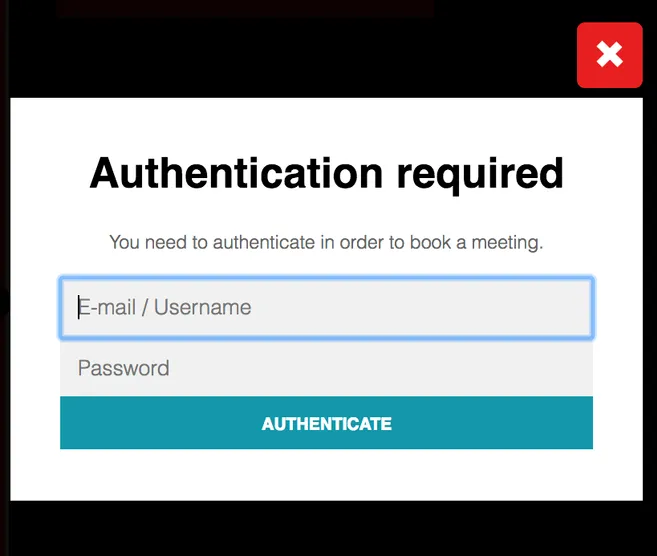
When this feature is active, your users will get a pop-up window where they will be asked to input their credentials.
Extra Settings
You can change your app’s settings at any time by clicking on the gear icon in the lower-left corner.
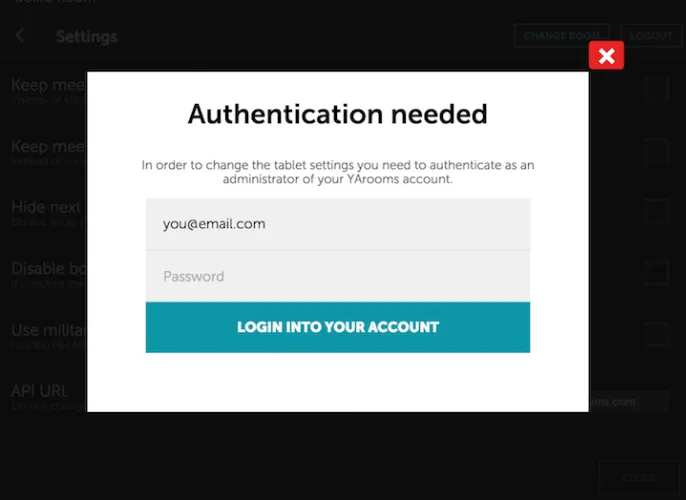
The app will ask for your credentials before moving forward.
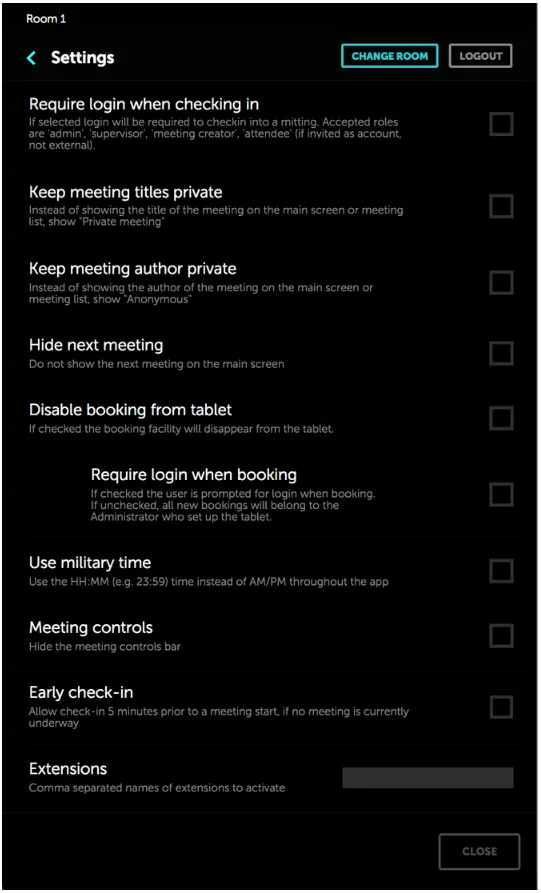
From the settings screen, you can:
- Change the tablet’s assigned room
- Require login before check-in
- Hide meeting names
- Hide booker name
- Hide next meeting from main screen
- Disable tablet bookings
- Require login for new bookings
- Modify time format
- Hide control bar
- Activate early check-in
- Activate extensions (iadea, qbic, powerbx, prodvx)