
Authenticate to YAROOMS using OneLogin as an Identity Provider through the SAML2.0 standard.
This article assumes you have a OneLogin account and are authenticated to it. Also, your YAROOMS user should be an Administrator. To register for a OneLogin account follow this link.
Step 1. Create a new application in OneLogin.
In the top menu bar, click Apps -> Add Apps.
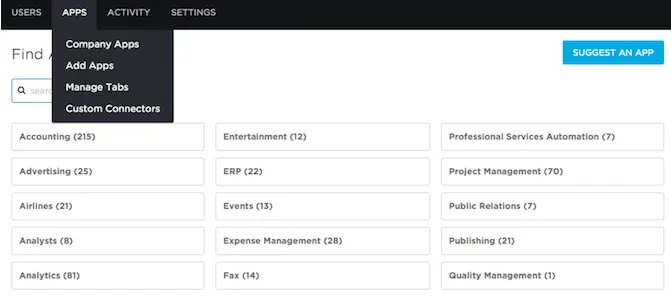
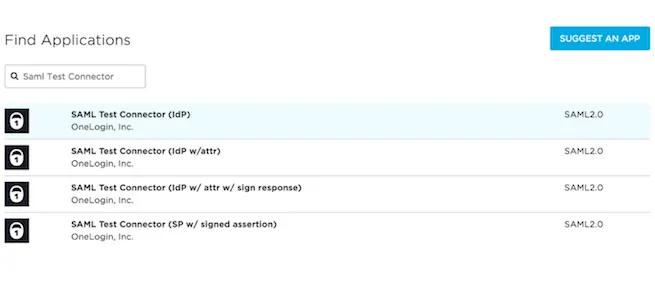
Step 2. Create a new SAML Test Connector (IdP w/attr).
Search for SAML Test Connector (IdP w/attr) and click that option.
Step 3. Add an app description
Type in the name of the app. The logo is optional and used only in OneLogin, not in YAROOMS.
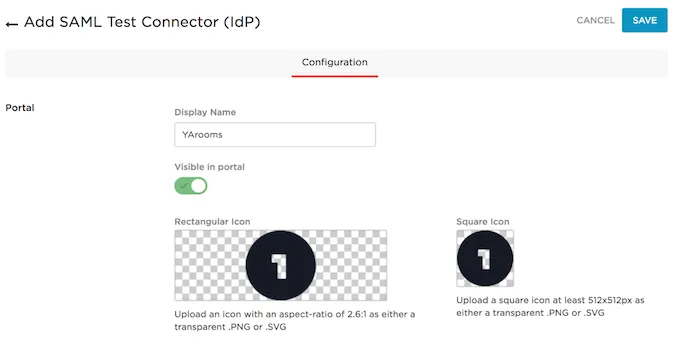
Step 4. Configure the SAML Connection in YAROOMS.
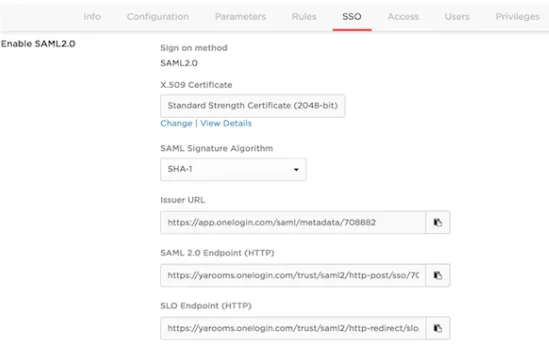
After saving the app, click on the SSO tab. In a new browser tab, login as an Administrator of your YAROOMS domain. Navigate to Integrations -> SAML 2.0 Authentication and start the integration process. In the Connection tab, fill in the form as follows:
- Identity Provider: Type OneLogin (this is a label, any value is accepted, it will appear on the login page as “Authenticate with OneLogin”)
- Issuer URL: Copy and paste the value for Issuer URL from OneLogin’s SSO tab
- SAML Endpoint: Copy and paste the value for SAML 2.0 Endpoint (HTTP)
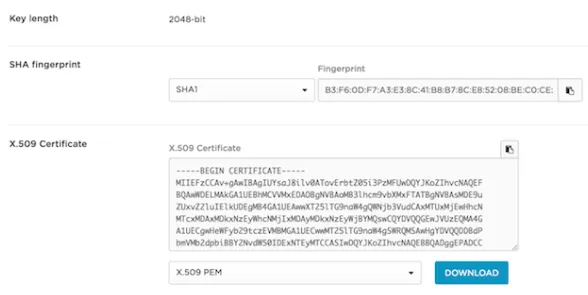
- X.509 Certificate: Click on the View Details link in OneLogin. Copy the entire string from the X.509 Certificate field and paste it in YAROOMS.
- Name ID Format: choose emailAddress as value.
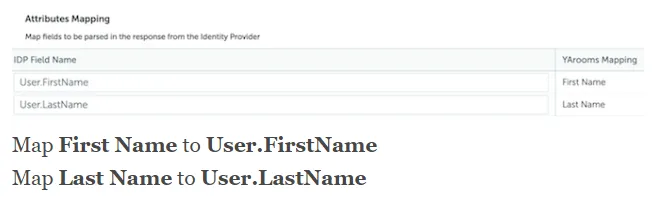
- Attributes Mapping: as shown below
Save options and navigate to the User options tab. Set a default group and location for the new users created with data from the Identity Provider. When one of your users authenticates to YAROOMS for the first time through the OneLogin integration, YAROOMS provisions a new User account. These settings are the default settings for new users.
Save User options and navigate to the Application details tab.
Step 5. Configure the application in OneLogin
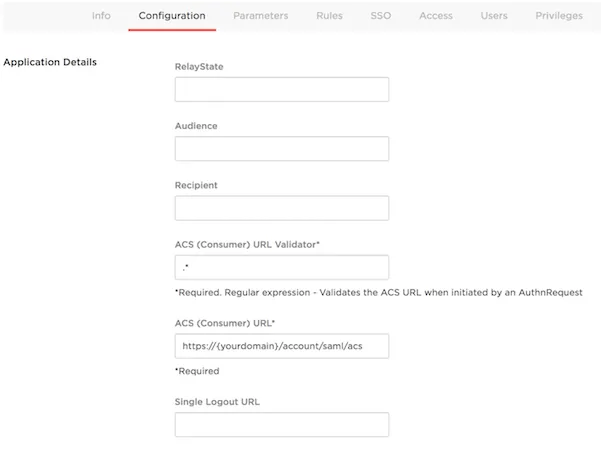
Navigate back to the OneLogin application created before and click on the Configuration tab. Fill in ACS (Consumer) URL Validator and ACS (Consumer) URL fields with the values provided by YAROOMS (the other fields are optional).

Step 6. Activate SAML 2.0 Integration in YAROOMS
Click on the activation button under the Application details tab and complete the integration process.
Note: Proper user provisioning and assignment in OneLogin are not topics covered by this tutorial which assumes you already know how to configure OneLogin options that are specific to how your organisation sets up its users.