
This tutorial assumes that you have completed the creation of an iCal feed and you have the feed URL at hand. For more details see Creating an iCal feed.
This tutorial is supported by screenshots from Outlook 2013, but the process is similar in older versions of Outlook as well.
Steps
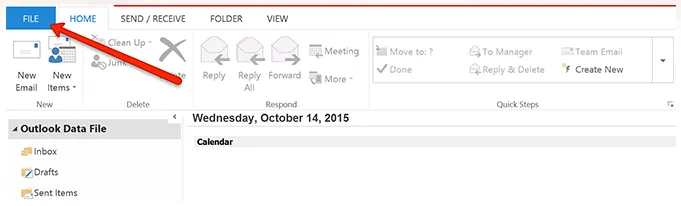
- In Outlook, click the File tab in the top tab bar.
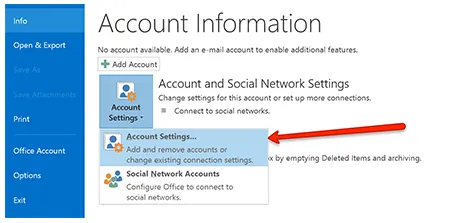
- Click on the “Account Settings” option to open the settings menu.
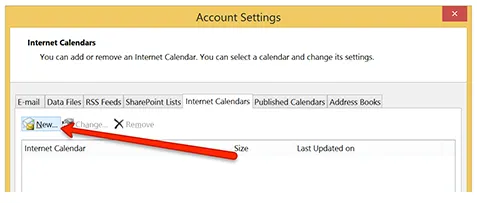
- In the newly opened window go to the “Internet Calendars” tab and click the “New” button.
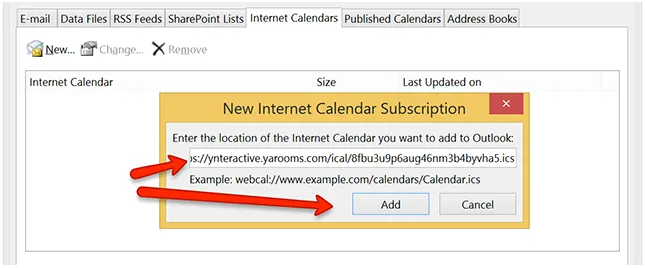
- Enter the iCal feed URL and click the “Add” button.
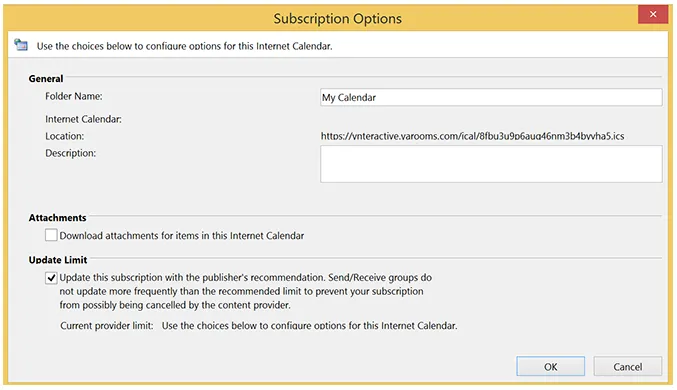
- In the next window enter a name for your calendar subscription and press OK.
- After reading the data from YAROOMS, Outlook will create a new calendar in the Other Calendars section of the Calendar tab with the name entered at the previous step. Selecting that calendar will also show events from YAROOMS and Outlook will periodically update the calendar with new data that is entered in YAROOMS.