
By using this integration, the users in your domain will be able to login to YAROOMS with their network credentials, instead of an administrator having to create accounts for everyone.
A user account is created upon first LDAP authentication.
Navigate to the Integrations page from the Manage menu, then click on the Open LDAP and Microsoft Active Directory section to see the integration status. Click Activate to proceed.
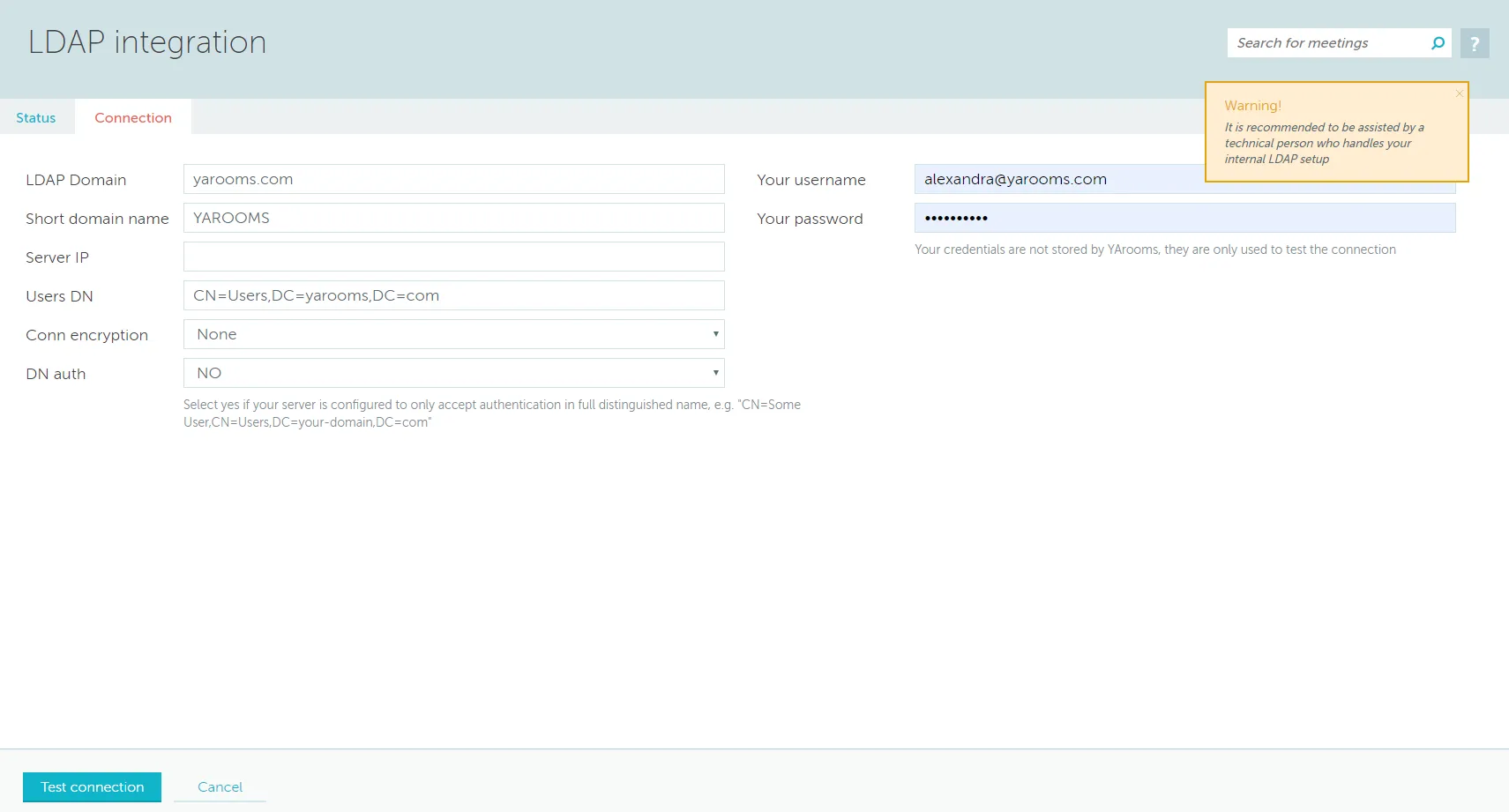
The setup screen requires the following settings:
- LDAP Domain – your domain, usually the one that is also used for email; for example, YAROOMS’s domain is yarooms.com
- Short domain name – usually it is the domain name without the suffix in uppercase
- Server IP – the publicly accessible IP address of your LDAP server; YAROOMS needs to connect to your server from the public Internet
- Users DN – the internal LDAP Distinguished Name for the container that holds your user records
- Conn encryption – the type of encryption your LDAP server requires to connect to
- DN auth – some LDAP setup require authentication with the full Distinguished Name; if this is the case, choose yes
- Username – a valid account name
- Password – a valid account password
The username and password you enter will not be stored by YAROOMS, they are only used to check if authentication can be achieved with the rest of the provided settings.
To test the entered settings click on the Test connection button and if it is successful you will have to only define a few more settings.
After successfully setting up the connection, location and group mapping will be available.
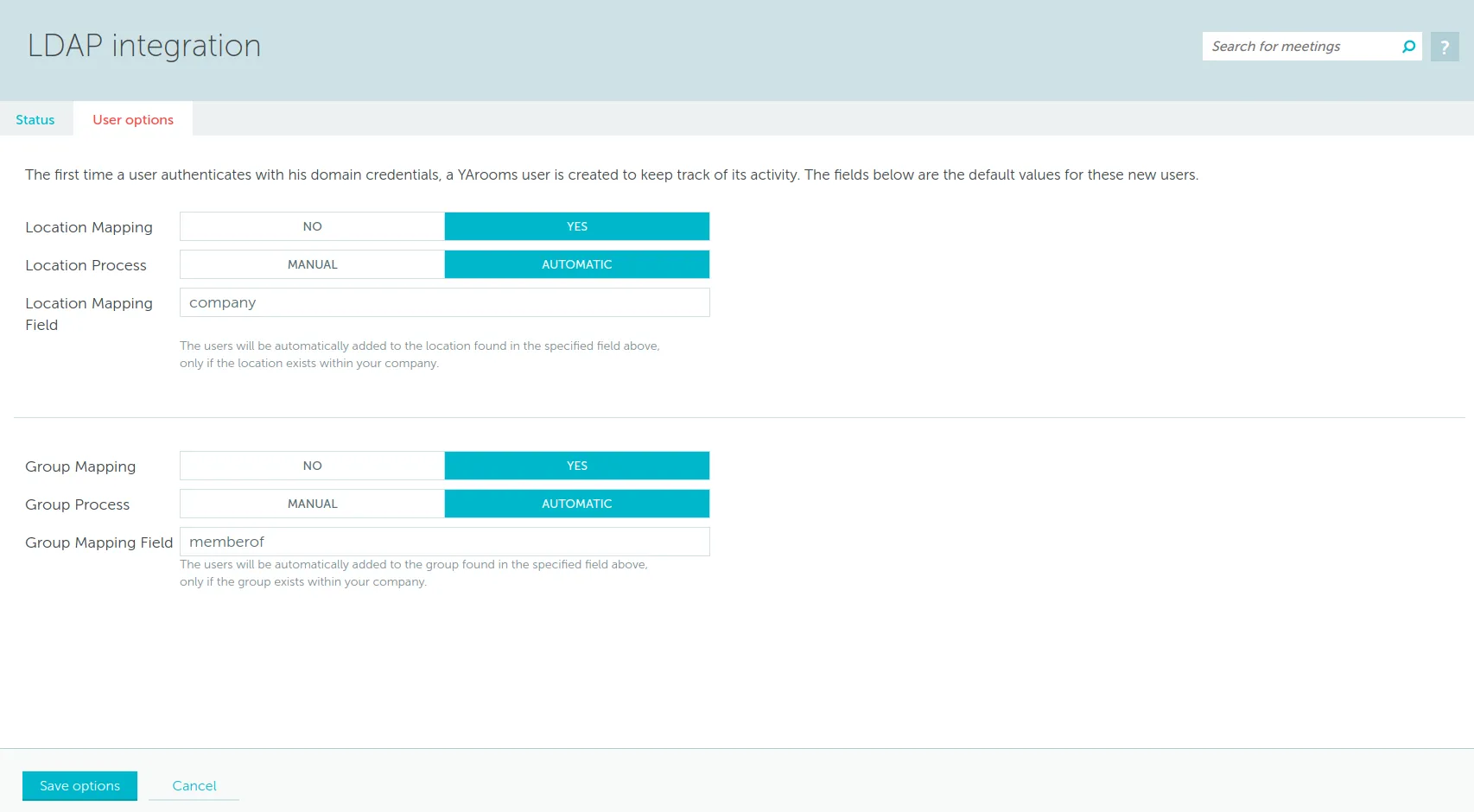
Manual mapping allows to pair locations/groups from the LDAP server with existing YAROOMS entities.
Automatic mapping allows to pair any field from the LDAP server to locations/groups.
Warning: This only works if the values found in the selected custom fields are already present in YAROOMS as locations/groups.