
This tutorial assumes that you have completed the creation of an iCal feed and you have the feed URL at hand. For more details see Creating an iCal feed.
Step 1: Open Calendar Subscription
Open the Mac Calendar application (or iCal) and select “New Calendar Subscription” from the File menu.
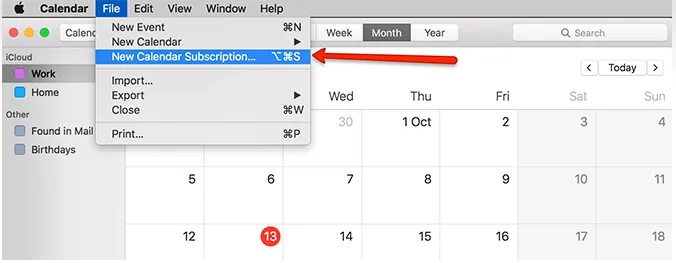
Step 2: Paste Feed URL
In the overlay that appears paste the iCal feed URL and click Subscribe.
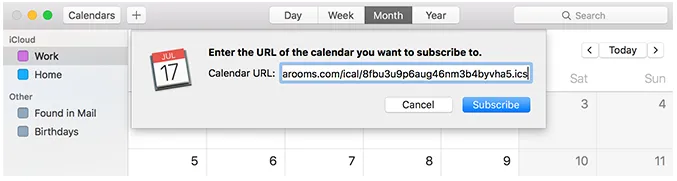
Step 3: Configure Auto-Refresh
Enter a name for the calendar subscription, then select 5 minutes as the Auto-refresh interval and click OK.
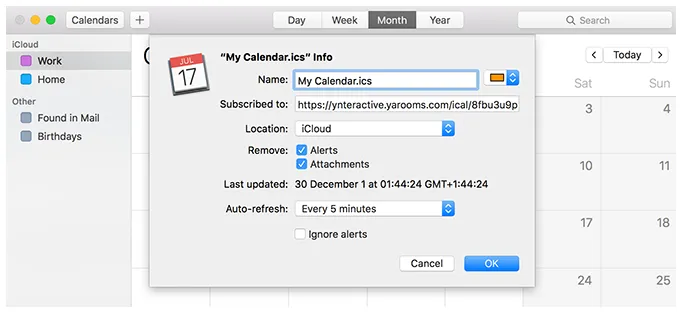
Results
A new calendar appears in the left sidebar with imported events. The calendar application refreshes every 5 minutes to load new YAROOMS events. If stored in iCloud with synced devices like iPhone or iPad, events and reminders display across all devices.