
1. How to set up
If you have bought the IAdea desk booking devices you need to contact our support team who will help you activate the IAdea module. Once it’s done, follow these steps:
Open the IAdea Desk Booking Gateway interface on a monitor and use the “Set content” functionality to connect it to YAROOMS.
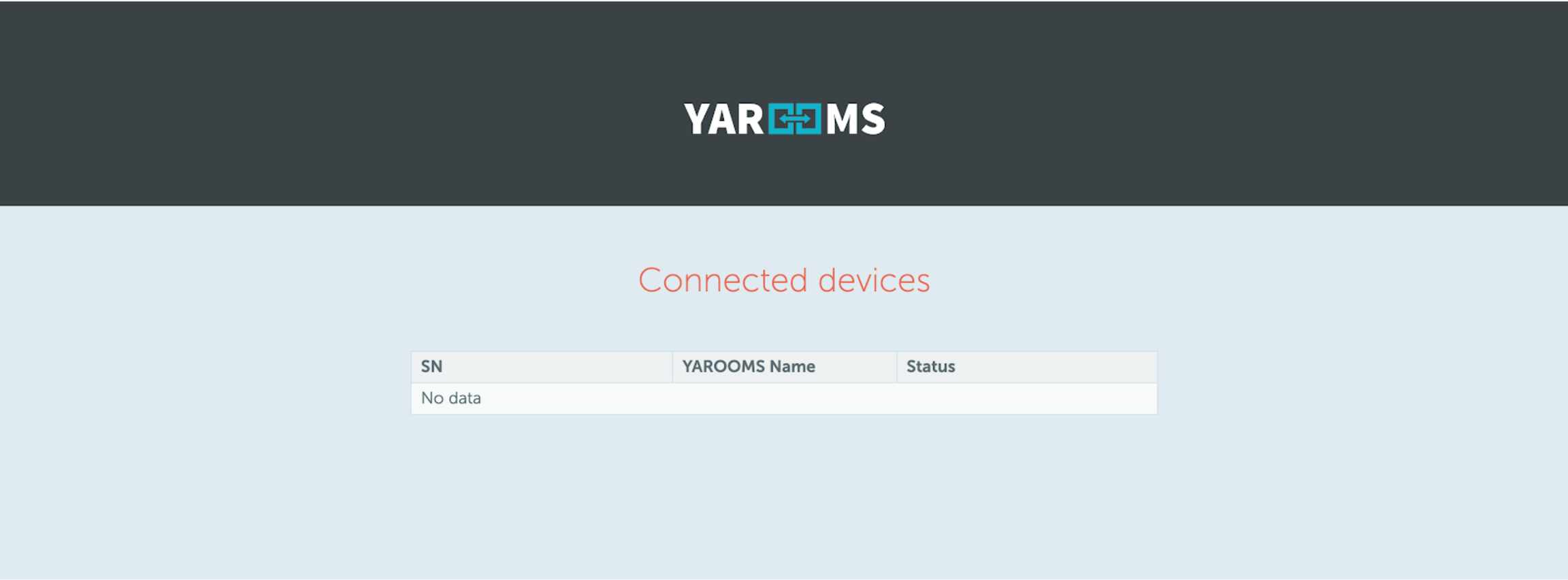
From the IAdea Gateway, access the unique URL found on the integrations detail page (Manage → Integrations → IAdea Desk Booking → Manage). You should see the following:
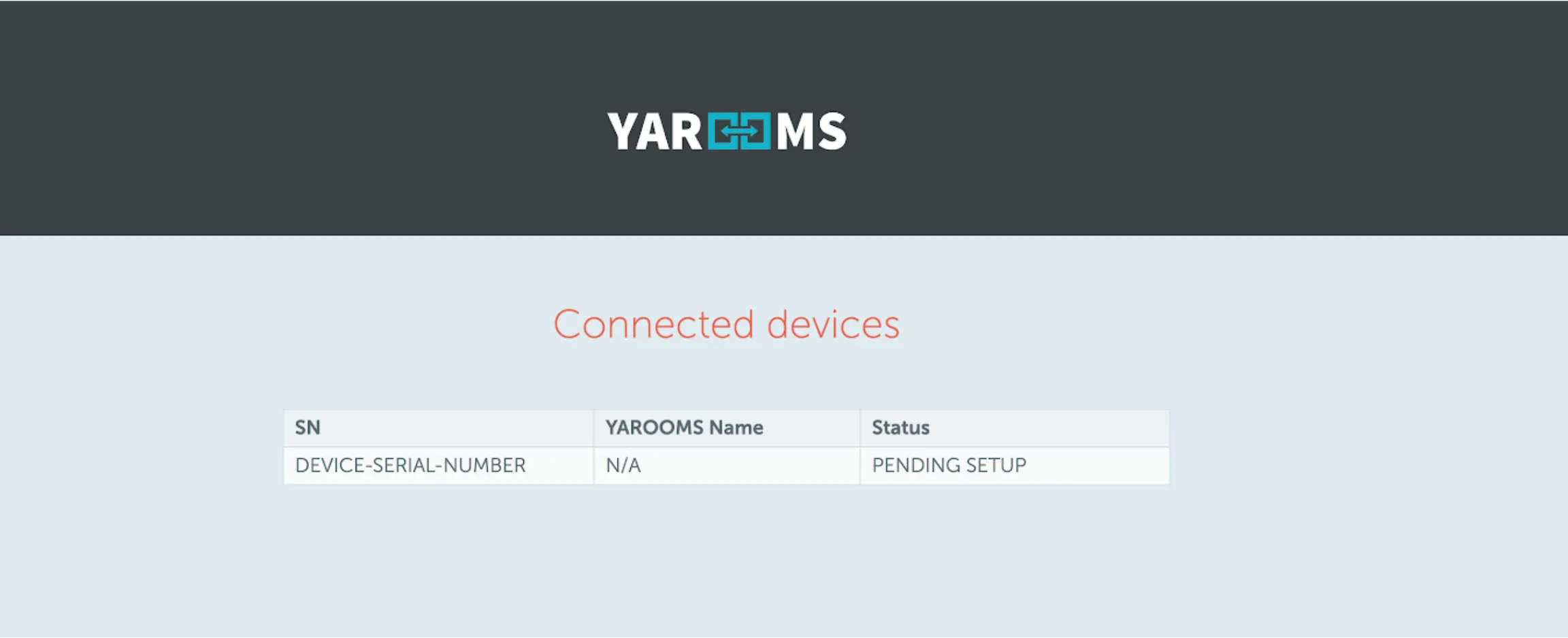
- Plug in the IAdea’s Desk Booking device to the gateway using a USB cable. It will appear on the “Connected devices” page, with a status “Pending setup”:
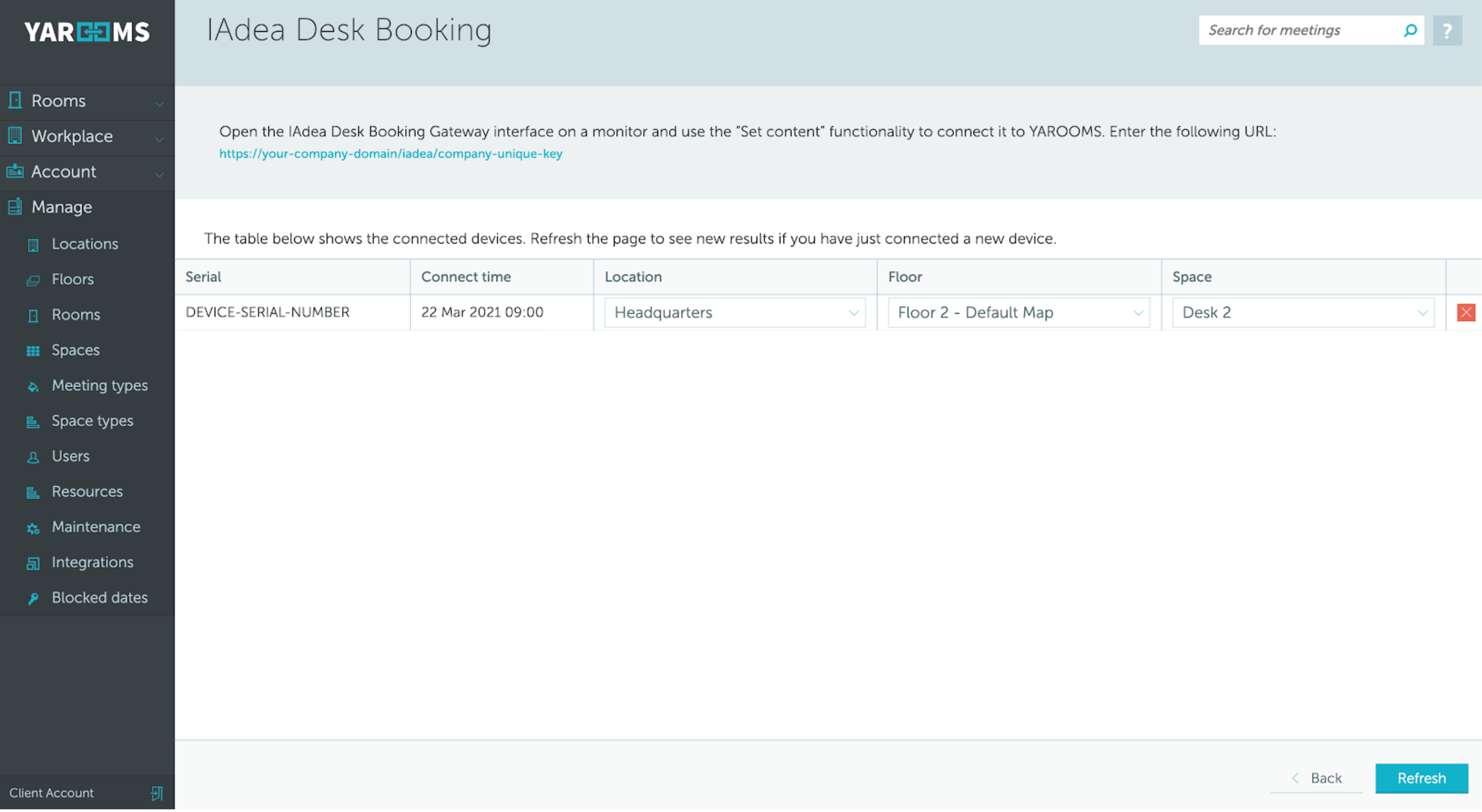
- Get back to your YAROOMS account (Manage → Integrations → IAdea Desk Booking → Manage) and assign location/floor/space to the device:
- Repeat the process with all IAdea Desk Booking devices.
2. Device statuses
- Pending setup - waiting for a space to be assigned. The device blinks white light.
- Available - the space is free. The device lights up in green.
- Waiting for check-in - the assigned space is booked and is waiting for check-in. The device lights up in yellow.
- Busy - the assigned space is booked and either checked-in or it doesn’t have the check-in functionality activated. The device light is red.
- Disabled - date blocked, day blocked at the location level, disabled by maintenance, disabled by distancing, etc. No light.