
This integration enables Google GSuite SAML 2.0 authentication for YAROOMS login.
Step 1. Create SAML App in Google Admin
Login to your G Suite administrator account and navigate to Apps → SAML Apps. Create a new App.
At Step 1, select “Setup My Own Custom App” at the bottom of the dialog.
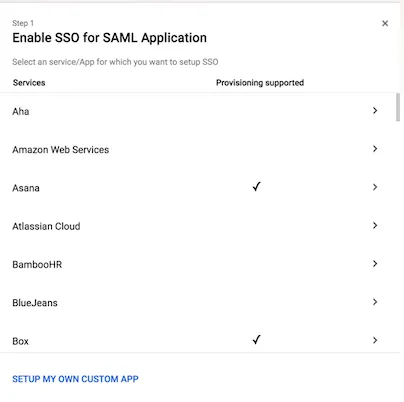
Step 2 displays the Identity Provider information.
Step 2. Configure the SAML Connection in YAROOMS
Login as administrator to your YAROOMS domain. Navigate to Integrations → SAML 2.0 Authentication and begin the integration. In the Connection tab, complete the form:
- Identity Provider: Type “Google SAML” (this label will appear on the login page)
- Issuer URL: Copy the Entity ID value from Google IdP Information
- SAML Endpoint: Copy the SSO URL from Google IdP Information (or use a placeholder URL for now)
- X.509 Certificate: Download the certificate from Google IdP Information. Open the .pem file and copy its contents
- Name ID Format: Select emailAddress
Attributes Mapping

- Map First Name to FirstName
- Map Last Name to LastName
Save options and navigate to the User options tab. Set default group and location for new users.

Navigate to the Application details tab. Note the values here for the next step.
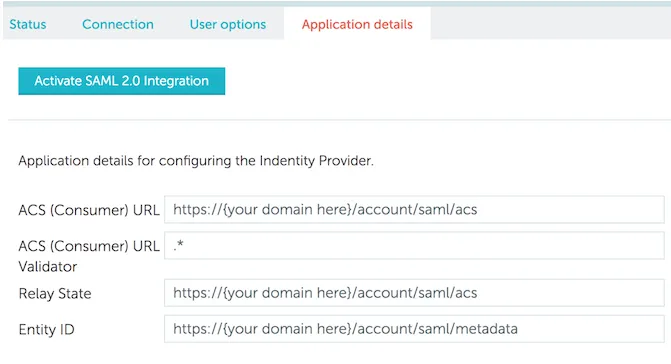
Step 3. Fill Service Provider Details in the Google App
In the Google App dialog (Step 4), complete:
- ACS URL: Paste the ACS (Consumer) URL from YAROOMS Application details
- Entity ID: Paste your YAROOMS domain URL (e.g., https://mycompany.yarooms.com/)
- Name ID: Basic Information, Primary Email
- Name ID Format: EMAIL
Step 4. Map Attributes in the Google App
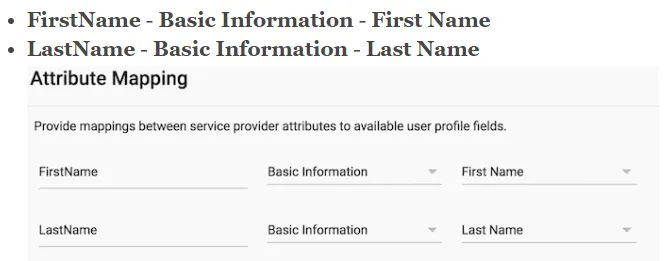
Define the attribute mappings:
- FirstName → Basic Information - First Name
- LastName → Basic Information - Last Name
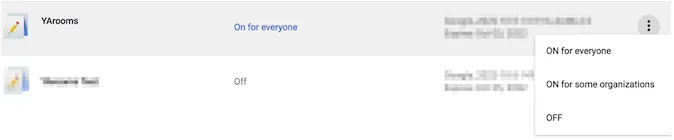
Save the Application. In Google Admin, navigate to Apps → SAML Apps, turn the App on, and configure user settings.
Step 5. Fix the SAML Endpoint in YAROOMS Connection Settings
In Google Admin, open the YAROOMS SAML application menu.
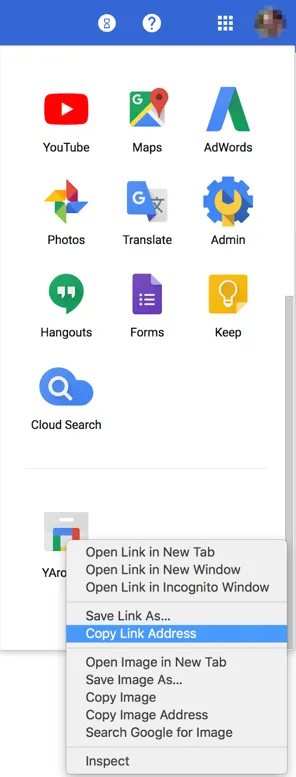
Right-click (or Control-click on Mac) and select “Copy Link Address.” Paste this link into the SAML Endpoint field in YAROOMS Connection settings. It should resemble: https://accounts.google.com/o/saml2/initsso?idpid=C012abcde&spid=123456789012&forceauthn=false
Save Connection settings. Navigate to Application details and activate YAROOMS SAML 2.0 Integration.
Note: This tutorial assumes existing G Suite configuration knowledge. User provisioning and assignment in G Suite must be configured according to your organization’s requirements.