
Jump to:
The org chart shows who works at a location and who reports to whom. A person card shows a colleague’s job title, contact details and manager, and where they sit today.
Note: The org chart is available when your organization turns it on. If you do not see it, ask your administrator.
Open the org chart
- Go to Workplace → Map and select a location.
- Click Org chart in the top-right corner of the map. On a phone, the button is above the map controls.
The org chart lists the people based at that location, grouped under their managers. The title shows the location and the number of people.
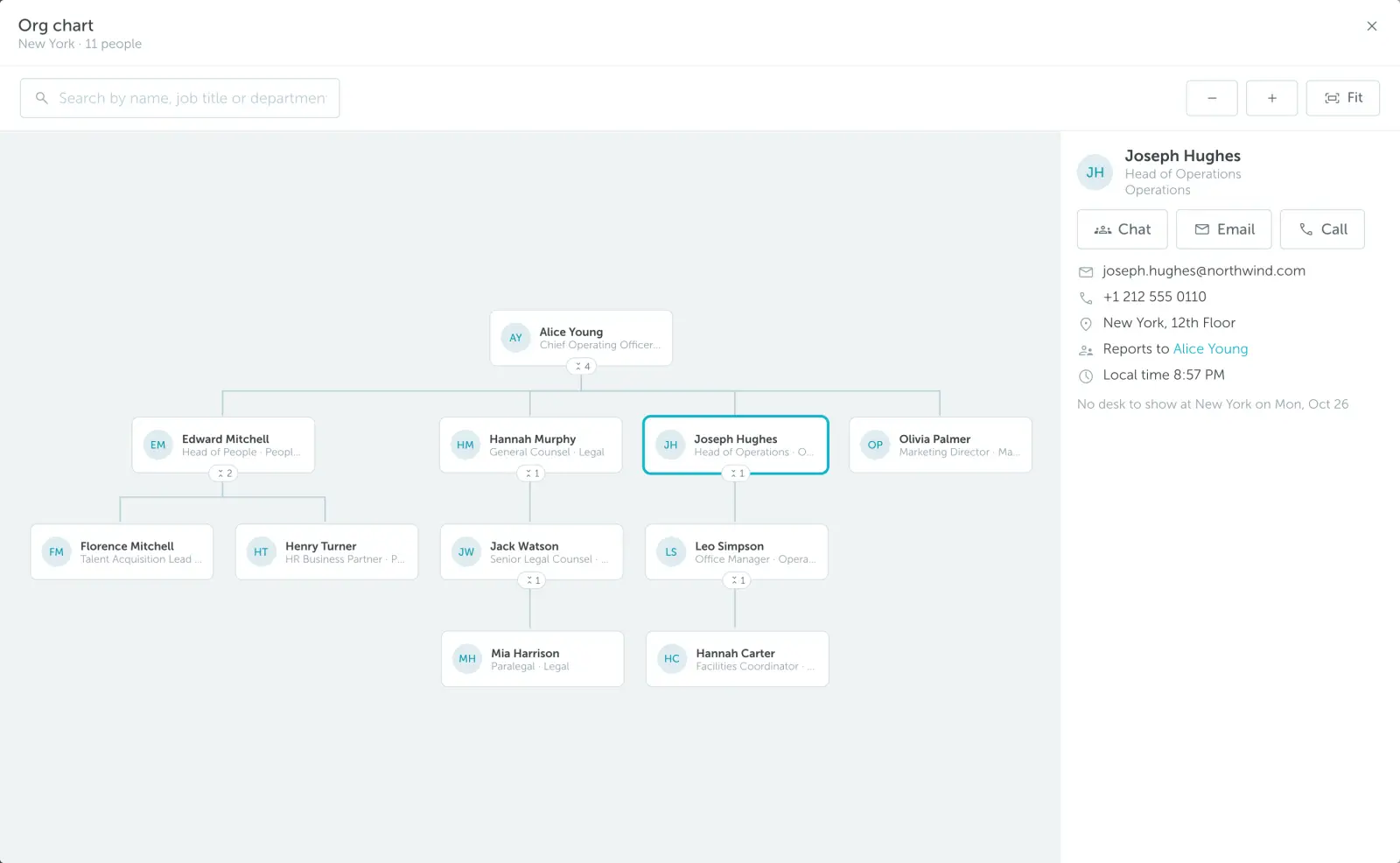
- Click the number under a manager’s card to show or hide their team.
- Type in Search by name, job title or department to highlight the people who match.
- Use + and − to zoom, and Fit to see the whole chart. Drag to move around. On a keyboard, use the arrow keys to move between people.
- Click a person to open their person card next to the chart.
Person cards
Open a person card in one of these ways:
- Click a person in the org chart.
- On the map, click a booked desk, then click the name of the person who booked it.
The person card shows:
- Name, job title and department.
- Chat opens a one-to-one chat in Microsoft Teams. It shows only if your organization uses Microsoft sign-in or the YAROOMS Teams app.
- Email opens your email app with a new message to the person.
- Call calls the phone number from your device. It shows only if you can see the person’s phone number.
- Email, phone and office location.
- Reports to. Click the manager’s name to open their person card. Click Back to return.
- Local time, in the time zone of the person’s location.
- Their desk for the day. In the org chart, click Show on map to see where they sit. If they have no booking you can see, the card shows No desk to show for that day.
Find a colleague by job title or department
The search field on the Map and Timeline views also finds people based at the location by job title or department, even if they have not booked a space. Click a result to see their desk, or their person card if they have no desk to show that day.
To search by name only, read Finding a Colleague.
Choose who sees your phone number
- Open the account menu at the bottom of the main menu, then click My account.
- Open the Privacy tab, find Phone number, and choose who can see it on your person card:
- Use company setting follows the setting your administrator chose.
- Everyone shows it to anyone who opens your person card.
- My team shows it only to colleagues in your team.
- Nobody keeps your phone number hidden.
If your company does not allow this change, the page tells you so.
Note: Your Visibility mode controls who sees your bookings. The org chart and the directory still list you whatever you choose there.