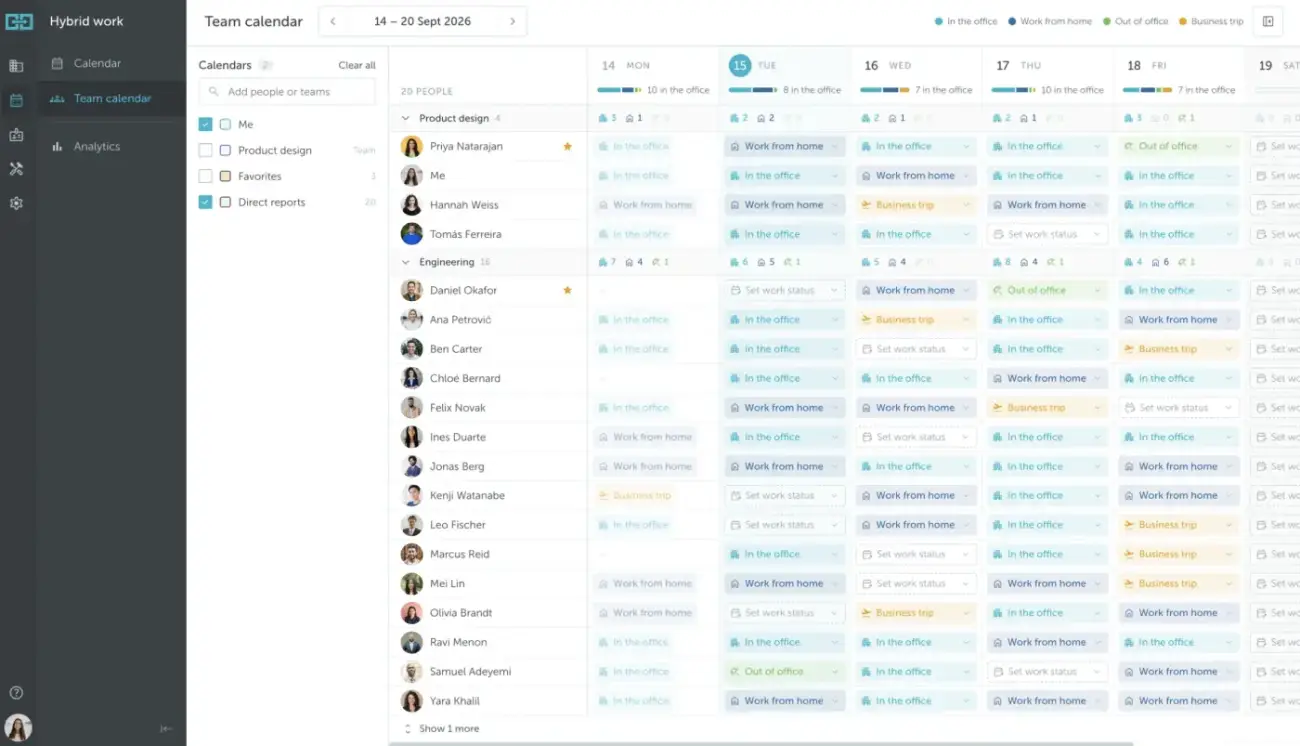
The YAROOMS Team Calendar is a versatile tool that improves transparency and coordination in hybrid work environments. It provides managers and team members a streamlined way to view and manage schedules, ensuring efficient and aligned work planning.
The Team Calendar is designed to meet the needs of managers, providing them with enhanced visibility to organize and synchronize their teams effectively, and for the employees offering clear insights into colleagues’ schedules to support seamless collaboration and improved productivity.
Open Hybrid work and select Team calendar from the left-hand menu. Everyone can access this view. Use the arrows next to the date range to move between weeks.
Each row represents a user, displaying their picture, name, and work status for each day of the week.
Users are grouped by teams, with a dedicated row for each team’s name. The team row shows daily totals by work status, while the summary above the calendar shows how many people are in the office each day.
Favorite users are marked with a star next to their names. Select Favorites in the Calendars panel to view their schedules.
Use the Add people or teams field in the Calendars panel to find colleagues or teams. Select the checkboxes to choose which calendars to display, such as Me, a team, Favorites, or Direct reports. Use Clear all to clear your selections.
Each work status has a color and an icon. The legend at the top of the calendar shows the status colors:
- In the office: teal, with a building icon.
- Work from home: blue, with a house icon.
- Out of office: green, with a palm tree icon.
- Business trip: yellow, with an airplane icon.
- Set work status: a calendar icon and a dashed outline indicate that a work status has not been set.
Managers can set a work status for anyone on the team, while regular users can only set their own work status.