
1. What is the Calendar view?
Use Calendar to see bookings and work statuses in one place. Open Team calendar to see each person’s work status across the week.
2. Using the Calendar
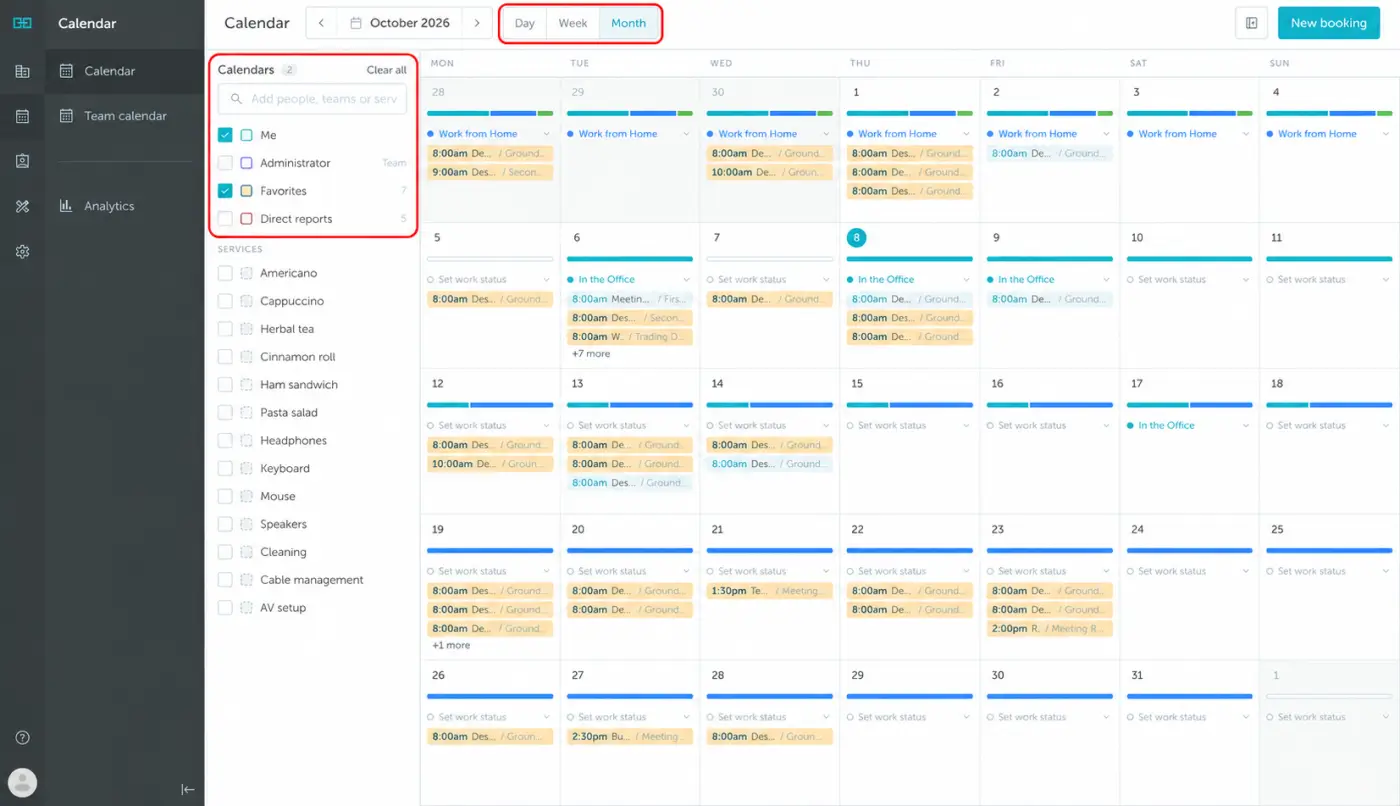
Open Calendar from the left-hand menu. Choose Day, Week, or Month at the top, and use the date arrows to move through the calendar.
In the Calendars panel, select Me, a team, Favorites, or Direct reports to choose whose bookings you see. Use the search field to add people, teams, or services. Each selected calendar has a color, so you can tell its bookings apart. Click Clear all to clear your selections.
Set your work status
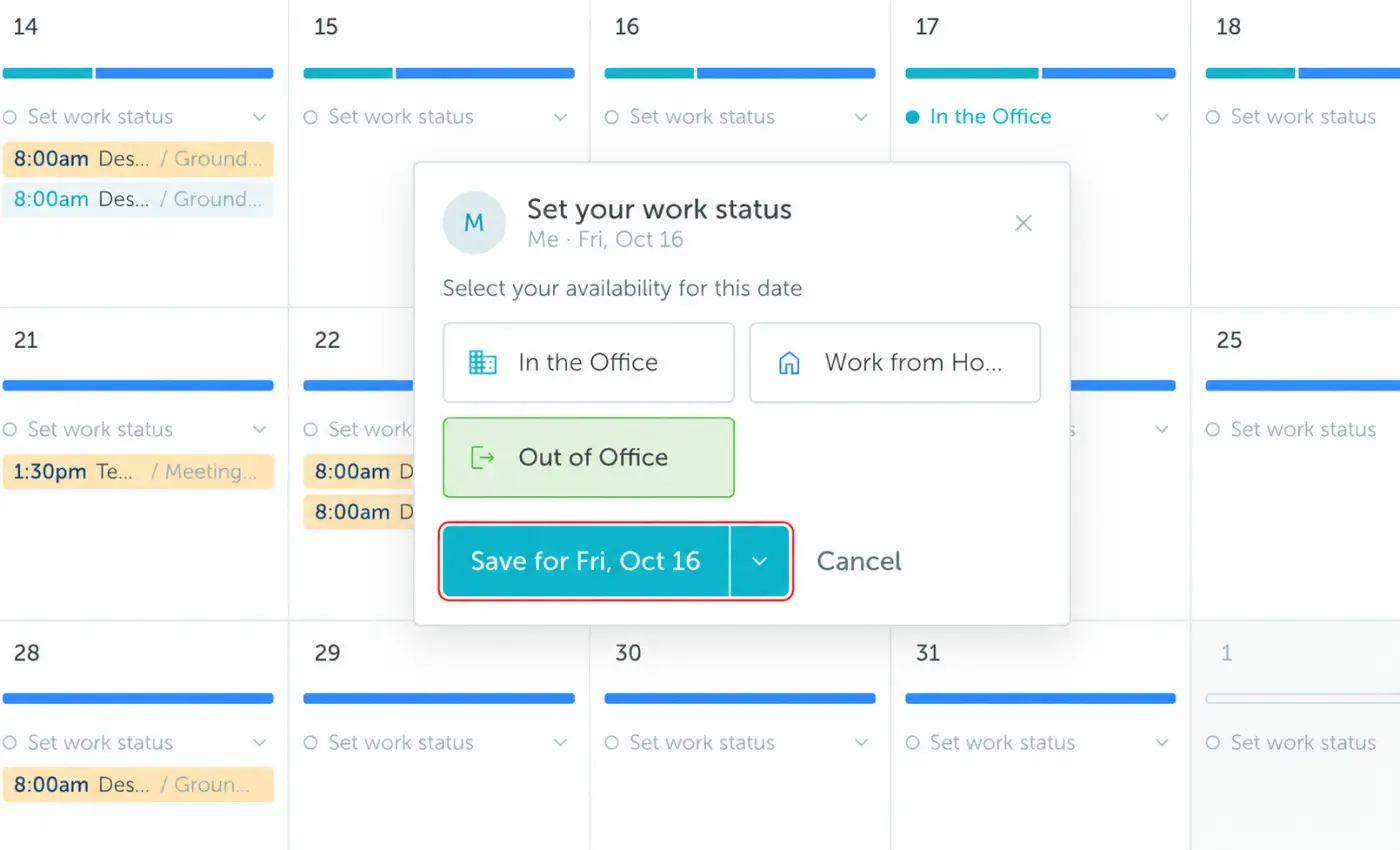
Click Set work status on the day you want to update, or click your existing status to change it. Choose In the Office, Work from Home, or Out of Office, then click Save for [selected date]. Use the arrow next to Save to choose a longer period, such as a week or month.
3. Group booking
You can book spaces for several people in one process.
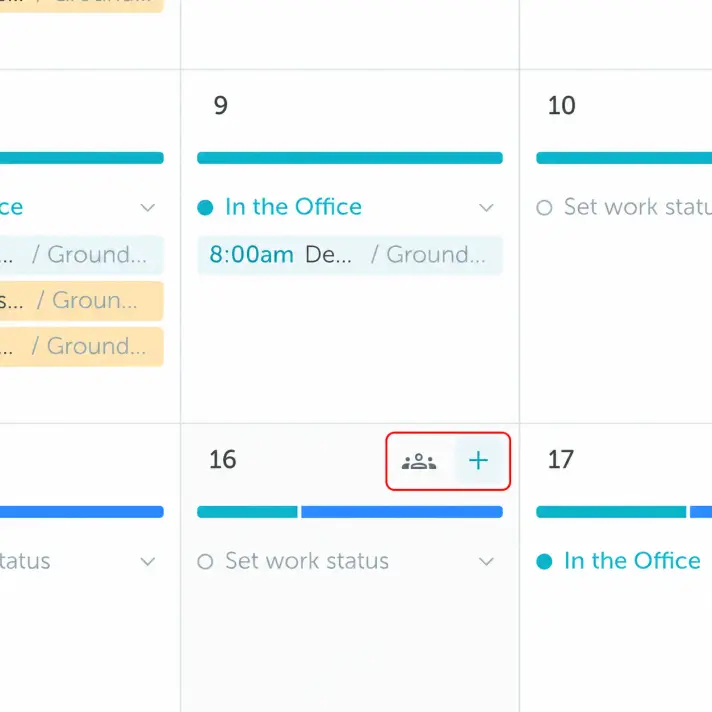
- Hover over the day you want to book and click +. You can also use New booking at the top of the calendar.
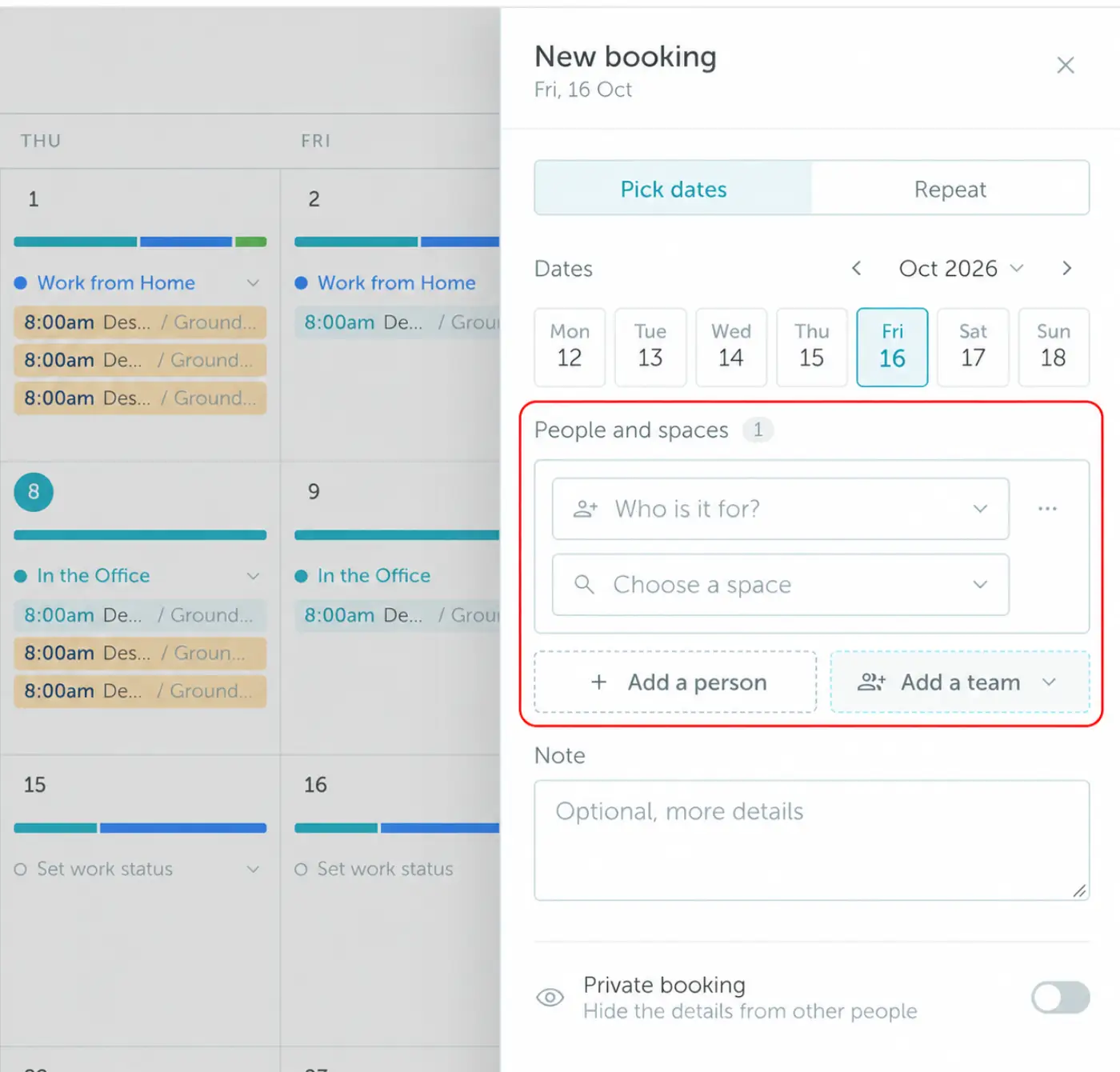
- In the New booking panel, check the selected dates. Use Repeat if you want a recurring booking.
- Under People and spaces, choose Who is it for? and Choose a space.
- Click Add a person for another person, or Add a team to add team members. Choose a space for each person and adjust their booking time as needed.
- Review the details and confirm the booking.
4. Team calendar and team statuses
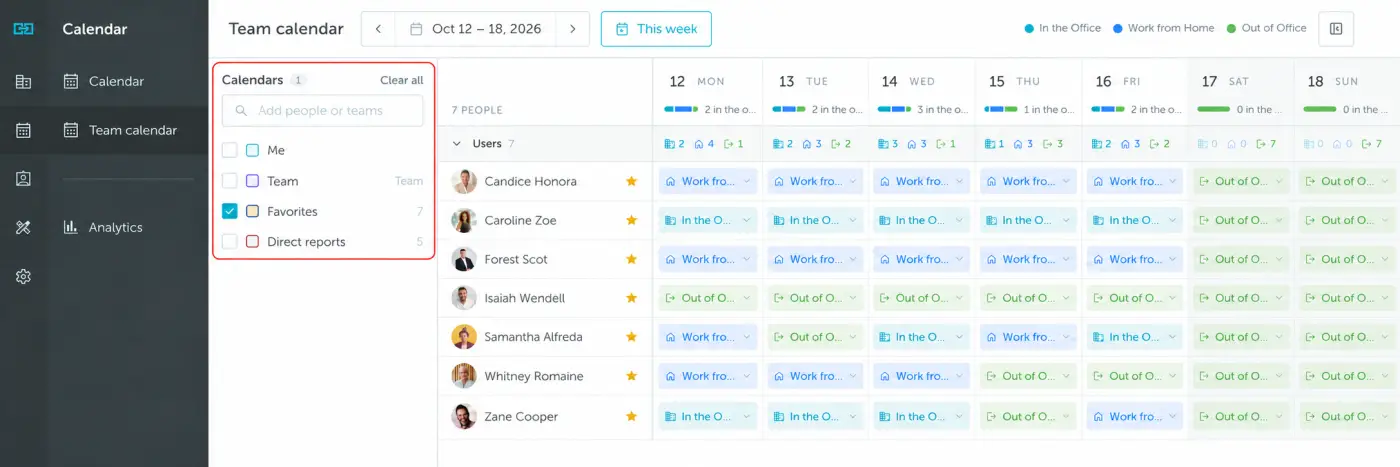
Open Team calendar to see who is in the office, working from home, or out of the office. Select people or teams in the Calendars panel. Each row shows one person’s status for each day, and the totals above the rows summarize the selected people’s statuses.
Use the date arrows to move between weeks, or click This week to return to the current week.
Set a status for your whole team
If you manage a team, you can update its members’ statuses together:
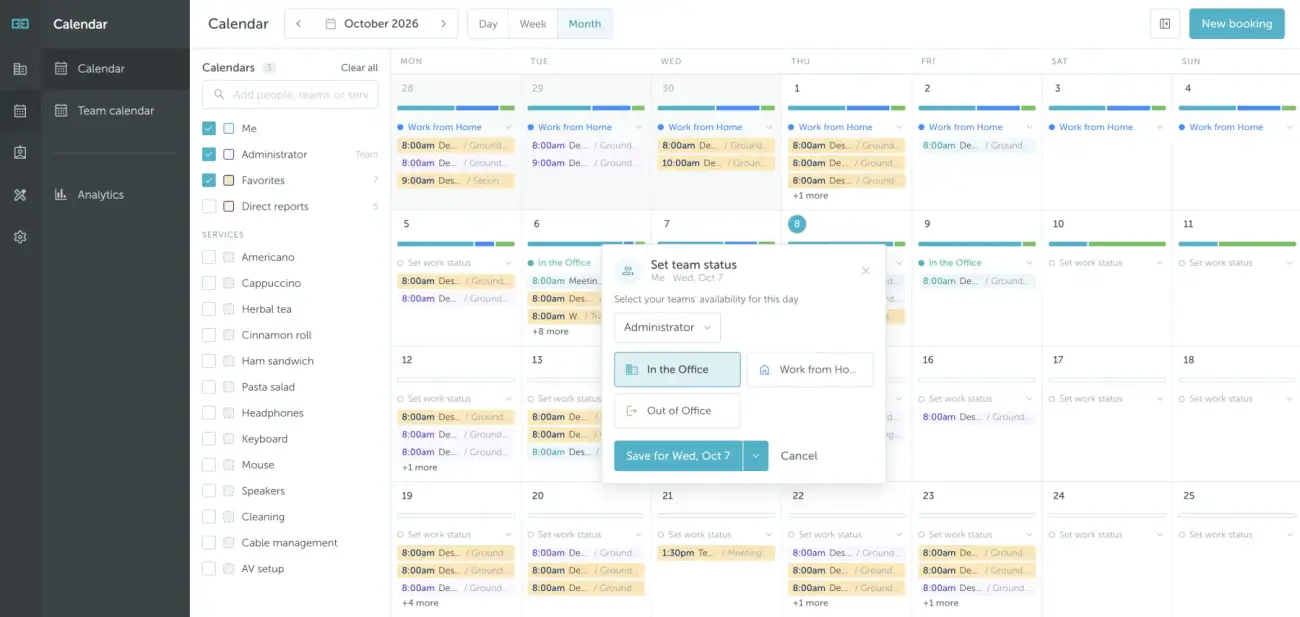
- Open Calendar in Month view.
- Hover over a day and click the team-status icon (the group of people beside +, shown in the Group booking screenshot above).
- In Set team status, select your team and choose a work status.
- Click Save for [selected date]. Use the arrow beside Save to choose a longer period.
Read more about setting work statuses as a team manager.