
Jump to:
Users can sign in to YAROOMS in two main ways: by opening their company YAROOMS account login page directly, or by starting from the YAROOMS website and using the unified sign-in portal.
The two authentication methods used across these sign-in flows are:
- Legacy login, using YAROOMS account credentials, either with a password on the account login page or with the email-verification alternative available in the unified sign-in portal
- Single sign-on (SSO), configured by your organization, with any additional verification handled by your identity provider
Account Login Page
When users want to sign in directly to their YAROOMS account, one option is to open their company’s YAROOMS account login page.
From there, they can choose from the login methods available for that account.
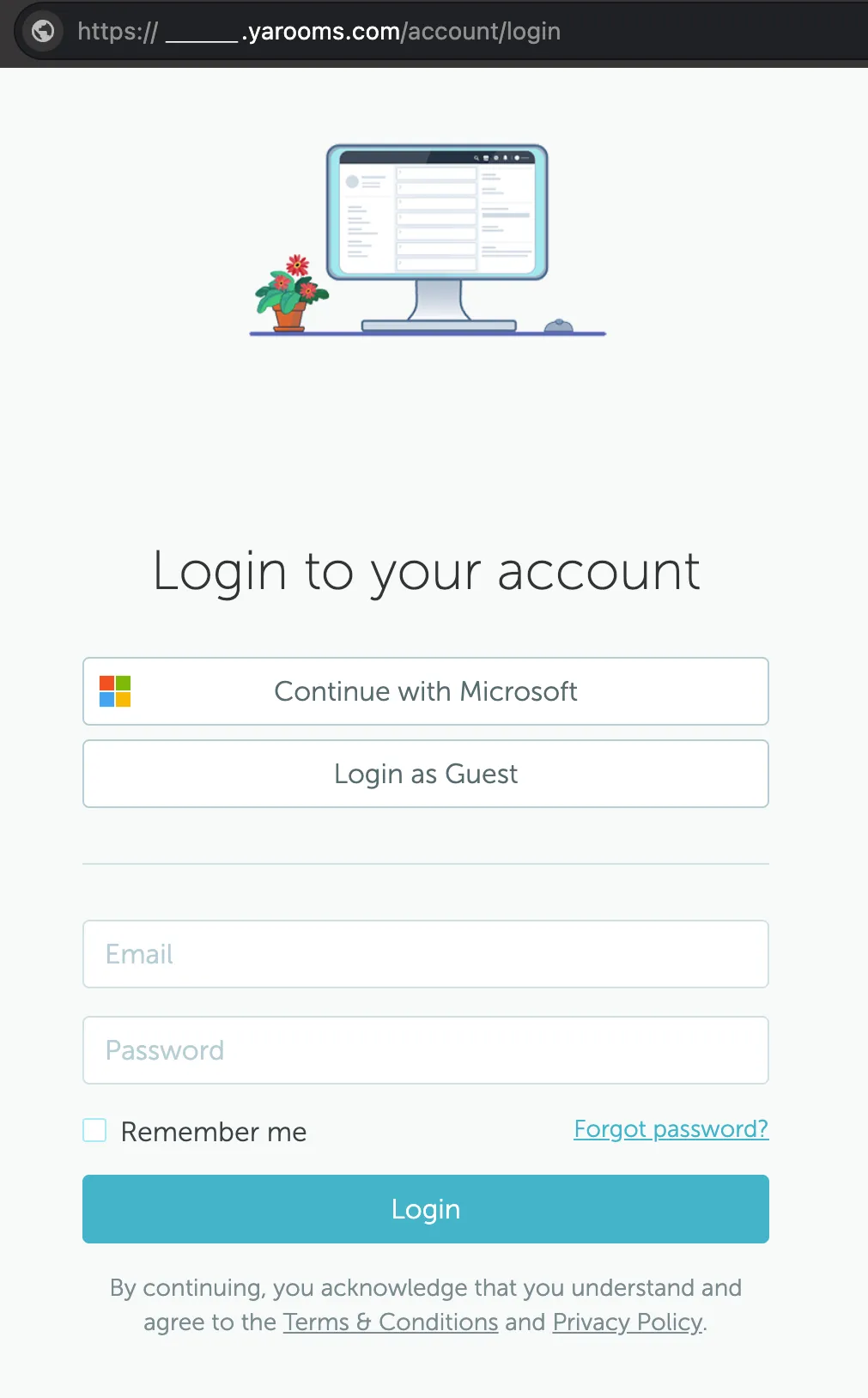
Users might see:
- Single sign-on (SSO): using whichever method has been provided by the account administrators
- Legacy login: Email and Password credentials (YAROOMS-specific)
* Only one of these options, or both, may be available, depending on how the account has been configured.
This is the direct login route many users already know.
⚠️ Downsides
- Users need to remember their company login page URL
- Users who rely on legacy login need to remember their YAROOMS password
Unified Sign-in Portal
All YAROOMS authentication is handled through the unified identity portal at id.yarooms.com .
This is the unified sign-in portal for every YAROOMS service, including the web app and soon mobile app.
Regardless of the authentication method used, the sign-in process starts here.
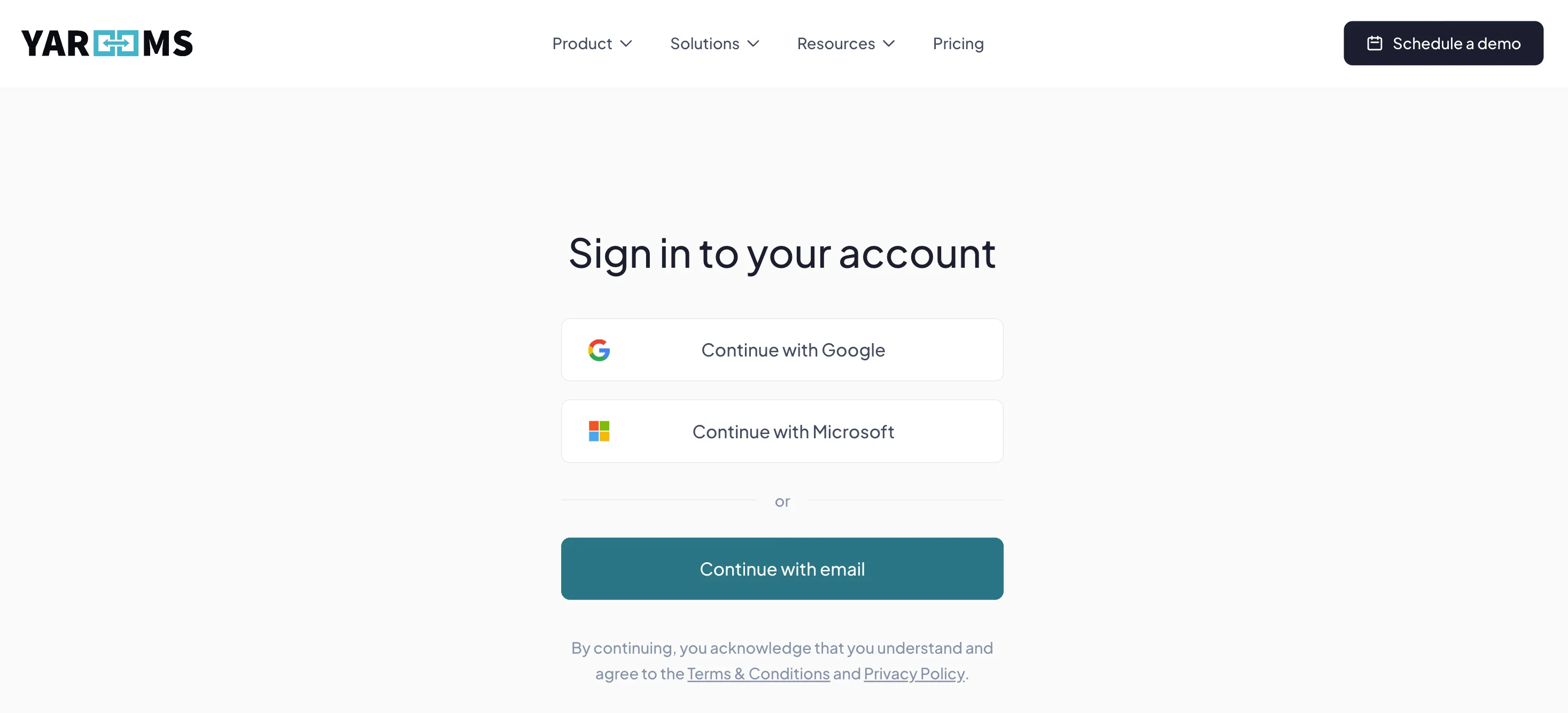
You can also open the sign-in portal from the YAROOMS website.
If you do not have your company-specific YAROOMS login page handy, this is often the easiest way to get started.
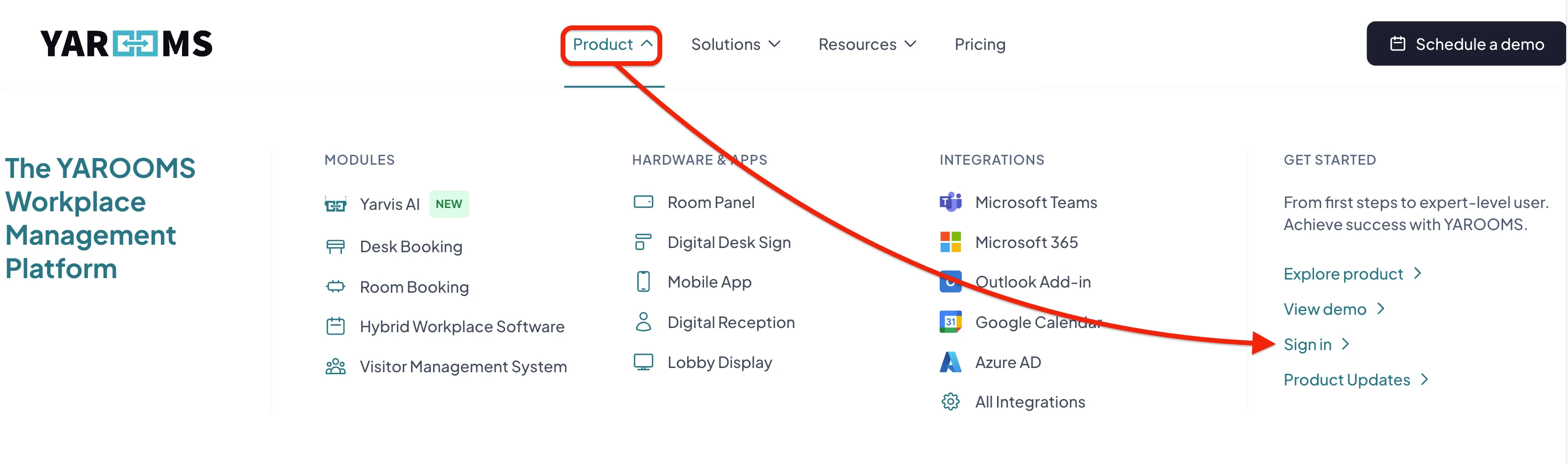
- Go to the YAROOMS website.
- Open Product.
- Click Sign in.
This will redirect you to the unified sign-in portal at id.yarooms.com .
From there, users can continue with whichever login method is available to them.
Continue with Email (Login with email verification)
💡 This option is still part of Legacy login. However, you do not need to remember your company login page URL, and you do not need to use a password to sign in to your account.
On the unified sign-in portal, legacy login works through email verification.
Instead of first opening the company login page and entering a YAROOMS password, users can enter their email address and receive a verification code to reach the same account.
Click Continue with email on the sign-in page.
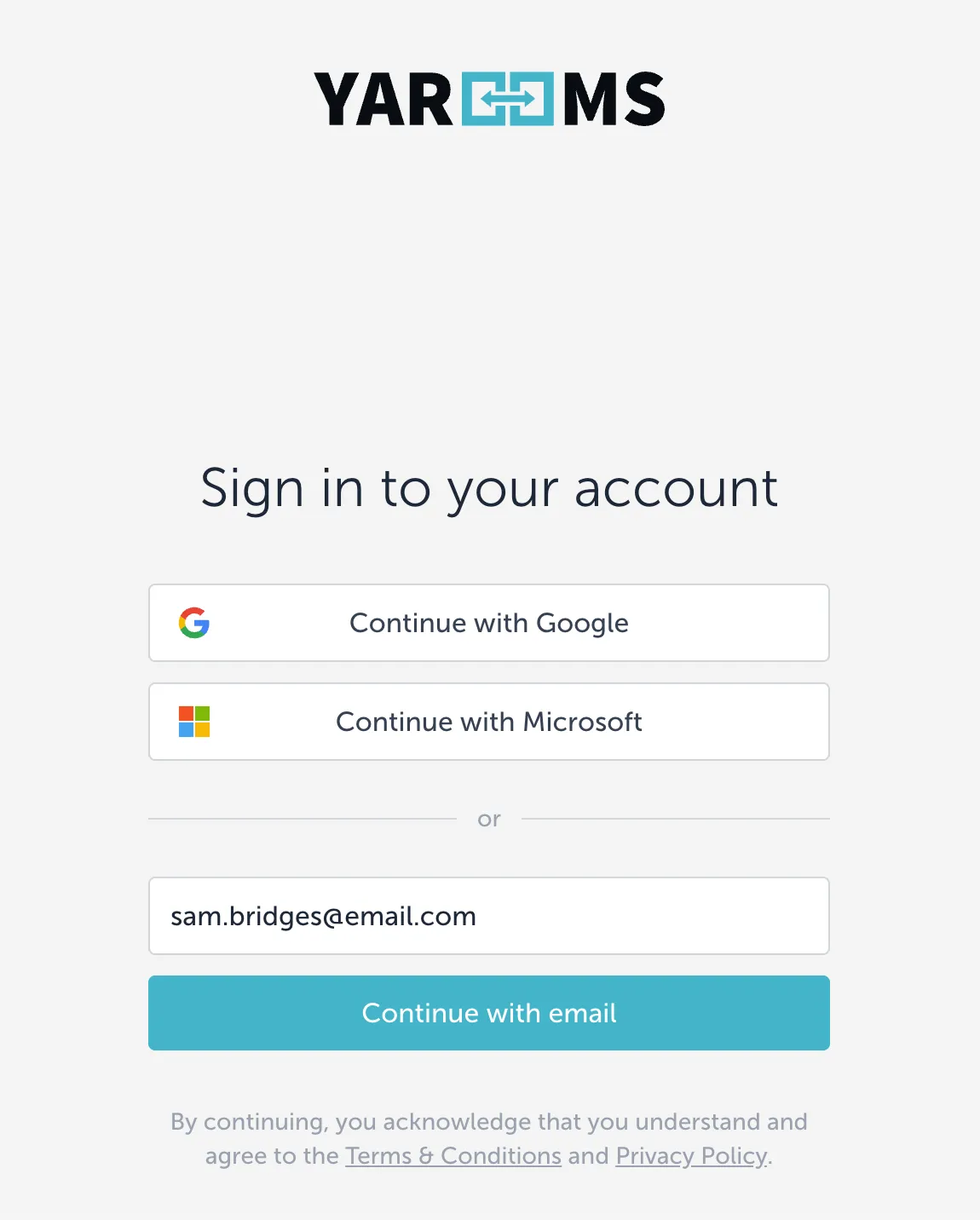
Enter the email address associated with your YAROOMS user account, then click Continue with email.
YAROOMS sends a verification code to your email address. Open the email message and copy the code.
Return to the sign-in page, enter the activation code, then click Verify.
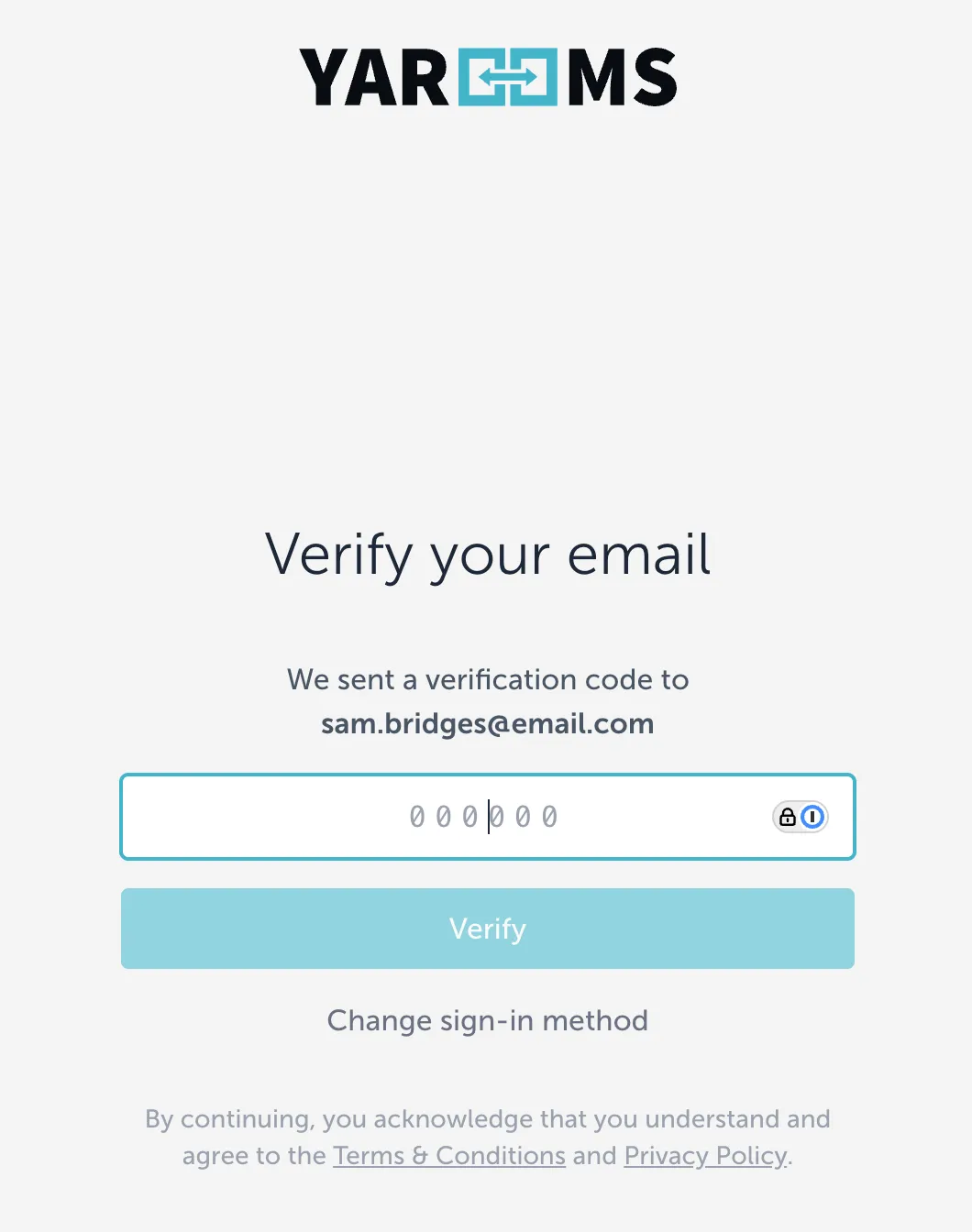
After the code is verified, YAROOMS displays the company account or accounts associated with your profile. Select the correct company account to complete the sign-in process.
Sign in with single sign-on
If your organization has configured SSO, you can sign in with one of the available identity providers.
This remains separate from legacy login, even if your provider uses its own email verification or additional security steps.
From the unified sign-in portal, the SSO flow is just as straightforward: choose the provider and continue through your organization’s sign-in process.
On the sign-in page, choose the provider your organization uses, such as Continue with Google or Continue with Microsoft.
You will be redirected to that provider’s sign-in page.
Finish the authentication process required by your organization.
If more than one company account is linked to your profile, select the correct account to continue.
💡 For administrators, the website-based SSO option in the unified sign-in portal does not require a separate custom Azure login app just for this sign-in route. Users only need access to the configured SSO option.
When legacy login is disabled:
- Users can no longer use the YAROOMS credential flow, including both password sign-in and the email-verification alternative tied to legacy login
- Password reset options may no longer be available
- Users must sign in with the configured SSO option shown in the unified sign-in portal