1. “Bookings” page
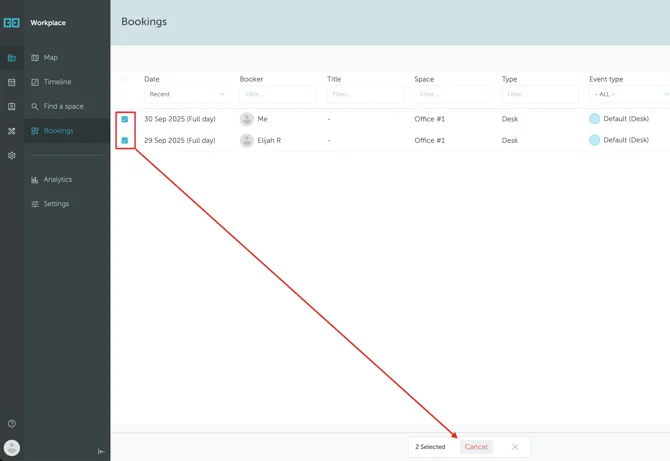
The “Bookings” section (Workplace → Bookings) contains the list of all your bookings (past and upcoming). If you hold a Manager role, the Bookings section will also display bookings made by other users, which you have authority over.
You can browse the booking list using several filters that you can choose from:
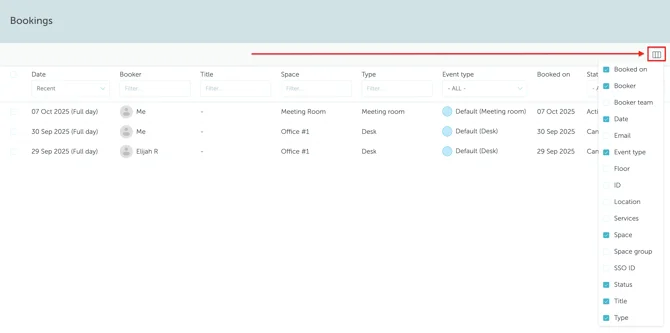
In this section, you can easily export your bookings as a PDF or CSV file, or import a CSV file of bookings when needed.
2. How to edit your booking
To edit your booking, go to Workplace → Bookings and click on the booking. You will be redirected to the booking details page. Press “Edit” on the bottom right.
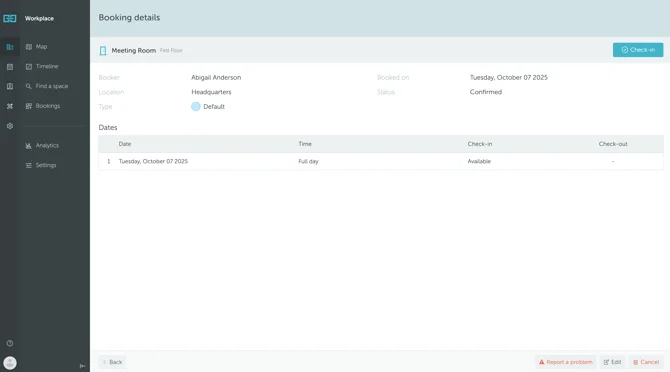
You will be able to modify the date and the hour of your reservation. Save your selection.
3. How to cancel your booking(s)
To cancel your booking, go to Workplace → Bookings and select the booking by marking the checkbox near the booking that you want. If you want to cancel multiple bookings, mark multiple checkboxes. Then, select “Cancel” from the bottom of the page. Confirm your decision. Your reservation will be canceled immediately.