Jump to:
If you regularly book the same desk, you can mark it as a favorite to speed up your booking process.
1. What are Favorite Spaces?
Favorite Spaces let you save the desks you use most often. Once a desk is marked as a favorite, you can find and book it faster without navigating through the full booking flow each time.
A few things to keep in mind:
- You can favorite workspaces only.
- There is no limit to the number of desks you can favorite.
- Favoriting a desk does not reserve it or guarantee its availability.
- Multiple users can favorite the same desk.
2. Add or remove a favorite from the Map View
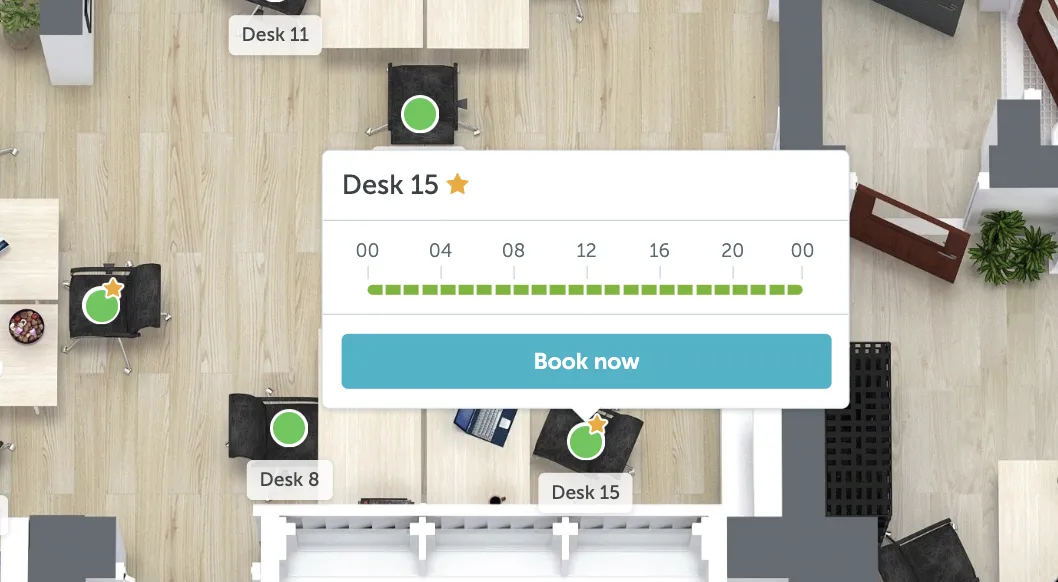
Note: The Map View (Workplace → Map) shows the live floor plan of your office. You can favorite a desk directly from the space popup card.
- Open the Map View and click on a desk to open its popup card.
- Click the star icon next to the desk name.
- An empty star means the desk is not yet a favorite. Hovering over it shows the tooltip: “Add to favorites for instant booking.”
- A yellow star means the desk is already a favorite. Hovering over it shows the tooltip: “Remove from favorites.”
- Click the star to toggle the favorite on or off.
When you navigate to a floor that has one of your favorited desks, the popup card for that desk will automatically open so you can see its availability at a glance.
3. Add or remove a favorite from the Timeline View
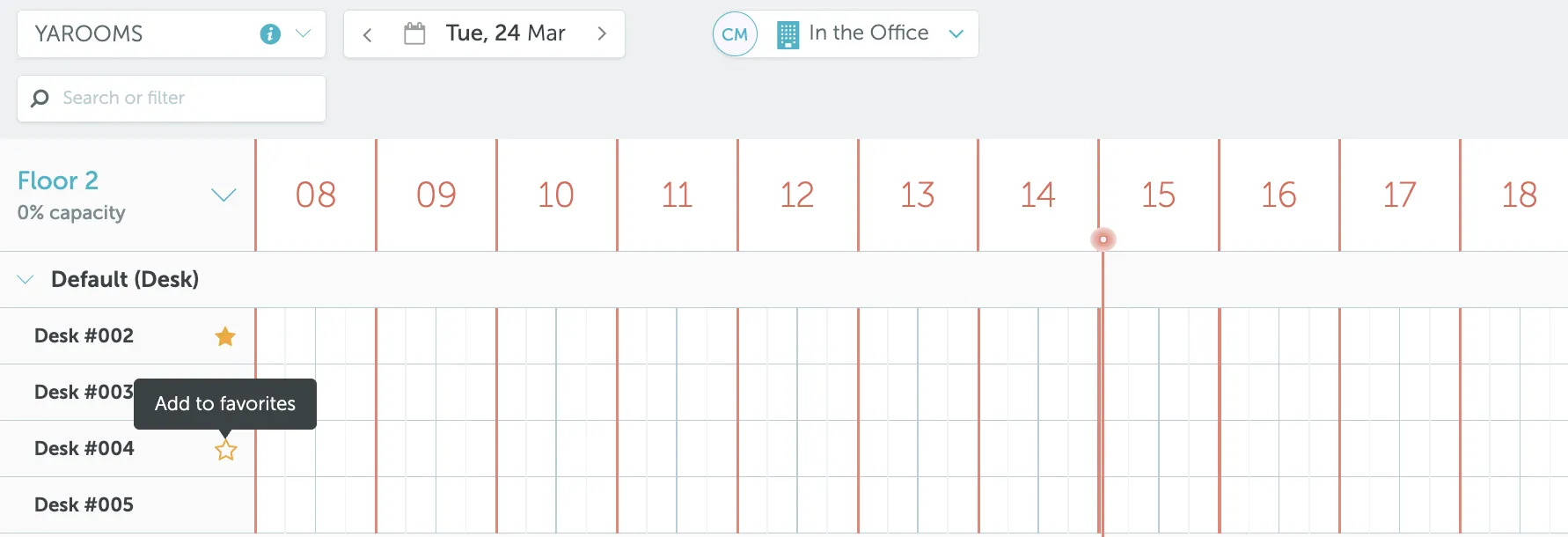
Note: The Timeline View (Workplace → Timeline) shows both current and future bookings. Favorite desks appear at the top of the spaces list for quick access.
- Open the Timeline View.
- Look for the star icon next to the desk name in the left-hand spaces list.
- Click the star to add or remove the desk from your favorites.
Your favorited desks will always appear at the top of the timeline, making it easy to check their availability and book them quickly.