
How to add Zoom or Microsoft Teams video conferencing link to your booking
Whether booking via Map view, Timeline view, or “Find a space” option, you’ll be directed to the “New booking” page where you can select dates and times.
If your Administrator has configured a video conferencing integration, you’ll see the Add Video Conference switch. Activate the Add Video Conference option and select your preferred tool (Zoom or Microsoft Teams, depending on what your organization has enabled).
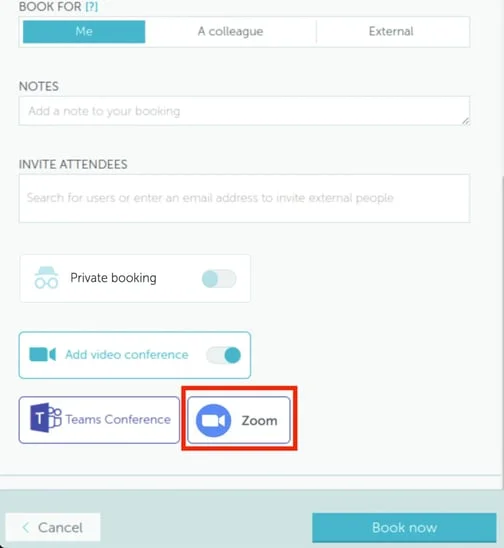
In the example, we show both Zoom and Microsoft Teams, but you may see only one of them, depending on what integrations are activated by your organization.
Click your selection and complete the booking with the “Book now” button.
Once finished, visit the Booking details page (Workplace → Bookings) to view:
- Conference join link and password (for Zoom)
- Conference join link (for Microsoft Teams)
These details will also be emailed to you and specified attendees.
For Administrator setup information, see: