
Jump to:
1. What is Zoom meetings integration
The Zoom meetings integration facilitates the creation of a Zoom meeting along with a YAROOMS meeting and makes sure the Zoom meeting is kept up to date as the YAROOMS meeting is updated/cancelled.
This integration uses a single service account user in Zoom to create meetings, so a per-user Zoom connection is not needed.
2. How to enable Zoom meetings integration
Prerequisites
- A valid Zoom account: create one at https://zoom.us
- Permission to create and manage a Server-to-Server OAuth app in the Zoom App Marketplace, including the meeting scopes required by the integration.
- Administrator access to the YAROOMS account
Open Zoom Meetings in YAROOMS
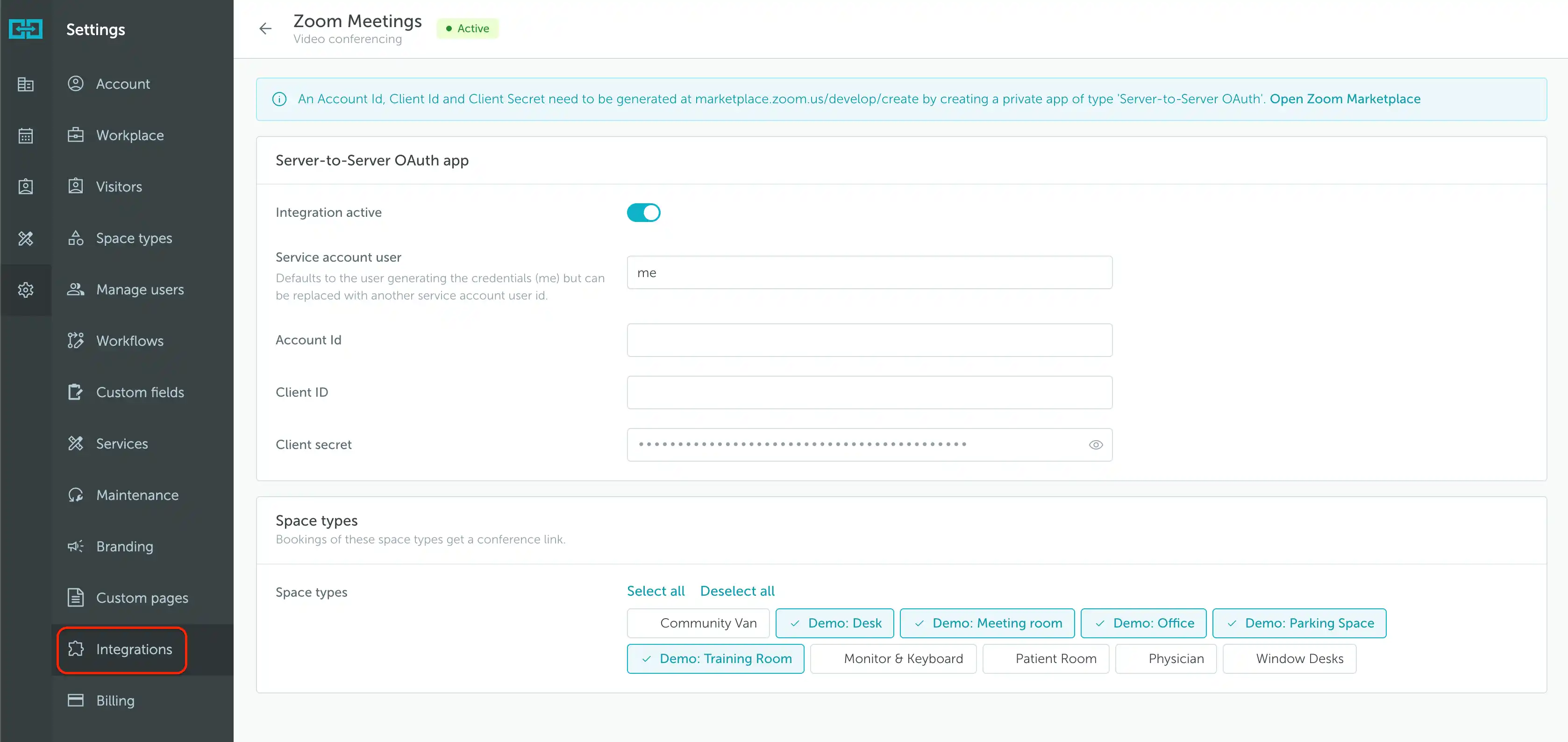
- Go to Settings → Integrations → Zoom Meetings.
- Keep this page open while you create the Zoom app. The Open Zoom Marketplace link takes you to Zoom to generate the credentials.
Create and activate the Zoom app
In the Zoom App Marketplace, create a Server-to-Server OAuth app and give it a recognizable name, such as YAROOMS. This is an internal app for your organization, not an app to publish publicly. Zoom’s Server-to-Server OAuth setup guide explains the current app creation flow.
On App Credentials, locate the Account ID, Client ID, and Client secret. You will copy these into YAROOMS after completing the app setup.
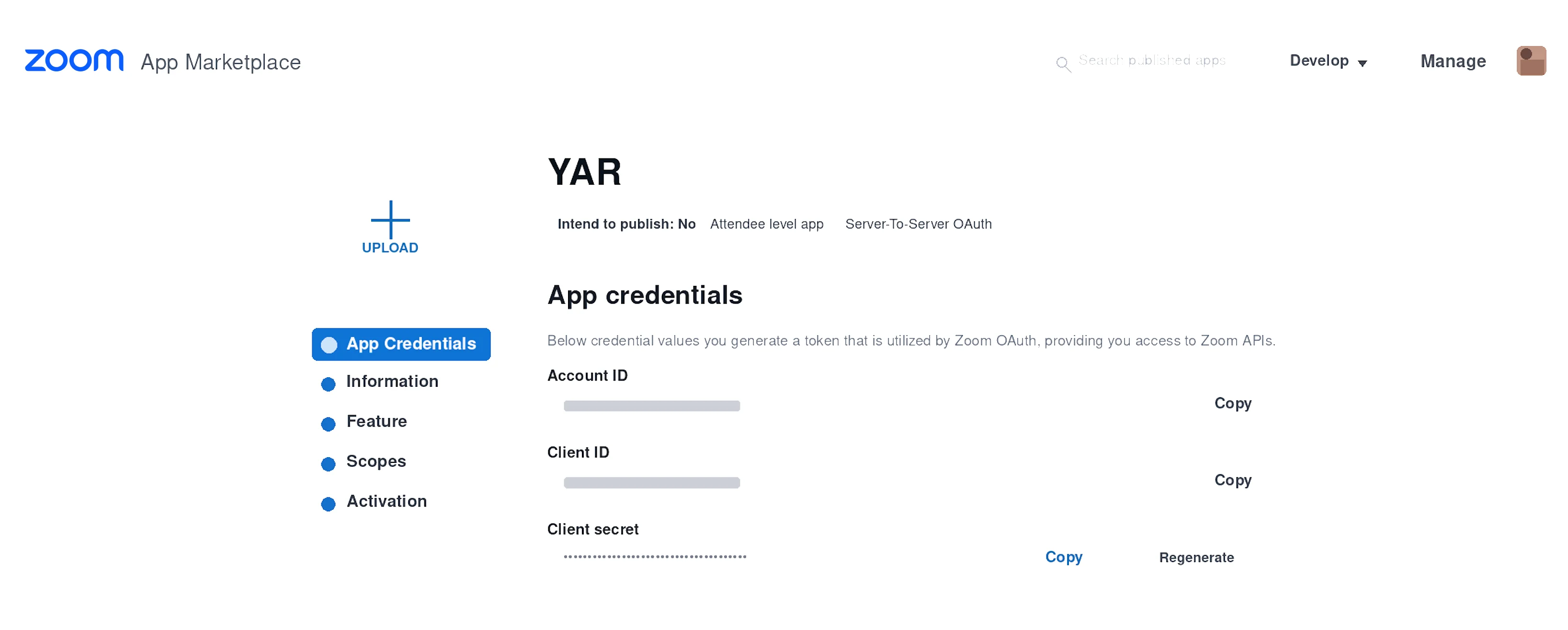
Complete Information with your company and developer contact details, then continue to Scopes. The integration needs permission to read and manage meetings. The original scope labels are listed below; Zoom may display different labels depending on the app’s available scopes:
- View and manage sub account’s user meetings
- View all user meetings
- View and manage all user meetings
If these labels are unavailable, ask your Zoom administrator to confirm the corresponding meeting permissions before activating the app. Complete Activation and activate your app.
Enter the credentials in YAROOMS
Return to Zoom Meetings in YAROOMS. Under Server-to-Server OAuth app, turn on Integration active and fill in the matching Account Id, Client ID, and Client secret fields.
Service account user defaults to me, the user who generated the credentials. To use another meeting owner, replace this value with that service account user’s Zoom user ID.
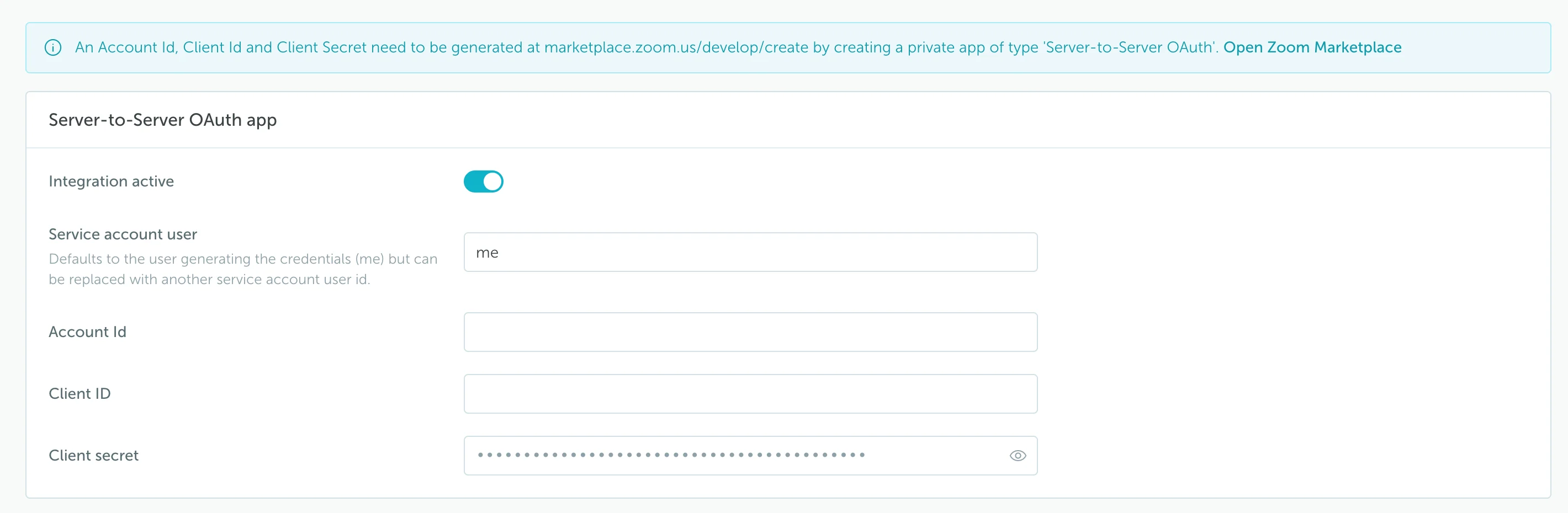
Warning: Keep the Client secret private. If you regenerate it in Zoom, update the value in YAROOMS as well so the integration can continue to connect.
Choose the space types
Under Space types, select the types where users should be able to add Zoom meetings. Selected types are highlighted with a check mark. You can also use Select all or Deselect all. Save the settings when finished.

Enable Zoom for the space types that need video conferencing, such as meeting rooms. You do not need to select every type shown in the example.
3. How it works
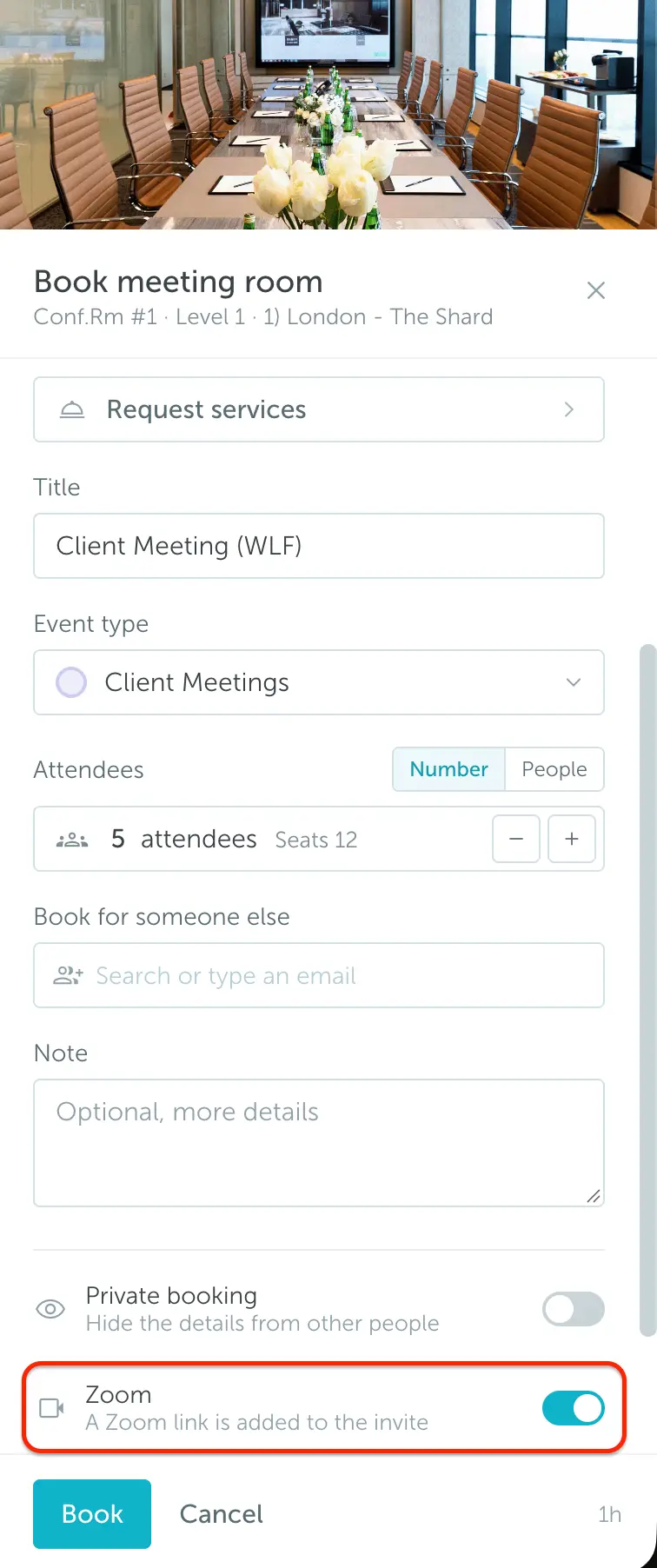
Once the integration is active, users can add a Zoom link when booking a space belonging to one of the enabled space types.
- Open the space’s booking form and enter the booking details.
- Open More options if the additional settings are collapsed, then scroll to the video conferencing options.
- Turn on Zoom.
- Click Book to create the booking and its Zoom meeting.
Open the saved booking to find Join the Zoom meeting and the Conference password. The join details are also included in the booking confirmation email.
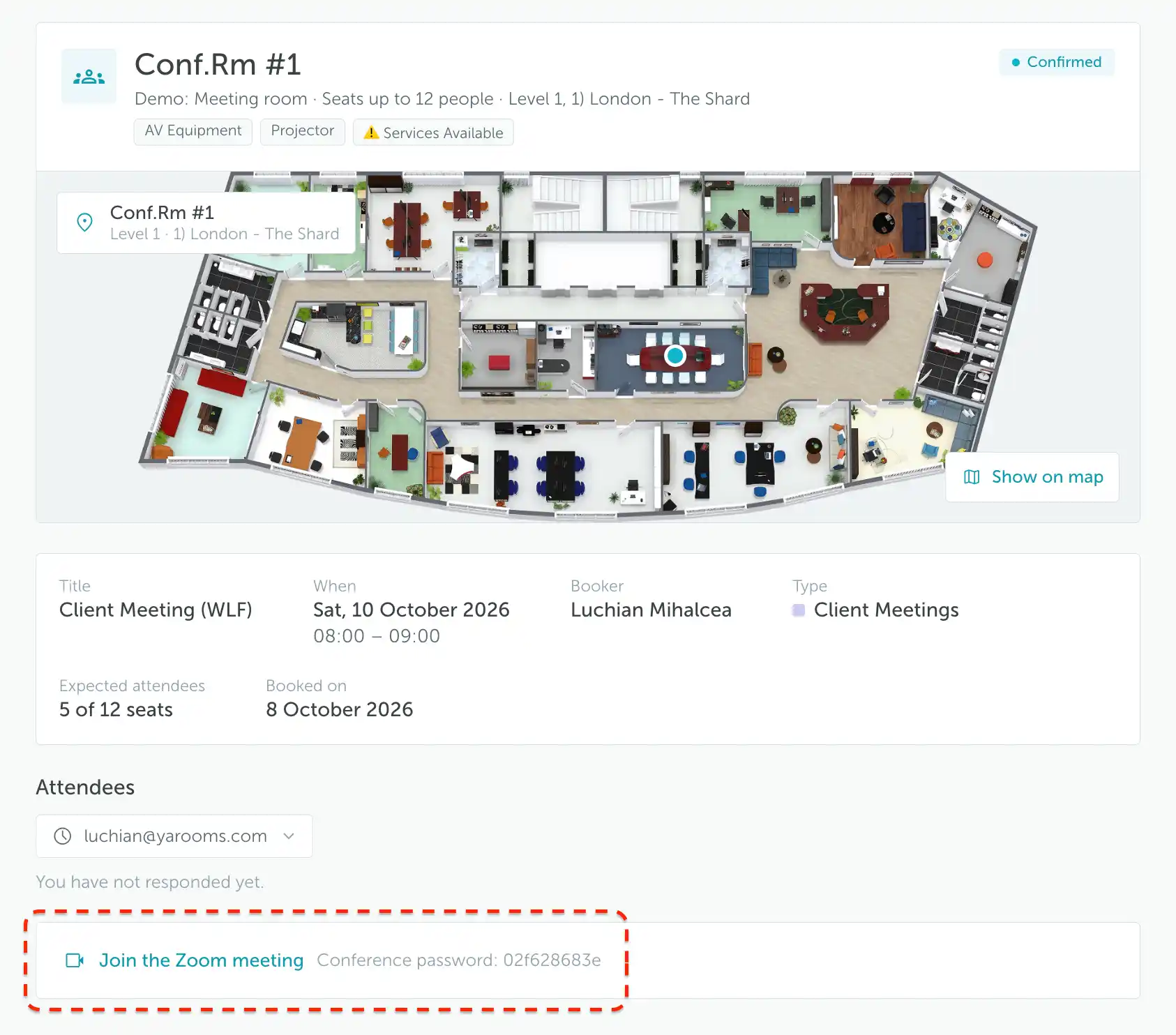
The Zoom meeting is kept up to date with the YAROOMS meeting:
- Changing the date, start or end times in YAROOMS will update the Zoom meeting
- Cancelling the meeting in YAROOMS will delete the Zoom meeting