
How to install the YAROOMS Outlook add-in
The main prerequisites of using the Outlook add-in are:
Note: The user installing the add-in must have Exchange Administrator or Global Admin permissions in Microsoft 365 Admin Center.
To install the add-in, go to Settings → Integrations → Outlook Calendar → Outlook Add-in, download manifest.xml file and follow these instructions:
- Customize the branding settings for the manifest, then download it by clicking “Download manifest.xml.”
- Login into your Microsoft 365 Admin Center. The user must have Exchange Administrator or Global Admin permissions.
- Go to Settings → Integrated apps and click on Upload custom apps.
- Select Upload manifest file (.xml) from device and select the manifest.xml file from your computer. Once the manifest file is validated, click Next.
- Set the user permissions applicable to your organization’s use case, then click Next.
- Check the settings, then click Next.
- Click Finish deployment. It may take up to 6 hours for the Add-in to appear in Outlook.
- Once the deployment is finished, click Done.
After the add-in is installed, all users in your organization will see a new room finder in Outlook.
Note: It may take up to 6 hours after installation for the add-in to appear in the user’s top bar.
When creating a new event, users will be able to:
- Choose a room using the standard Outlook interface
- Use the add-in that will allow them to filter rooms depending on specific features or amenities
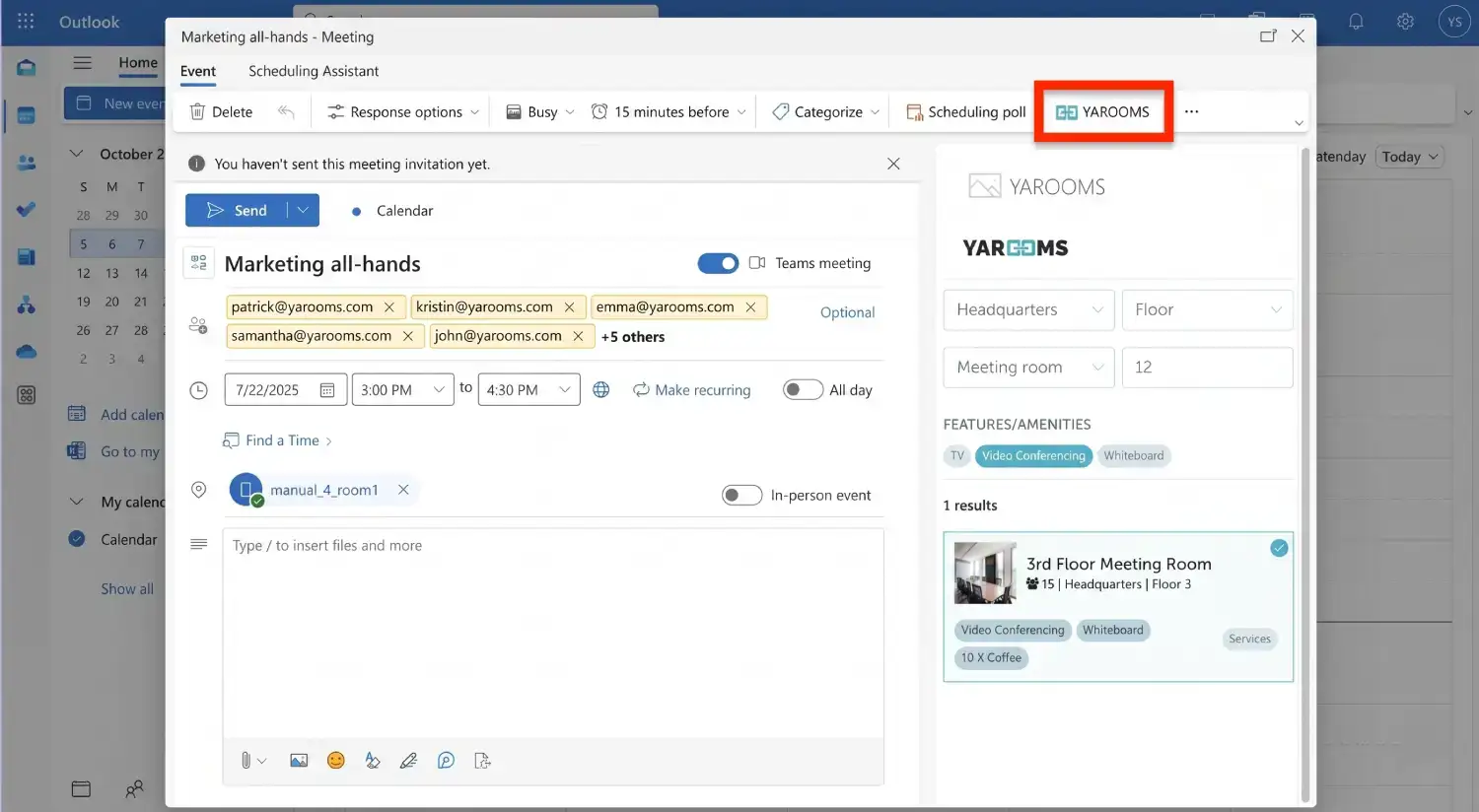
Note: Only rooms mapped with Outlook resources will be available for selection.
All Outlook bookings will be synced with the YAROOMS calendar (and the other way around).
How to use the YAROOMS Outlook add-in
For information about using the YAROOMS Outlook add-in, read this article.