
1. Activating work status
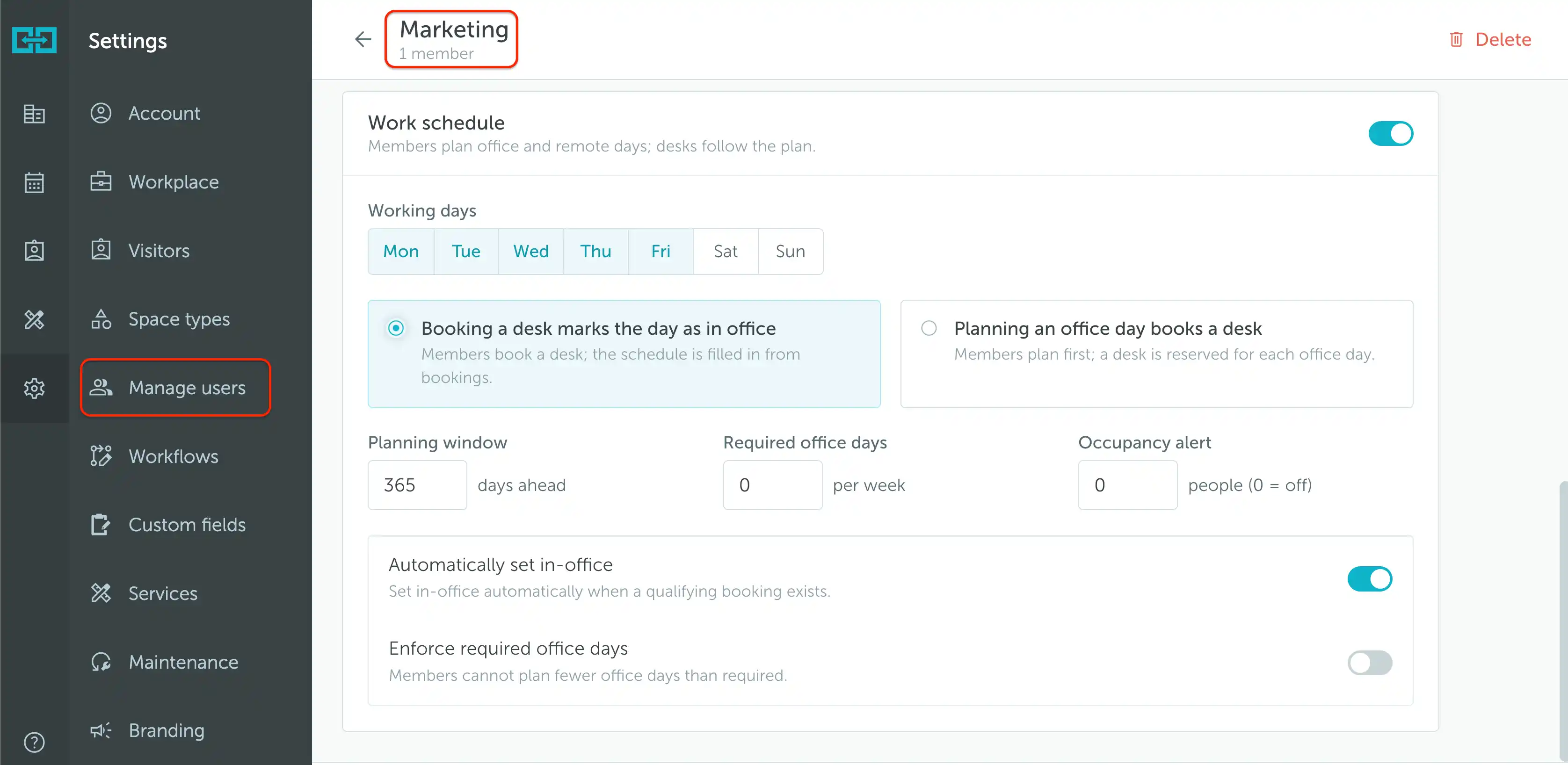
Work statuses are enabled per team. Go to Settings → Manage users → Teams, open the team, and enable Work schedule. Select the working days and choose how planning and desk bookings should work together:
- Booking a desk marks the day as in office: members book a desk, and their schedule is filled in from bookings.
- Planning an office day books a desk: members plan their office days first, and a desk is reserved for each office day.
Review the planning window, required office days, and other options, then save. For the full configuration, see Enabling work planning per group.
2. How does it work
Work statuses show whether someone plans to work in the office, from home, or be out of office on a given date. They help colleagues coordinate office days and managers understand their team’s availability.
The available statuses are:
| Status | Meaning |
|---|---|
| In the Office | An office day, with desk bookings handled according to the team’s Work schedule settings. |
| Work from Home | A remote working day. |
| Out of Office | A day away from work. |
The calendar displays the status for each day. If none has been chosen, it shows Set work status.
3. Where to set work statuses
Map view: your own status
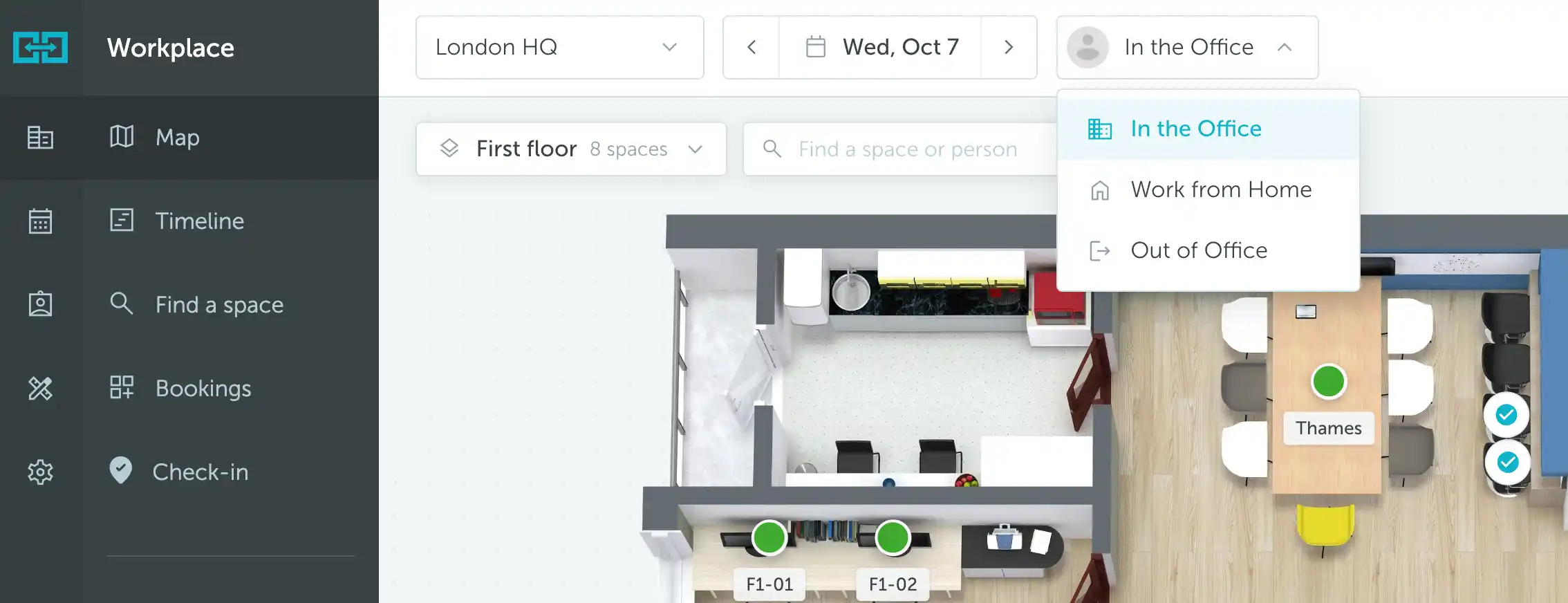
Open Workplace → Map and select the date. Use the work status dropdown next to the date selector to choose In the Office, Work from Home, or Out of Office for yourself, without leaving the map.
Calendar: your own status
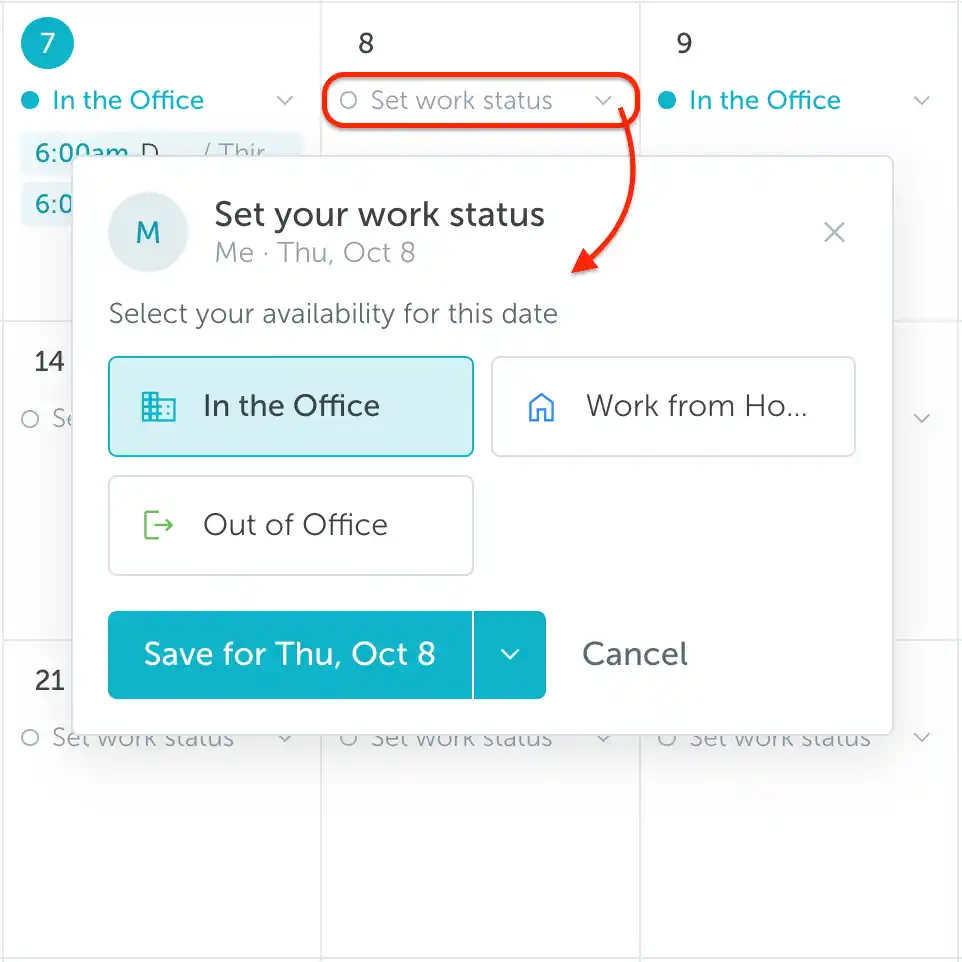
Open Calendar → Calendar and view your own calendar. Click Set work status, or the existing status, on the date you want to change. Choose In the Office, Work from Home, or Out of Office, then save for that date.
Calendar: a whole team’s status
Managers can use Set team status in Calendar to plan a day for an entire team. Select the team from the dropdown, choose its status, and save for the selected date.
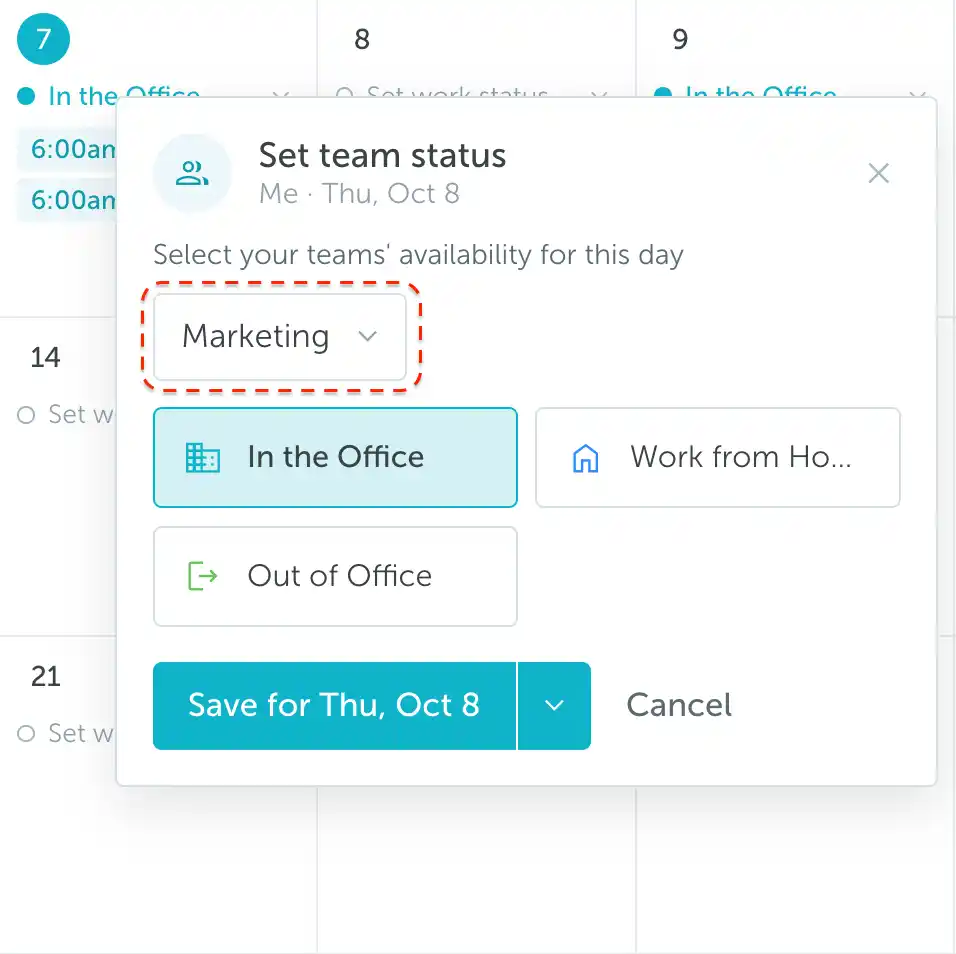
Check the selected team and date before saving a team-wide change. Use Team calendar instead when you only need to update one person's status.
Team calendar: an individual team member’s status
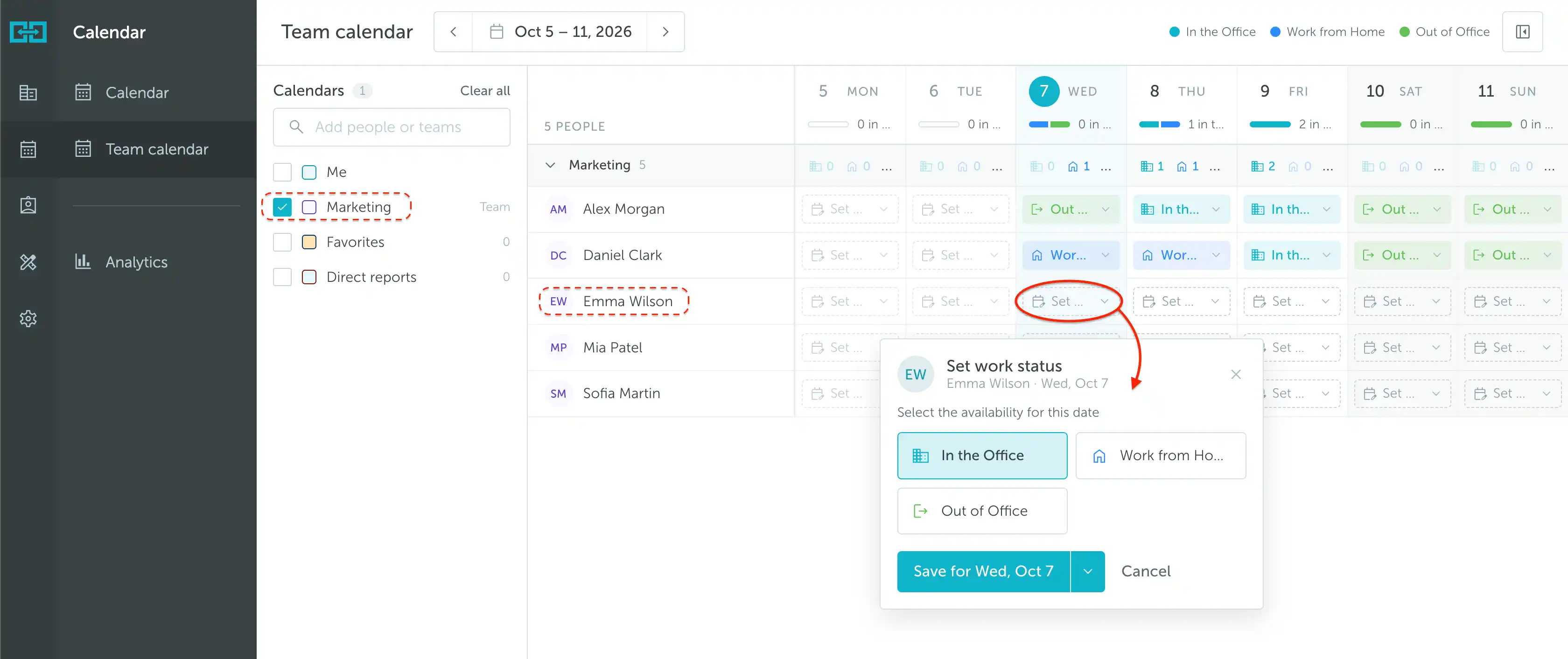
Open Calendar → Team calendar and select the team in the Calendars sidebar. Find the member’s row and the date you want to update, then click their status cell. Choose the status and save. This changes the selected person’s status, not the whole team’s.
Note: Updating other people's statuses requires the appropriate management permissions. Regular users can plan their own status.
For more on planning your own schedule, see Planning your work.