
Jump to:
User pictures
Note:
User pictures are automatically taken from Microsoft Teams, Google, or SAML when logging in, so the functionality is available only for clients using SSO.
Picture can be taken from SAML only if the company has the Teams integration done.
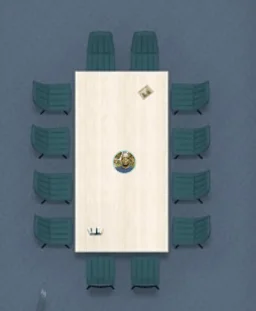
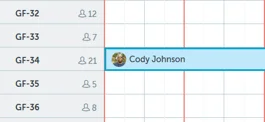
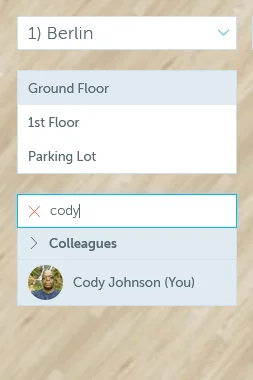
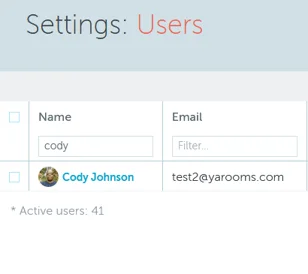
In YAROOMS, user pictures work as the user’s profile image that appears on:
- Map
- Timeline
- Search for a space/colleague
- Settings → Manage Users
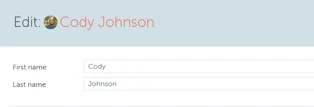
- Edit users
Visibility options
There are 2 user pictures’ visibility options:
- User: Click on your user photo, bottom left corner → My account → Privacy → Profile picture (yes/no).
- Global: Settings → Workplace → click on the name of the location you want this applied to → Edit → Visibility → Booker picture (yes/no).
How the visibility options apply:
- If global set to NO → no picture is shown in the location regardless of user choice.
- If global set to YES and user set to YES → picture is shown.
- If global set to YES and user set to NO → the picture of the particular user is not shown.
Note: If you are looking for information about space pictures, read this article.