
Jump to:
Access roles determine which spaces users can book and how far ahead they can book them. Assign roles to teams for shared access, or to individual users who need additional permissions. Space assignments let you reserve a particular space for one person on selected weekdays.
1. How to assign a space to a user
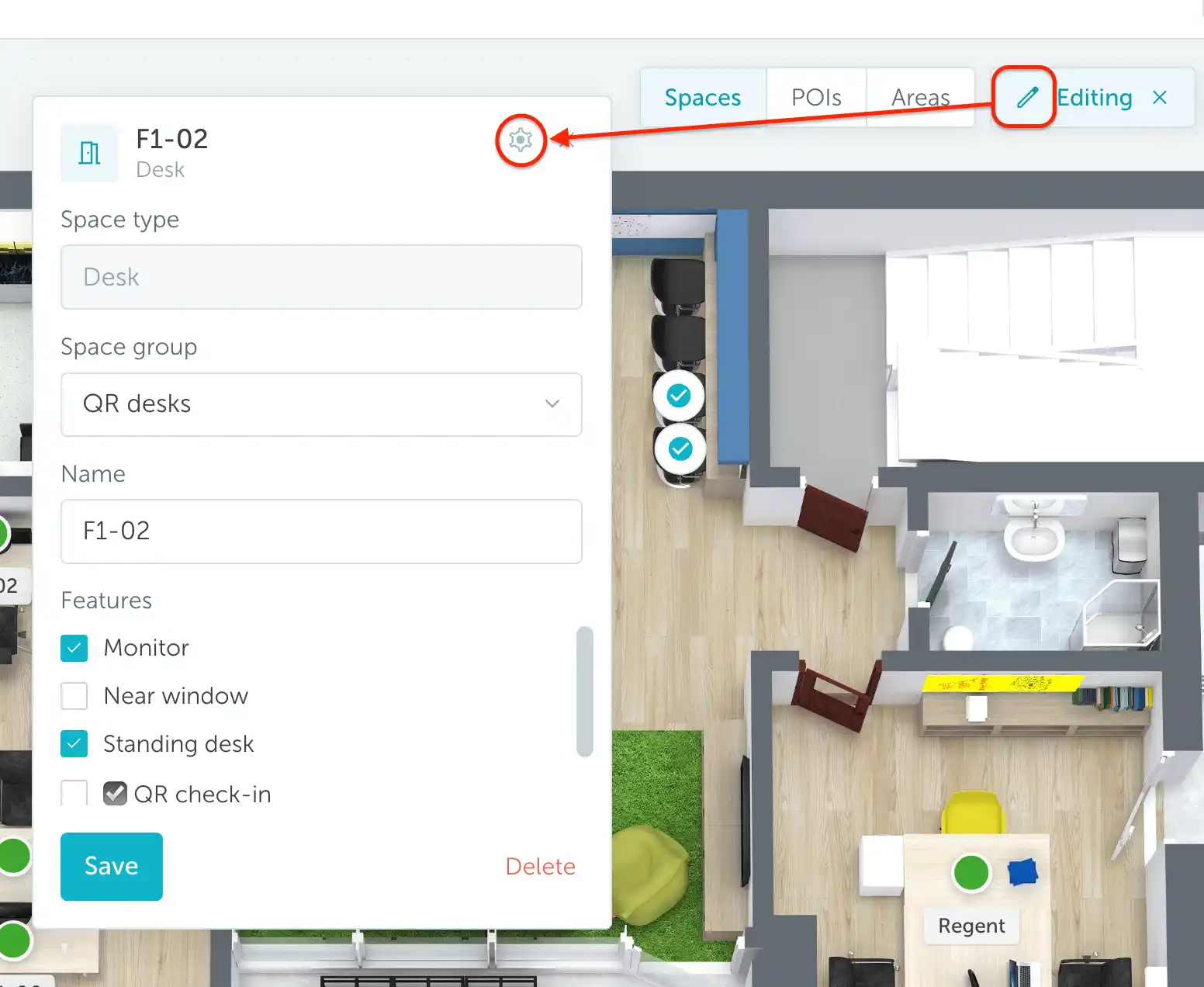
Go to Workplace → Map, select the location and floor, and activate Edit mode using the pencil button. In Spaces, click the space you want to assign, then click the settings icon in its editing panel.
Open Assignment, choose a user in Assigned to, and select the Weekdays when the assignment should apply. Enable Auto-booking if you want the space booked automatically for that person on those days, then save your changes.
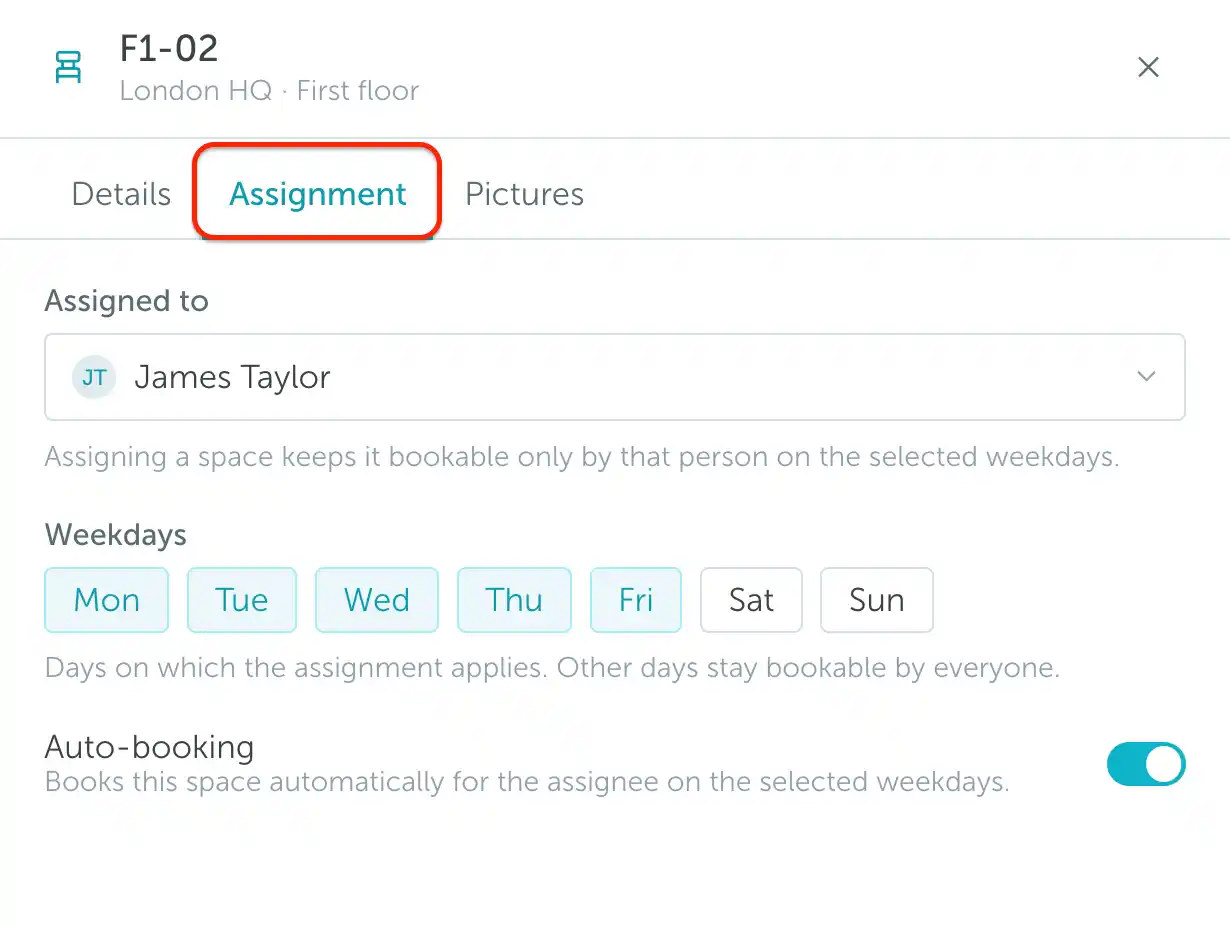
Note: The assignment restricts booking to the selected user on the chosen weekdays, with Administrator and Supervisor access still available. On other days, the space follows its usual booking permissions.
2. How to set up an access role
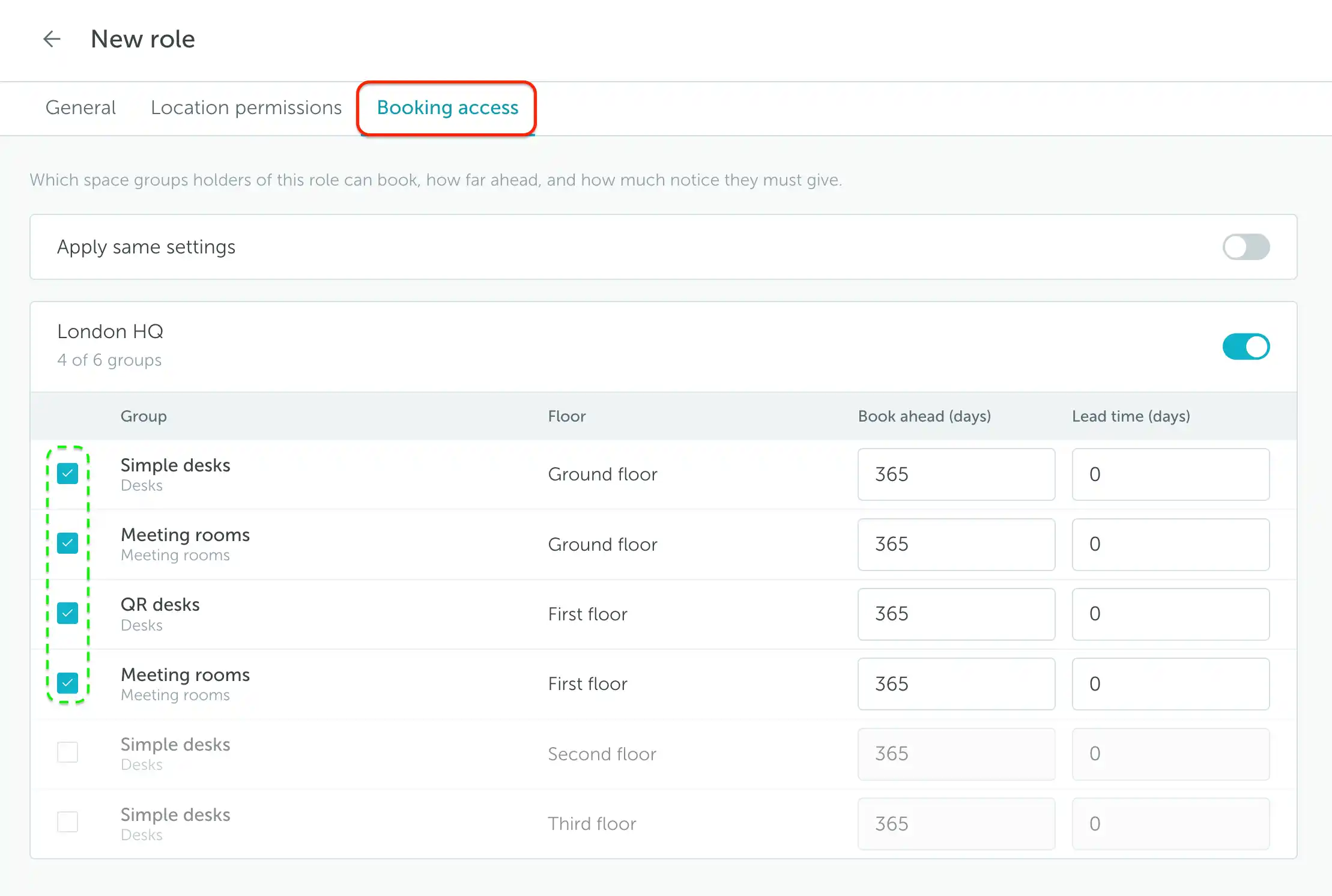
Go to Settings → Manage users → Roles and add a new role. Give it a name in General, then open Booking access.
Enable the relevant location and select the space groups this role should allow users to book. The Floor column helps distinguish groups on different floors.
In the example below, the role grants access to four groups across the Ground floor and First floor. The unchecked groups on the Second and Third floors are not included.
Set any booking windows as described below, then save the role.
3. Applying Booking Windows for each access role
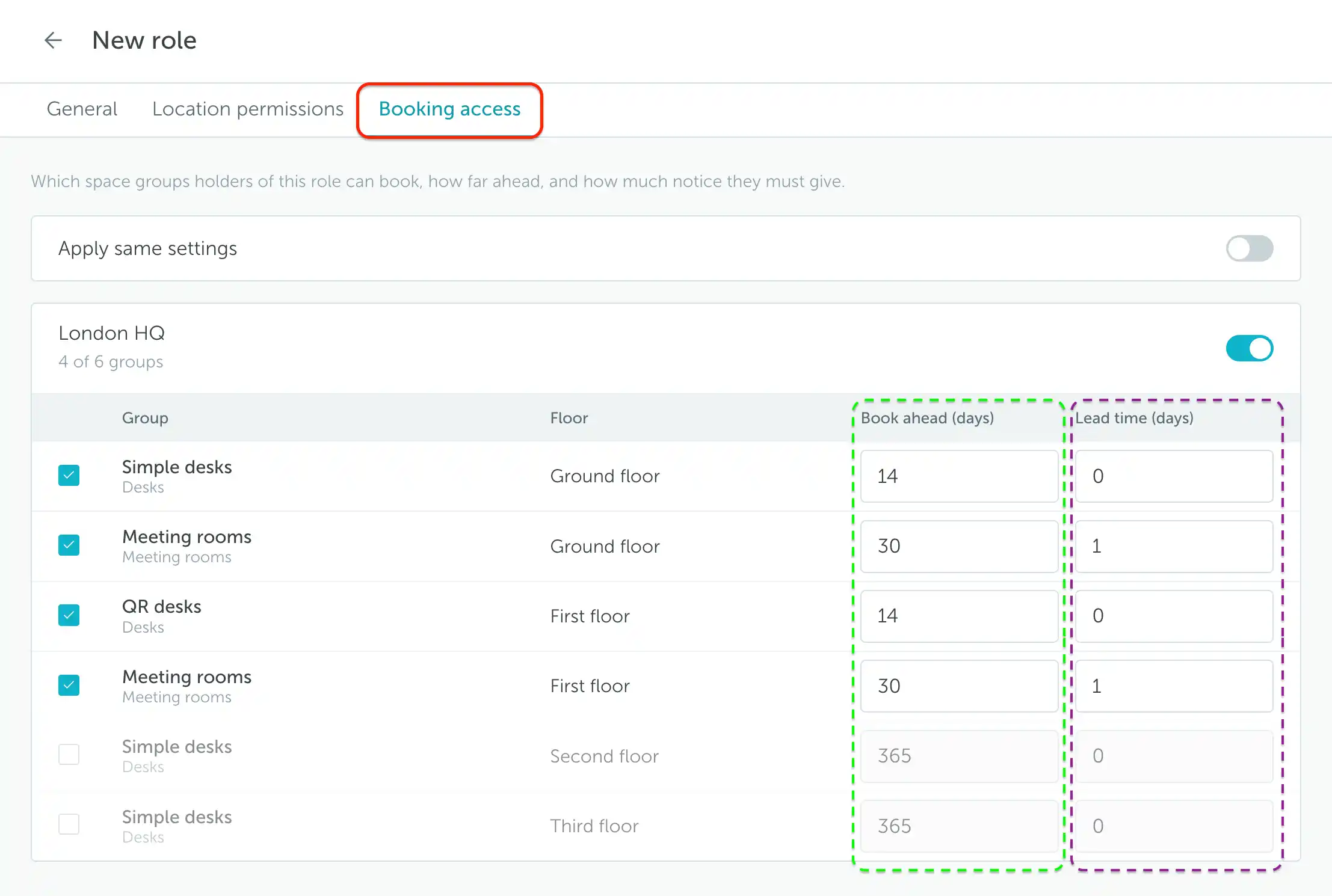
In Booking access, each selected group has two settings:
- Book ahead (days): how far into the future users can book.
- Lead time (days): how much advance notice a booking requires. A value of 0 adds no advance-notice requirement.
For example, the desk groups below allow bookings up to 14 days ahead with no lead time. Meeting rooms allow 30 days ahead and require 1 day’s notice.
4. How to assign an access role to a team
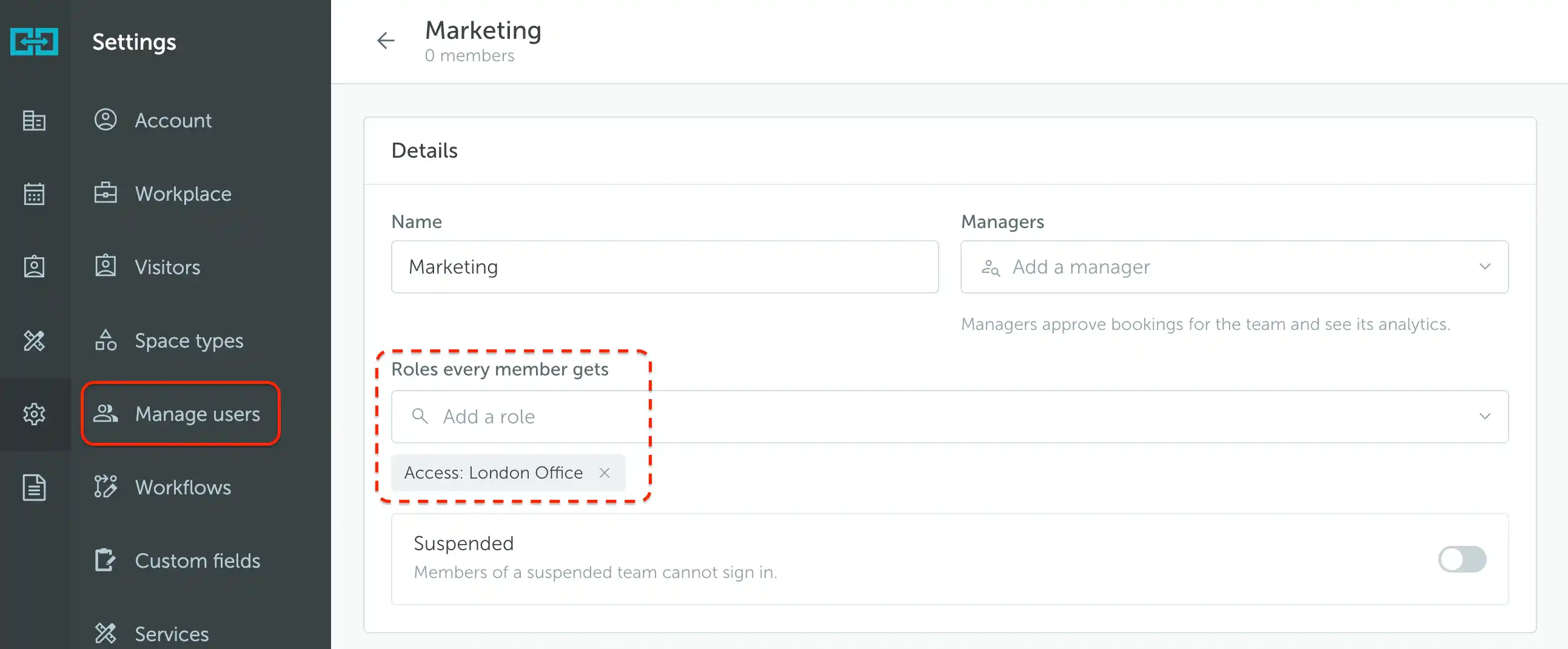
Go to Settings → Manage users → Teams, then open an existing team or create a new one.
In Details, use Roles every member gets → Add a role to select the access role, then save. All members inherit the team’s roles.
5. How to assign an access role to a user
When someone needs additional access without changing permissions for their whole team, assign a role directly to that user.
Go to Settings → Manage users and open the user. In Roles and access, use Roles → Add a role, then save. Roles inherited from the team appear separately and are greyed out.
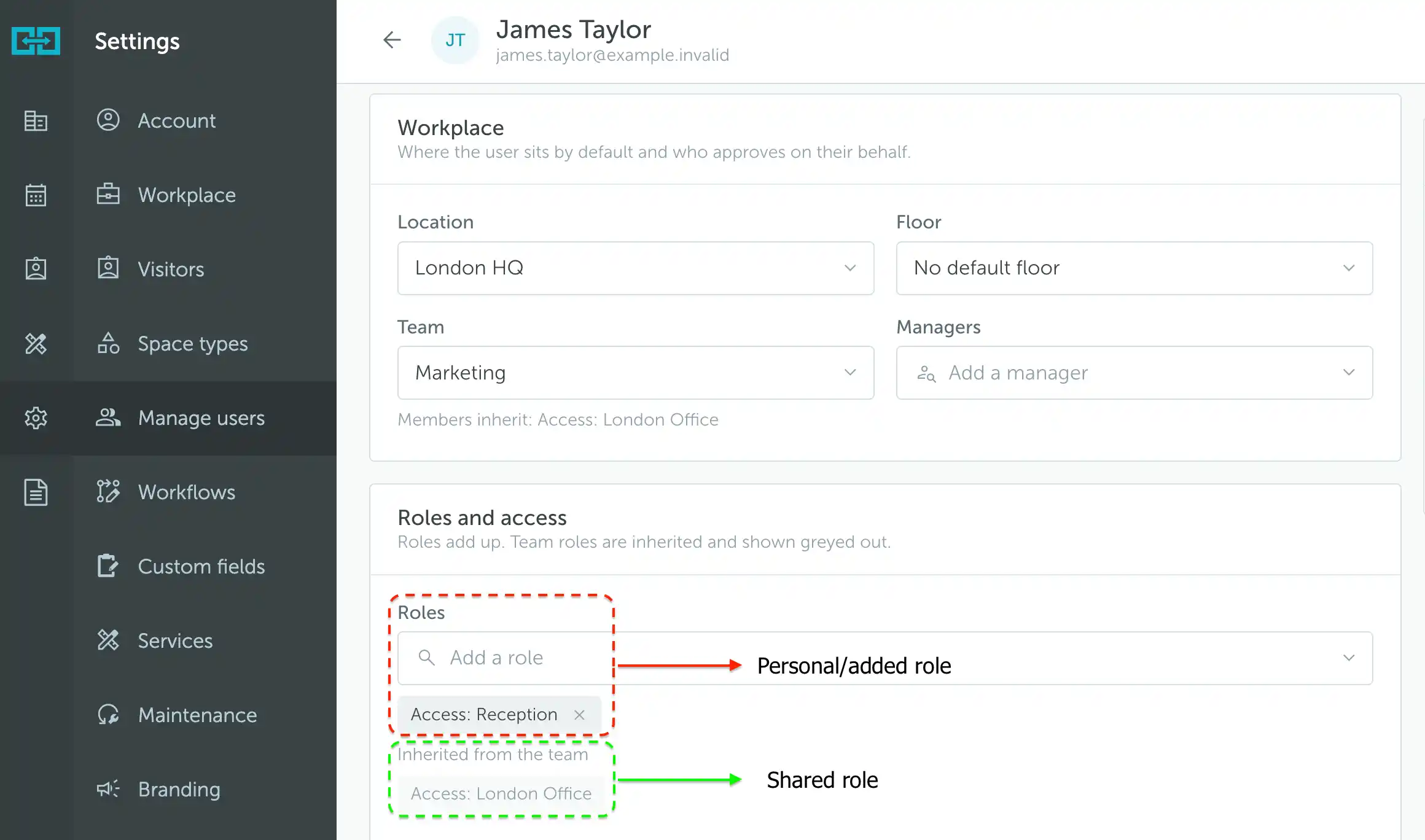
Note: Roles add up. A personal role adds to the access inherited from the team; it does not replace it. Review both when checking a user's permissions.
The system roles Administrator and Supervisor grant broader permissions than a custom booking access role. See Types of users for their capabilities, or assign custom Admin rights when someone needs specific administrative permissions.