
Jump to:
The org chart shows the people based at a location, grouped under their managers. Each person has a person card with their job title, department, contact details, manager and local time. Employees open both from the office map.
This article is for administrators. To learn how employees use the org chart, read Using the Org Chart and Person Cards.
Before you start
- The org chart is turned on per organization. Contact YAROOMS support to turn it on.
- It works in the new workplace interface and needs the Spaces module.
- Only administrators with full rights can open Settings → Org chart.
Add job titles, departments and managers
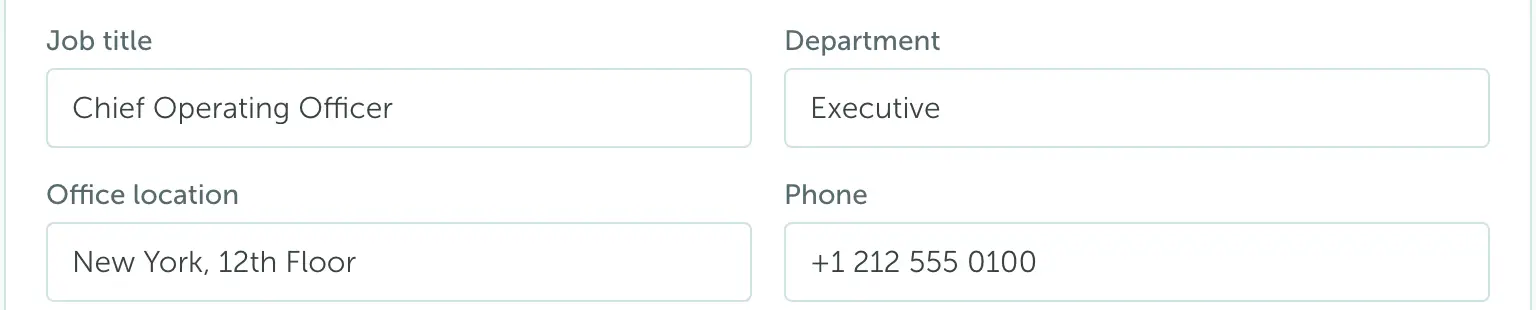
When the org chart is on, every user has four directory fields: Job title, Department, Office location and Phone. The org chart and the person cards show them.
To fill them in by hand, go to Settings → Manage users, open a user, and edit the fields in the Profile section. Click Save changes.
The org chart is built from each user’s Managers, in the Workplace section of the same page. A person without a manager appears at the top of the chart.
You can also fill the fields in other ways:
- CSV import. After the floor name and roles, the import accepts four optional columns: job title, department, office location and phone.
- YAROOMS API. The accounts endpoints accept the same fields.
- Your identity provider. Microsoft Entra ID and SAML 2.0 can keep the fields up to date for you. See the next sections.
Sync from Microsoft Entra ID
If your organization uses Login with Microsoft, go to Settings → Integrations → Login with Microsoft. The Default attributes table has a row for each directory field, already set to the matching Entra ID property:
| YAROOMS field | Entra ID property |
|---|---|
| Job title | jobTitle |
| Department | department |
| Office location | officeLocation |
| Phone | businessPhones |
You can pick another property for a row (for example mobilePhone for the phone number), or set it to Don’t sync.
Entra ID writes the mapped fields when a user signs in and during the nightly sync. An empty value in Entra ID clears the value in YAROOMS. For users synced from Entra ID, the mapped fields become read-only in Manage users and show Managed by Microsoft Entra. Users you add by hand or by CSV import stay editable.
Sync managers from Entra ID
In the Managers section of the same page, choose how Sync managers from Entra ID works:
| Option | What happens |
|---|---|
| Off | Managers stay as set in YAROOMS. |
| Only for users without a manager | Adds the Entra ID manager to users who have none. Users with a manager in YAROOMS keep it. |
| Entra ID is the source of truth | At sign-in and every night, each synced user’s managers are replaced with their Entra ID manager. Admin edits to managers are ignored. |
With Entra ID is the source of truth, a user’s managers are removed when Entra ID has no manager for them. If their Entra ID manager is not a YAROOMS user, they keep their current managers.
Sync from a SAML 2.0 identity provider
If your organization signs in with SAML 2.0, go to Settings → Integrations → SAML 2.0. In the Attributes mapping table, enter the attribute name your identity provider sends for Job title, Department, Office location and Phone.
YAROOMS fills the fields when it creates a user at their first sign-in. To update them at every sign-in, turn on Update properties at each login. Administrators with full rights are not updated at sign-in.
SAML 2.0 does not sync managers. Set them in Manage users or by CSV import.
Who can see the org chart
The View org chart right controls the Org chart button on the map, search by job title and department, and the Reports to line on person cards.
Every role has this right until you turn it off. To change it, go to Settings → Manage users → Roles and edit the role. A person keeps the right while any of their roles, team roles included, has it on.
Who can see phone numbers
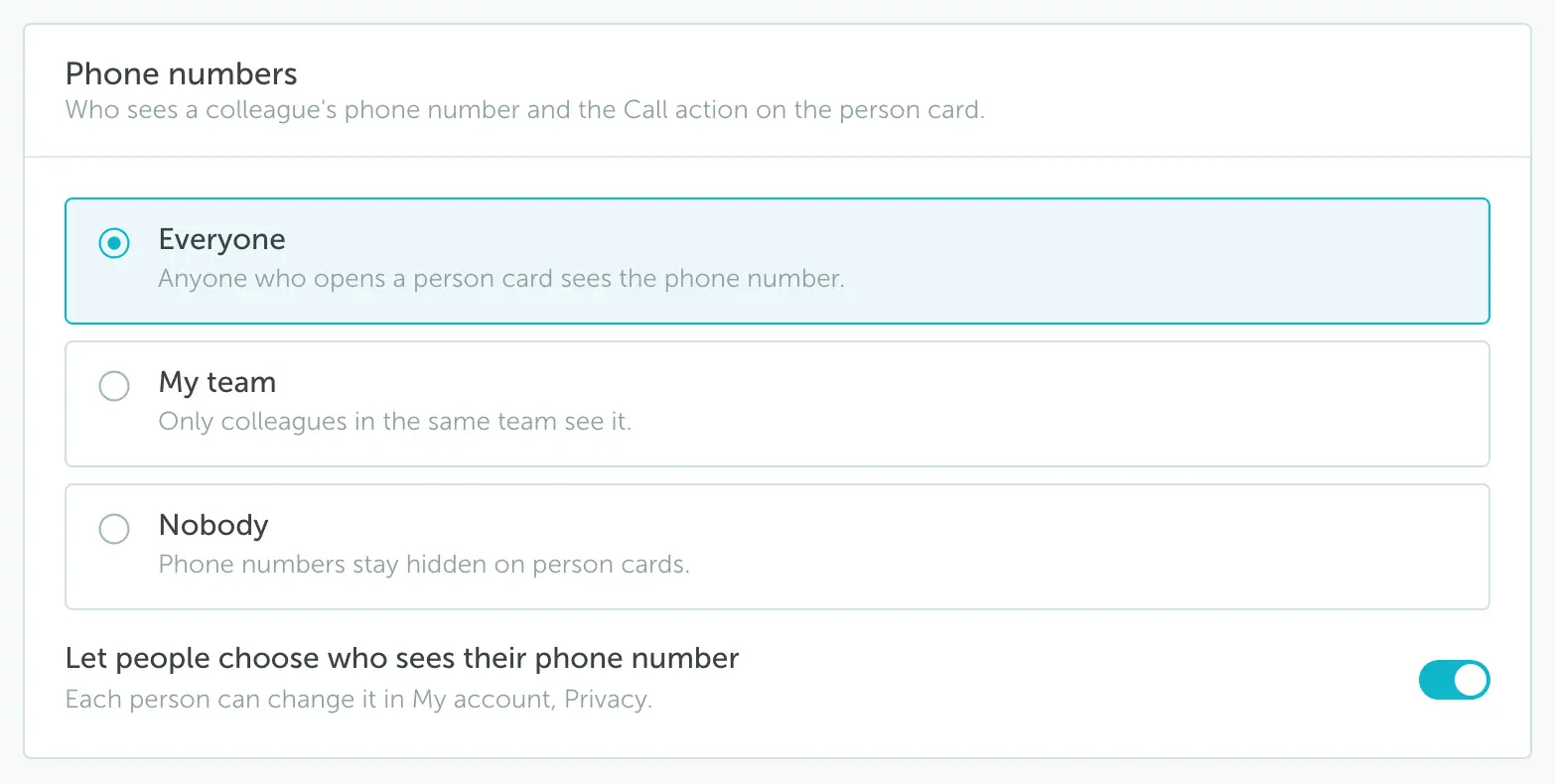
Go to Settings → Org chart to choose who sees a colleague’s phone number and the Call action on the person card.
| Option | Who sees the phone number |
|---|---|
| Everyone (default) | Anyone who opens a person card. |
| My team | Only colleagues in the same team. |
| Nobody | Phone numbers stay hidden on person cards. |
Turn on Let people choose who sees their phone number to let each person change it in My account → Privacy. This switch stays off while user privacy settings are disabled for your company.
Click Save changes.