Jump to:
Physical distancing in YAROOMS
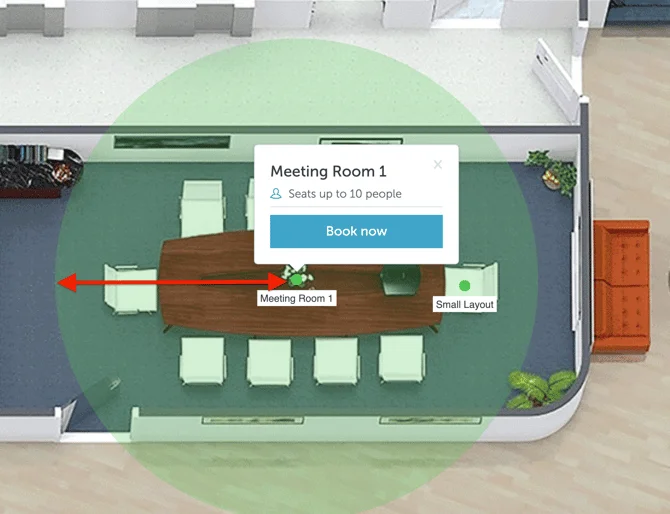
In YAROOMS, physical distancing rules can be defined on a space group level. This means that different space groups on the same floor can have different physical distancing requirements. For example, you can establish a minimum 2 meters distance between booked individual desks but keep this condition off from the standing desks.
How to enable physical distancing per space type
To enable physical distancing per space type, go to Settings → Space types → click on a space type → Details. Set the “Physical distancing” option to “Yes”. Now, you will be able to define minimum distance between space groups belonging to this space type.
How to set up minimum distance between booked spaces
To set up the minimum required distance between booked spaces (in meters), go to Settings → Space types → click on a space type → Groups → click on a group → Distancing → Min distance in m. Enter a number and save your selection.
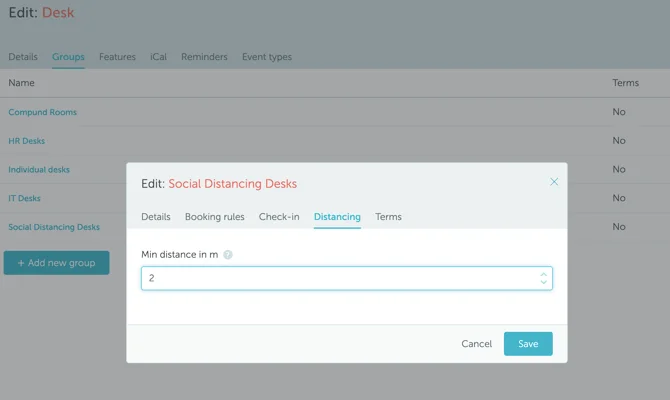
The rule will apply to all the spaces in the space group. Once someone makes a booking, it will disable other bookable spaces within the established radius.
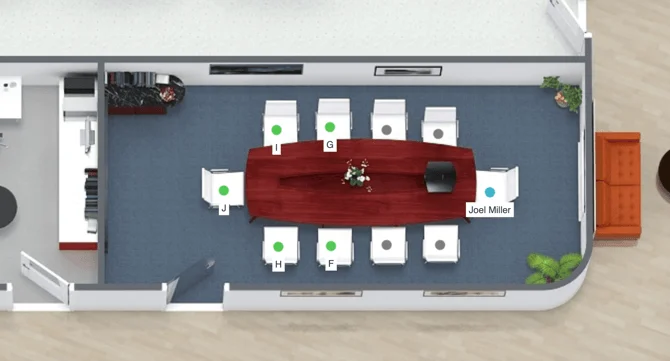
Example in the picture below: the minimum distance between booked spaces in the conference room is 2 meters. Once a space is booked, all other spaces closer than 2 meters are disabled for reservations (marked in grey).
Scale
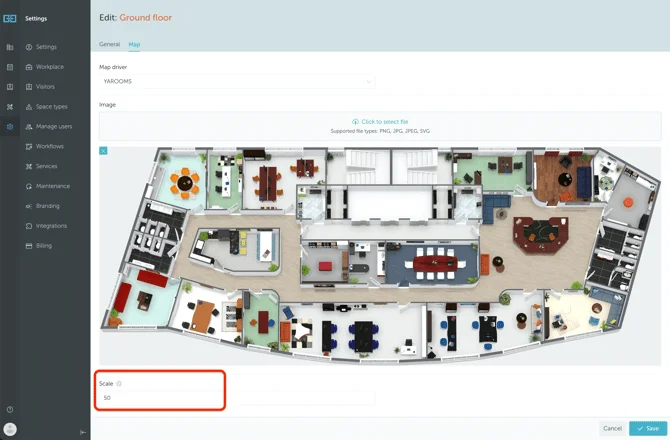
The scale is also known as the pixel to meter ratio. It helps to set up accurate floor maps so that the area size in pixels corresponds to the actual area size.
The scale assures the accuracy of the minimum distance in meters and adds precision to your physical distancing measures. It can be set up by going to Settings → Workspace → click on a floor → Edit → Map → Scale. Enter the number and save your selection.
SUMMARY:
- Enable Physical Distancing for the space type.
- Set a distance for the space group.
- Define the scale (pixel-to-meter ratio).
Then, navigate to Map View, select a space that belongs to the specified type and group, and test the distancing radius. If the results aren’t accurate, adjust the distance or scale as needed for precision.