
Jump to:
The people report provides insights on metrics such as the number of no-shows, average time to check-in, the amount of spaces booked, etc. per user. Use it to make informed space management decisions.
Using people report
To access the people report, go to Workplace → Analytics → People.
Narrow down the results by specifying (filter by):
- User team
- Time interval ("Date between" tab)
- Location
- Space type
Information will populate the page.
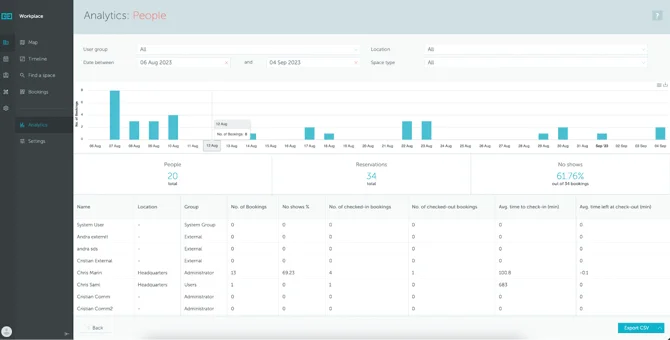
In the chart, you will be able to see all daily bookings made by the defined team of users during the specified time interval. It can help you grasp information which days are the busiest/most silent.
The statistics below will show aggregate information about:
- The total number of people that fit the defined criteria;
- The total number of reservations made by them;
- The total number/percentage of no shows.
Scroll down the page to see the for each user within the defined team, as well as more aggregate information related to checked-in/out bookings.