
Jump to:
1. What is Microsoft Teams Meetings integration
The Microsoft Teams Meetings integration allows users create a Teams meeting along with a YAROOMS meeting and attach it to the description. When the YAROOMS meeting is updated/cancelled, the Teams meeting will be updated.
2. Application and permissions in Azure Portal
In Azure Portal, go to Azure Active Directory → App Registrations and create a new Application with Account Type Multitenant. After saving, store the Application (client) ID and Directory (tenant) ID for later use.
In the new App’s edit screen, go to API Permissions and click Microsoft Graph. The minimal permissions needed are:
For Delegated Permissions:
- None
For Application Permissions:
- OnlineMeetings.ReadWrite.All
- User.Read.All
After setting up these values, go back to API Permissions screen and click Grant admin consent for [Your organization’s name]. This will allow the chosen settings to be propagated to all accounts registered under your Microsoft organization and allow all users to activate the Teams tab and login to YAROOMS.
Back on the App’s edit screen, go to Certificates and Secrets and create a New Client Secret. Store the string displayed in the Value column for later use.
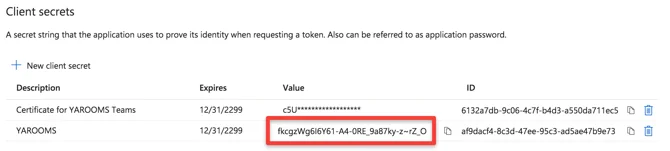
VALUE, not ID!
The user object ID can be found under Azure Active Directory → Manage → Users → Select the account that you want to delegate → Copy the Object ID.
3. Configure Teams Meetings integration in YAROOMS
Configure the YAROOMS Teams meetings integration by going to Settings → Integrations → Teams meetings. Activate it by pressing “Yes” and adding necessary details:
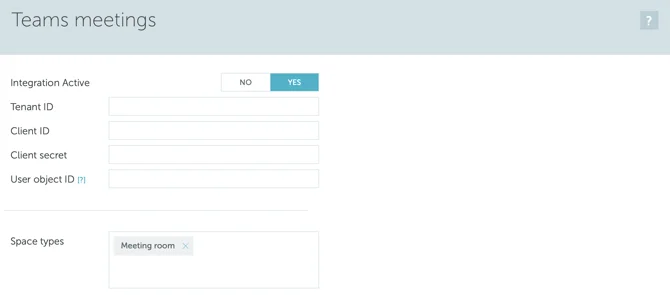
- Client ID
- Tenant ID
- Client secret
- User object ID
Finally, select the space types on which the Teams meetings integration should be active.
4. Create application access policy
Changes to application access policies can take up to 30 minutes to take effect in Microsoft Graph REST API calls.
5. How it works
If Microsoft Teams Meetings integration is activated, users will be able to add a video conferencing link when booking spaces (only the types you specified when setting up the integration).
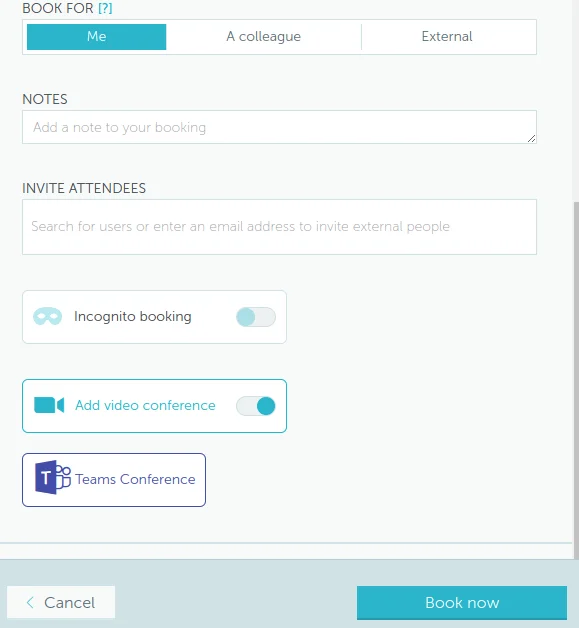
Clicking the Microsoft Teams icon will create the meeting in Teams with the same details as in YAROOMS and add the join details to the YAROOMS description field. The users will be able to see the join link in their booking details and booking confirmation email.
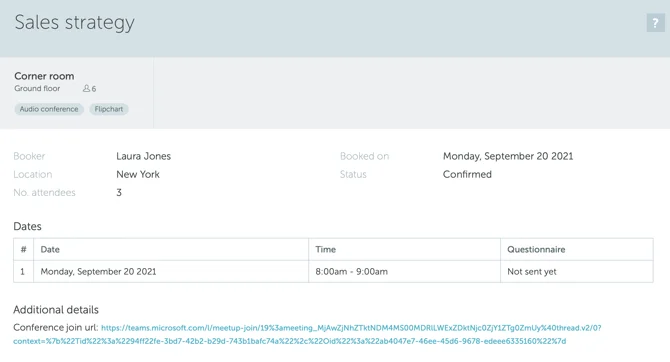
The Microsoft Teams meeting is kept up to date with the YAROOMS meeting:
Changing the date, start or end times in YAROOMS will update the Microsoft Teams meeting
Cancelling the meeting in YAROOMS will delete the Microsoft Teams meeting