
Jump to:
Login with Microsoft (Entra ID)
Also searchable as Azure AD / Azure Active Directory sign-in.
Login with Microsoft is now powered by YAROOMS Identity, a centralized Microsoft Entra ID app managed by YAROOMS. You no longer need to register your own Azure AD app, manage client secrets, or configure redirect URIs for sign-in. Admin consent is still required once so YAROOMS can read user details and group memberships from your Entra ID tenant for provisioning and attribute mapping.
Activate the integration
Log in to YAROOMS as an administrator and navigate to Settings → Integrations → Login with Microsoft.
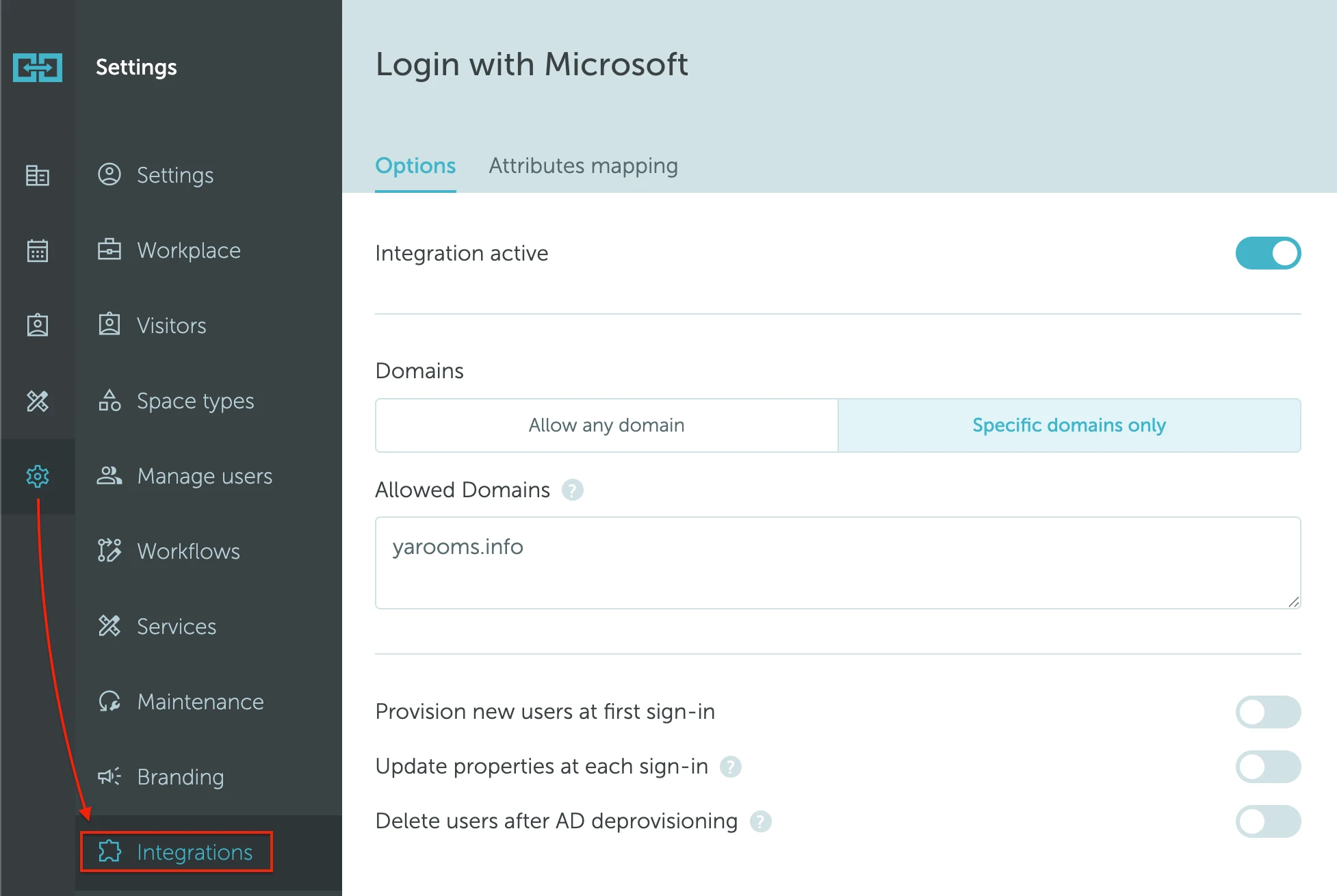
Turn on Integration active.
Grant admin consent
Before provisioning and attribute sync can work, a tenant administrator must authorize the YAROOMS Identity app against your Microsoft Entra ID tenant.
- Click Grant admin consent. A new tab opens against Microsoft with the YAROOMS Identity consent screen.
- Sign in as an Entra ID administrator and approve the requested permissions on behalf of your organization. The permissions requested are:
- Application:
User.Read.All,GroupMember.Read.All - Delegated:
openid,email
- Application:
- Return to the YAROOMS tab. Once consent is detected you’ll see a confirmation and the provisioning controls become editable.
If consent is never detected, re-open the authorization link and complete the flow again.
Configure domain restrictions
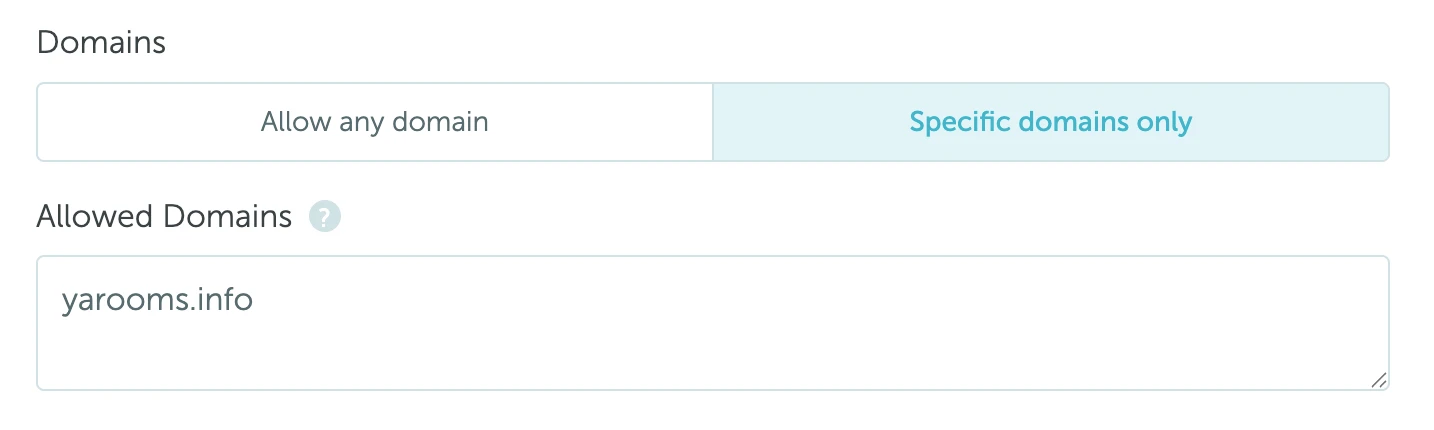
Under Domains, choose which Microsoft accounts can sign in:
- Allow any domain: any Microsoft account can sign in, provided the user exists in your YAROOMS workspace (or user provisioning is enabled, see below).
- Specific domains only: only Microsoft accounts from the domains you list can sign in. Enter one domain per line, for example:
example.com
example.org
Configure user provisioning
Use the provisioning switches to control what happens at sign-in:
- Provision new users at first sign-in: when enabled, a YAROOMS user is created automatically the first time a matching Microsoft account signs in. When disabled, only users that already exist in YAROOMS can sign in.
- Update properties at each sign-in: keeps user team, location, and roles in sync with Entra ID on every sign-in. If disabled, properties are read only when the user is first provisioned.
- Delete users after AD deprovisioning: users removed from Entra ID are automatically deleted from YAROOMS once a month.

Public workspace risk. If you enable provisioning while Domains is set to Allow any domain, any Microsoft account from any tenant can sign in and be auto-provisioned as a user in your workspace. This effectively makes your workspace public.
We strongly recommend setting Domains to Specific domains only and whitelisting the domains your organization controls whenever user provisioning is enabled. If you cannot restrict by domain, keep provisioning off so only pre-existing YAROOMS users can sign in.
Configure attributes mapping
Open the Attributes mapping tab to control how Entra ID properties flow into YAROOMS user records. Every field is optional: leave it blank to use the built-in default shown as placeholder text.
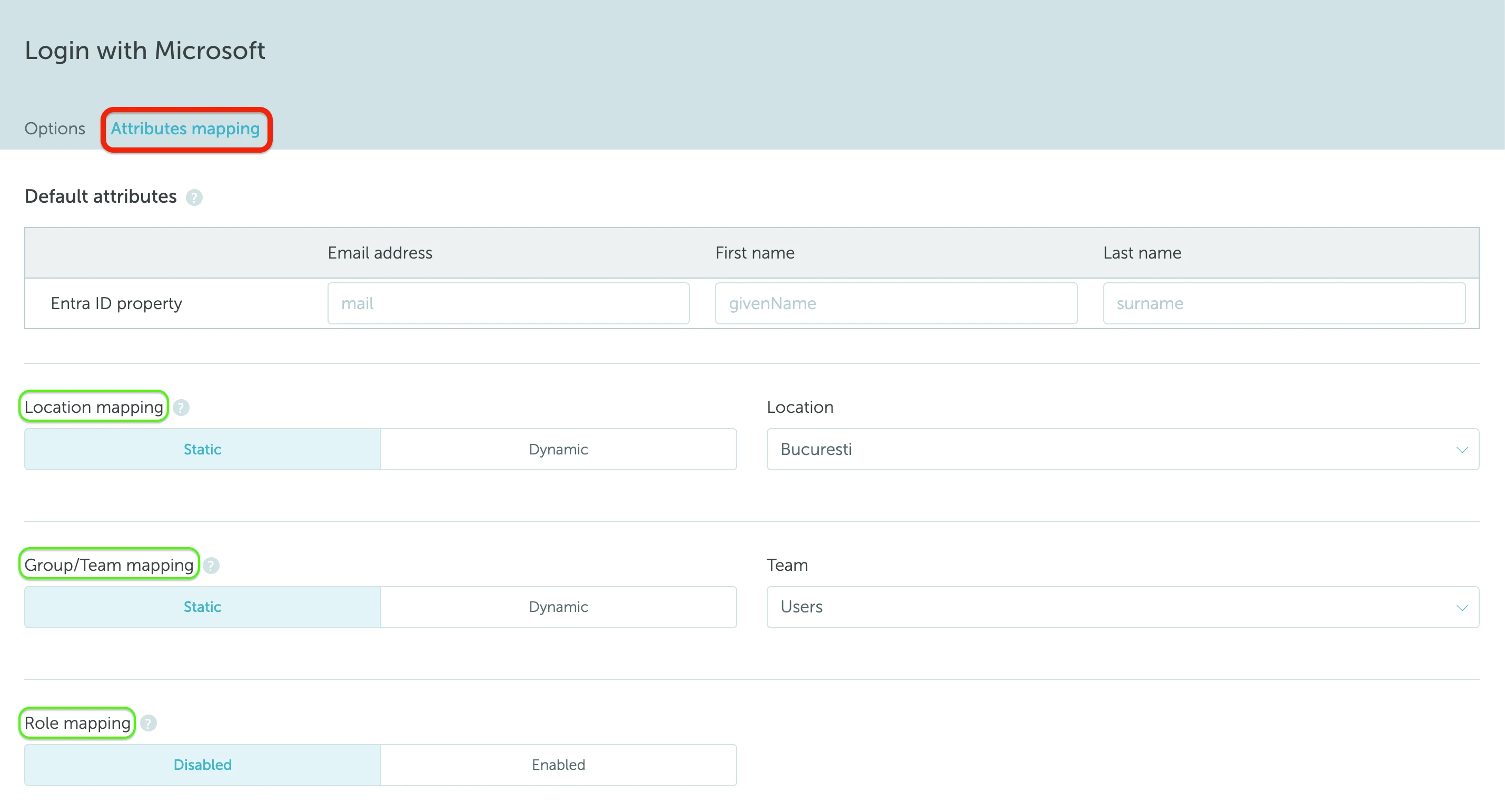
Default attributes
Pick the Entra ID property that should populate each core user field. Defaults are mail, givenName, and surname.
Location mapping
- Static: every new user is created in the same location (chosen from the Location dropdown).
- Dynamic: the user’s location is read from an Entra ID property that you specify in the Entra ID field input.
- Auto mapping type matches the Entra ID value against YAROOMS location names by exact match.
- Manual mapping type lets you explicitly pair each Entra ID value with a YAROOMS location. Values not paired fall back to the Default location.
Group/Team mapping
Works the same way as location mapping, but against YAROOMS teams. For Manual mapping, pair Entra ID Group Object IDs with the YAROOMS team of your choice. A common Entra ID field for team mapping is memberOf.
Role mapping
Enable to assign YAROOMS roles based on Entra ID group membership. Manual mapping pairs Entra ID Group Object IDs with YAROOMS roles; Auto matches by name. Values not paired fall back to the Default role. Roles are re-synced at every sign-in if Update properties at each sign-in is enabled.
Click Save to apply the integration settings.
Verify the integration
To confirm the integration is live, open your YAROOMS login page in a private/incognito window (or sign out first) and look for the Continue with Microsoft button above the email and password fields.
Click Continue with Microsoft and sign in with an allowed Microsoft account. If the button is missing, double-check that Integration active is turned on and that you saved the settings. If sign-in fails, verify that the account’s domain matches your Domains policy and that the user exists in YAROOMS (unless user provisioning is enabled). If provisioning seems to be skipped, confirm that Grant admin consent was completed for your tenant.
Looking for the legacy integration?
If your workspace is still using a self-managed Azure AD app for sign-in (your own Tenant ID, Client ID, and Client Secret), see the Microsoft Teams: Integration Setup (Legacy) article for the legacy configuration and in-app migration flow. The legacy integration is being phased out; all clients are required to migrate by 30 June 2026.