
Jump to:
When a space group has required custom fields, the booking window in the YAROOMS web app does not save a booking until every required field is filled in. Other booking channels cannot always ask for these answers. YAROOMS does not reject those bookings: it reserves the space and marks the booking as Incomplete until the missing information is added.
If you have not set up custom fields yet, read How to Set Up Custom Booking Fields first.
When a booking is Incomplete
A booking is saved as Incomplete when a required answer is missing and the booking comes from:
- Outlook or Google Calendar sync
- The Outlook add-in
- The YAROOMS mobile app
- The YAROOMS API and integrations
- Meeting room displays
- The classic web interface
- A CSV import
- Team calendar bookings for other people
- Assigned spaces and auto-booking
The space stays reserved, and the booking shows in the schedule like any other booking.
A booking stops being Incomplete when:
- Someone saves it with every required answer filled in.
- An administrator archives the missing field, removes it from the space group, or makes it optional. YAROOMS then checks the affected bookings again in the background.
How bookers complete a booking
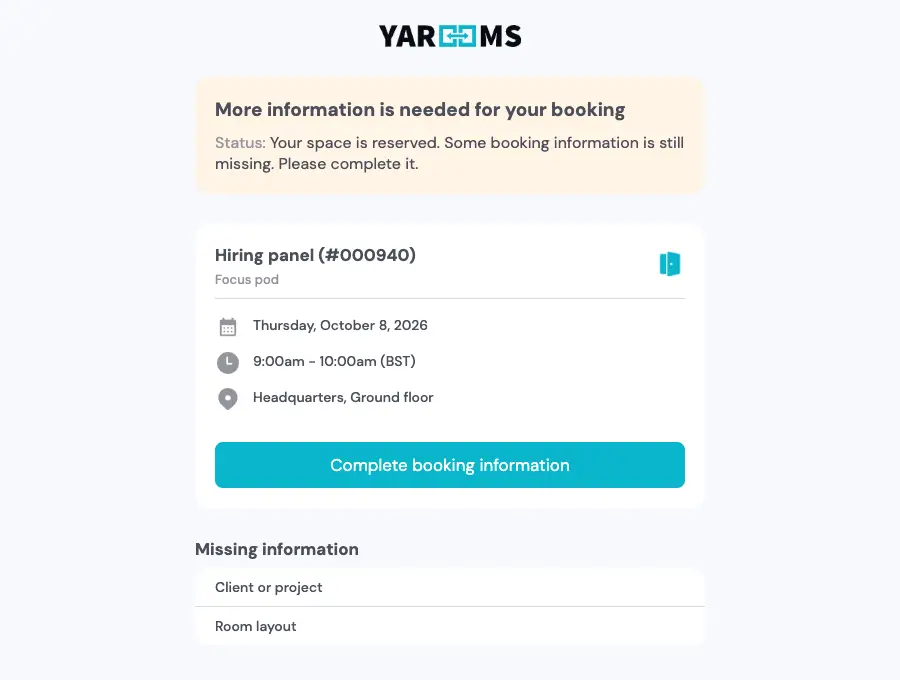
When a booking is saved as Incomplete, YAROOMS sends the booker one email, More information is needed for your booking. It lists the missing fields and has a Complete booking information button that opens a form with the questions.
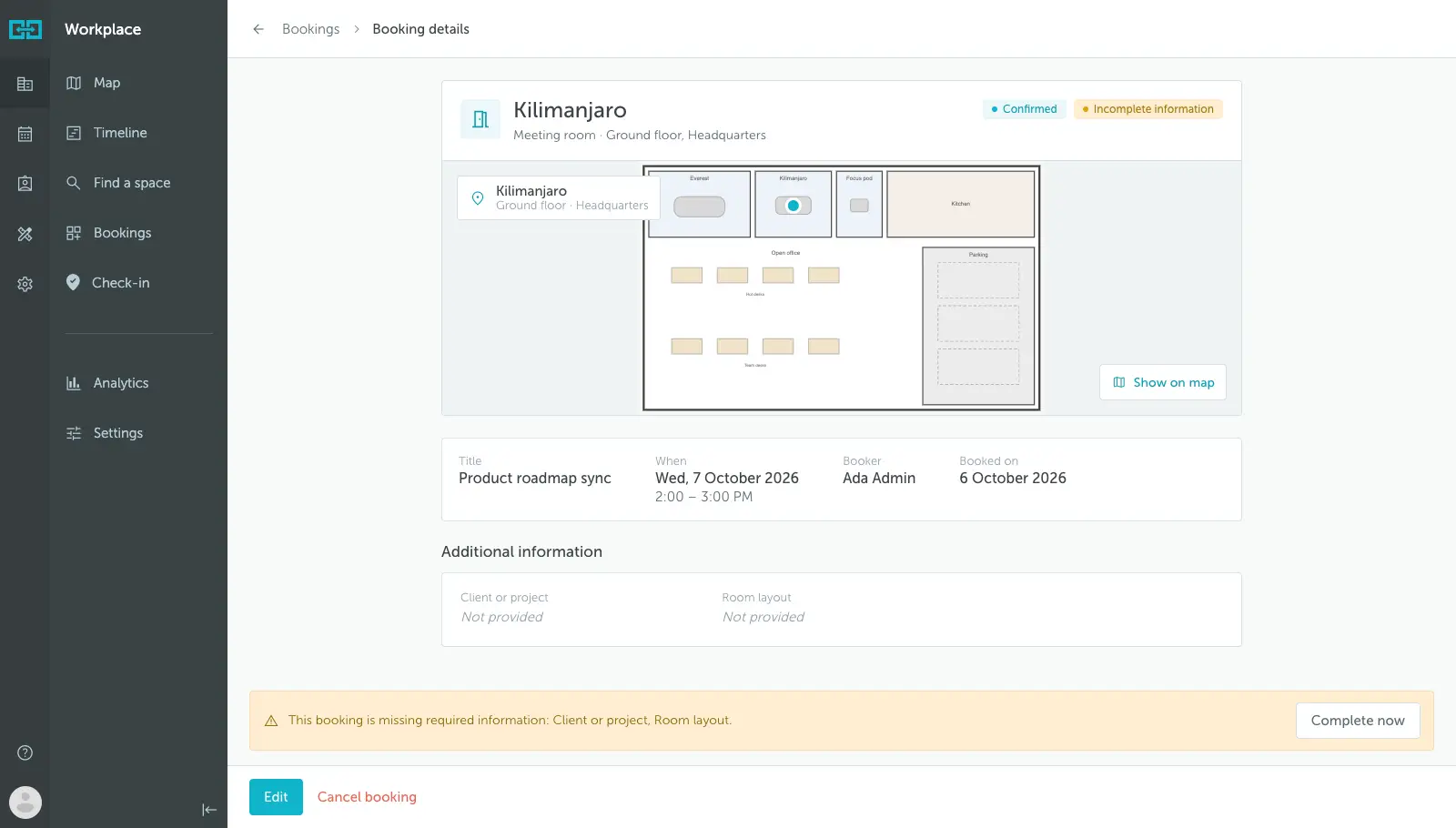
The booking details page also shows an Incomplete information label and a banner with the missing fields. Unanswered fields show as Not provided. Click Complete now to add the answers.
Find incomplete bookings
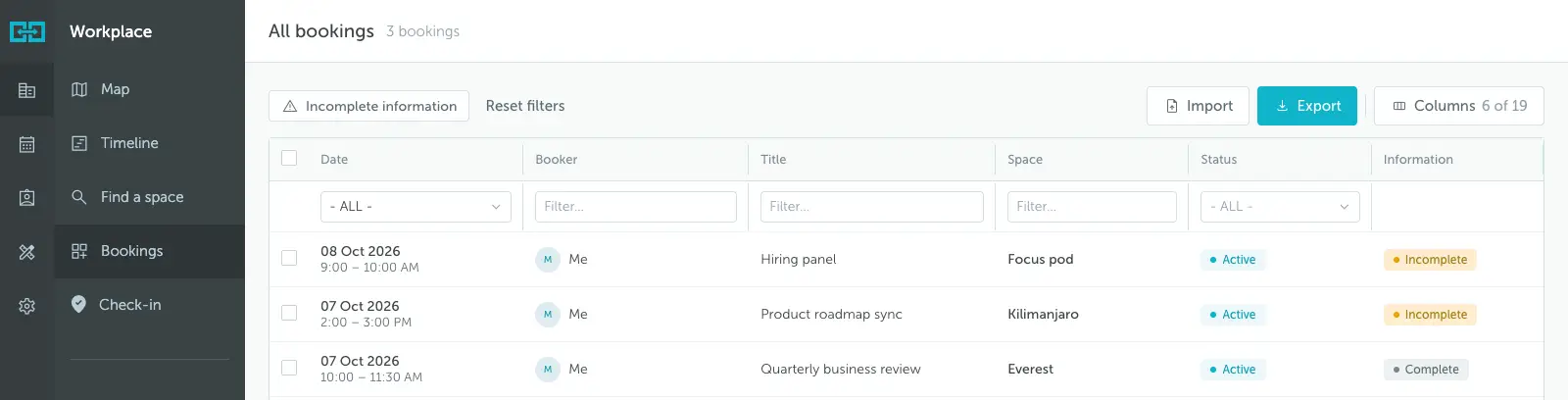
Go to Bookings and use the Incomplete information quick filter to show only the bookings that miss required answers. You can also add the Information column, which shows Complete or Incomplete for each booking.
Export custom field answers
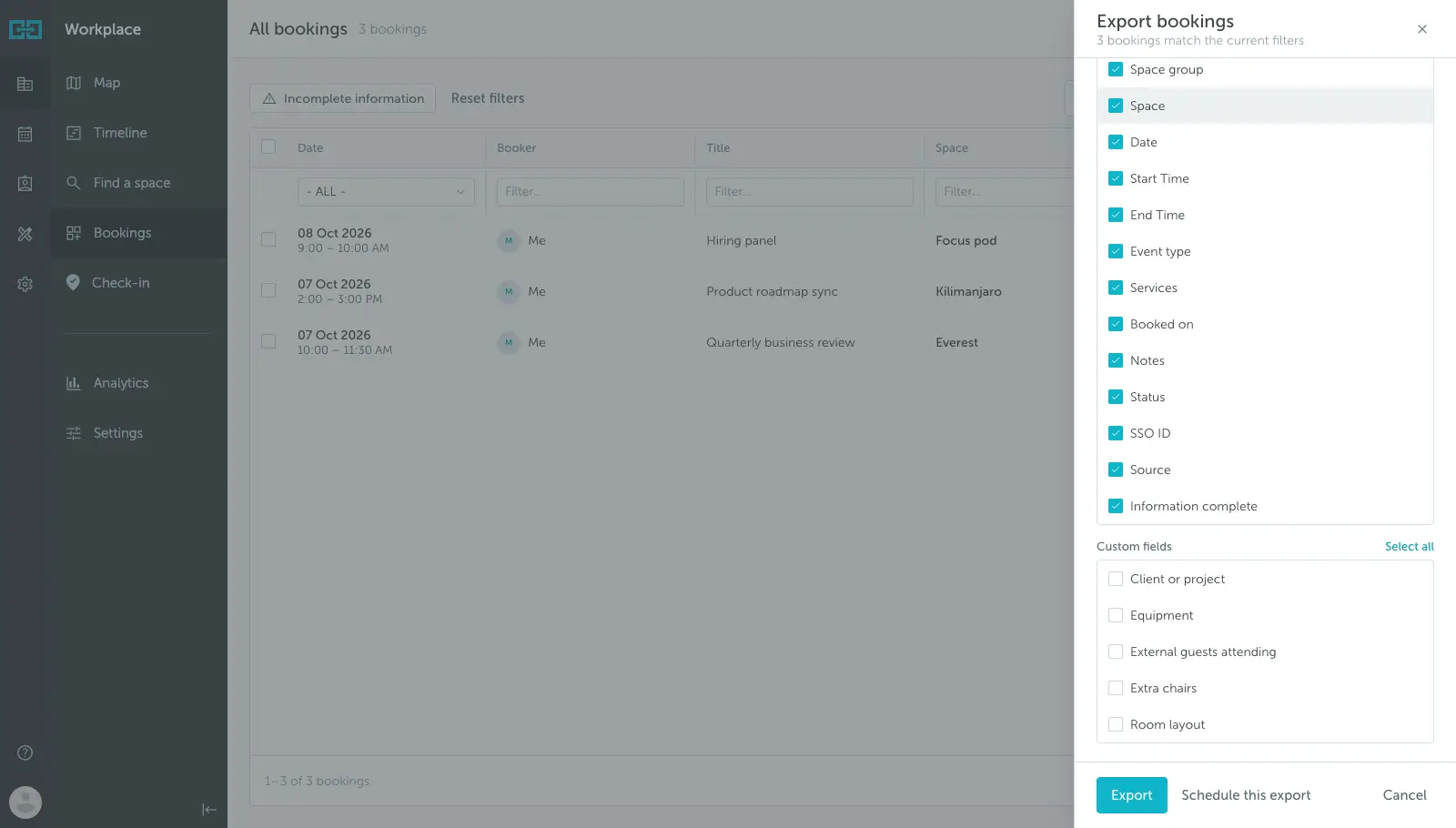
In Bookings, click Export and choose the columns for the file:
- Information complete (Yes or No) is selected by default.
- The Custom fields group has one column per custom field. These columns are not selected by default. Use Select all to add them all at once.
The export only contains answers for bookings whose details you are allowed to see. For other bookings, the custom field columns are empty.