
Requirements
- Permissions to create a Bot Service in Azure Portal
- An existing Teams integration
- A packed Teams app provided by YAROOMS (not the one on the store)
Set up Teams bot
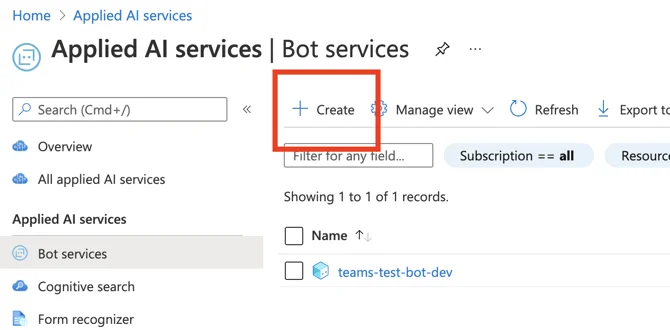
- Navigate to Azure Portal - Bot services
- Click on “+ Create”
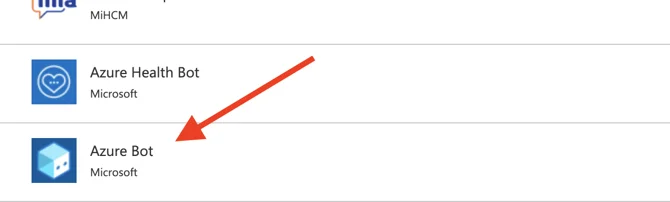
- Scroll down, click on “Load More”, as many times as needed, until the Azure Bot option shows up
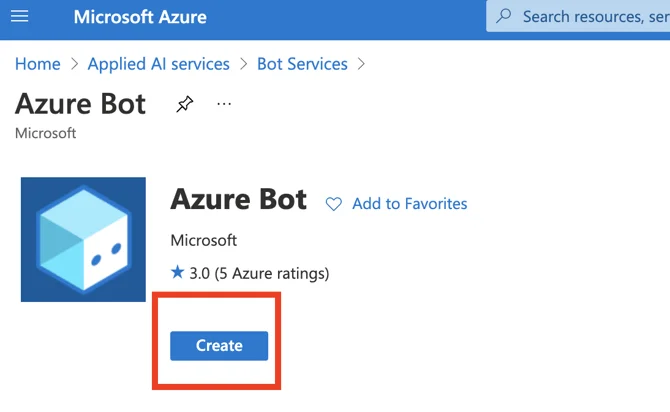
- Click on “Create”
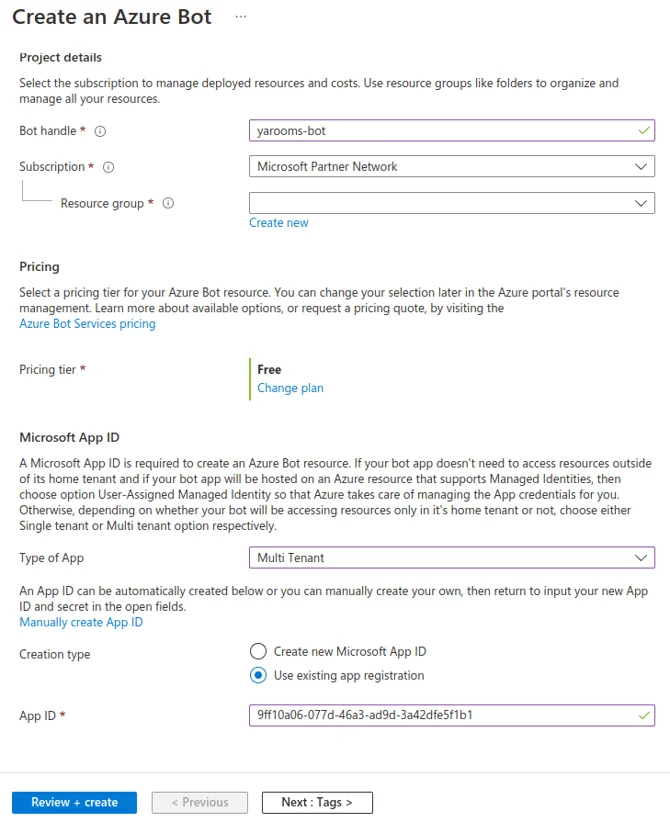
Create an Azure bot
- Bot handle - A unique identifier for the bot
- Select a resource group
- Pricing - Change to Free Tier
- Microsoft App ID - Select “Multitenant”
- Creation Type - Use existing app registration
- App ID - The client ID of your existing Teams Integration Application
- Review + Create
- Click on create
This will take a few minutes, but after its done, click on “View Resource”
On the left side menu click on Configuration and on Messaging endpoint add the following value:
https://your-tenant.yarooms.com/api/teams-bot
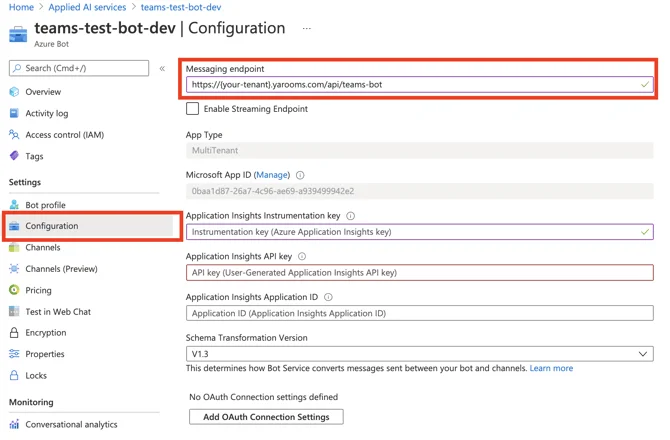
Apply the changes
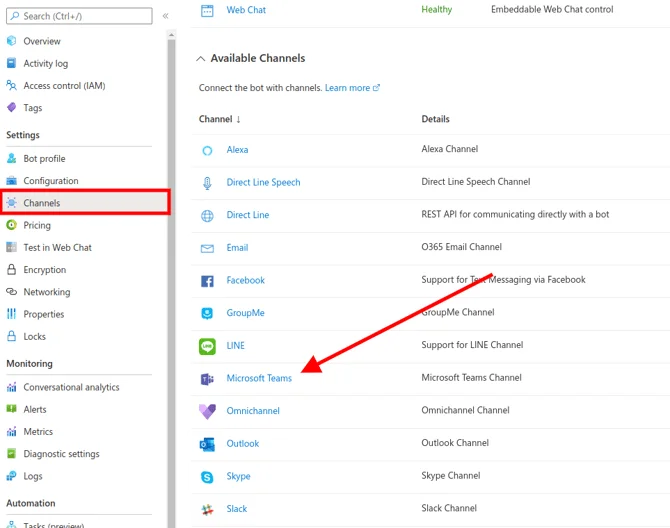
On the left side menu, click on “Channels” and add “Microsoft Teams” as a channel
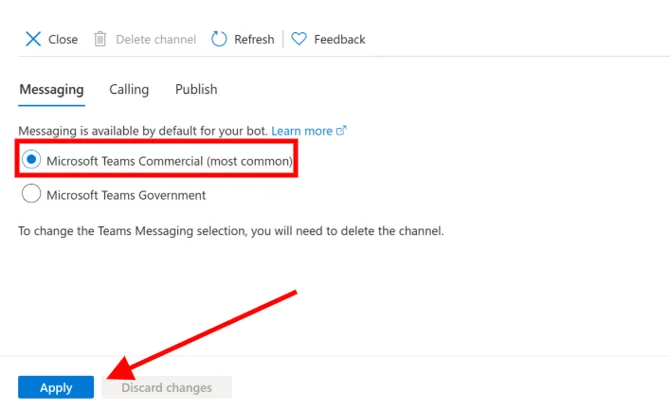
- Then, simply save the configuration (Apply) to add teams as a channel
Note: Now proceed to add/update
the Teams packaged application.