
Jump to:
Room layouts let you offer one meeting room in the setups it supports, such as Boardroom, Classroom, or Theatre. Each layout has its own capacity, and can block time before and after the meeting to set up and clear the room. Bookers pick the layout when they book.
Before you start
- Layouts are available for rooms whose space type has Capacity turned on. See Setting up space types & space groups.
- To set up the layouts of a room, you need the permission to manage spaces in its location.
- Your organization shares one layout library. It starts with eight standard layouts: Boardroom, Classroom, U-shape, Theatre, Banquet, Cabaret, Hollow square, and Reception. Each has its own diagram.
Set up the layouts of a room
Go to Settings → Workplace, select the location and floor, then click the meeting room’s name in the Spaces list. Open the Room layouts tab.
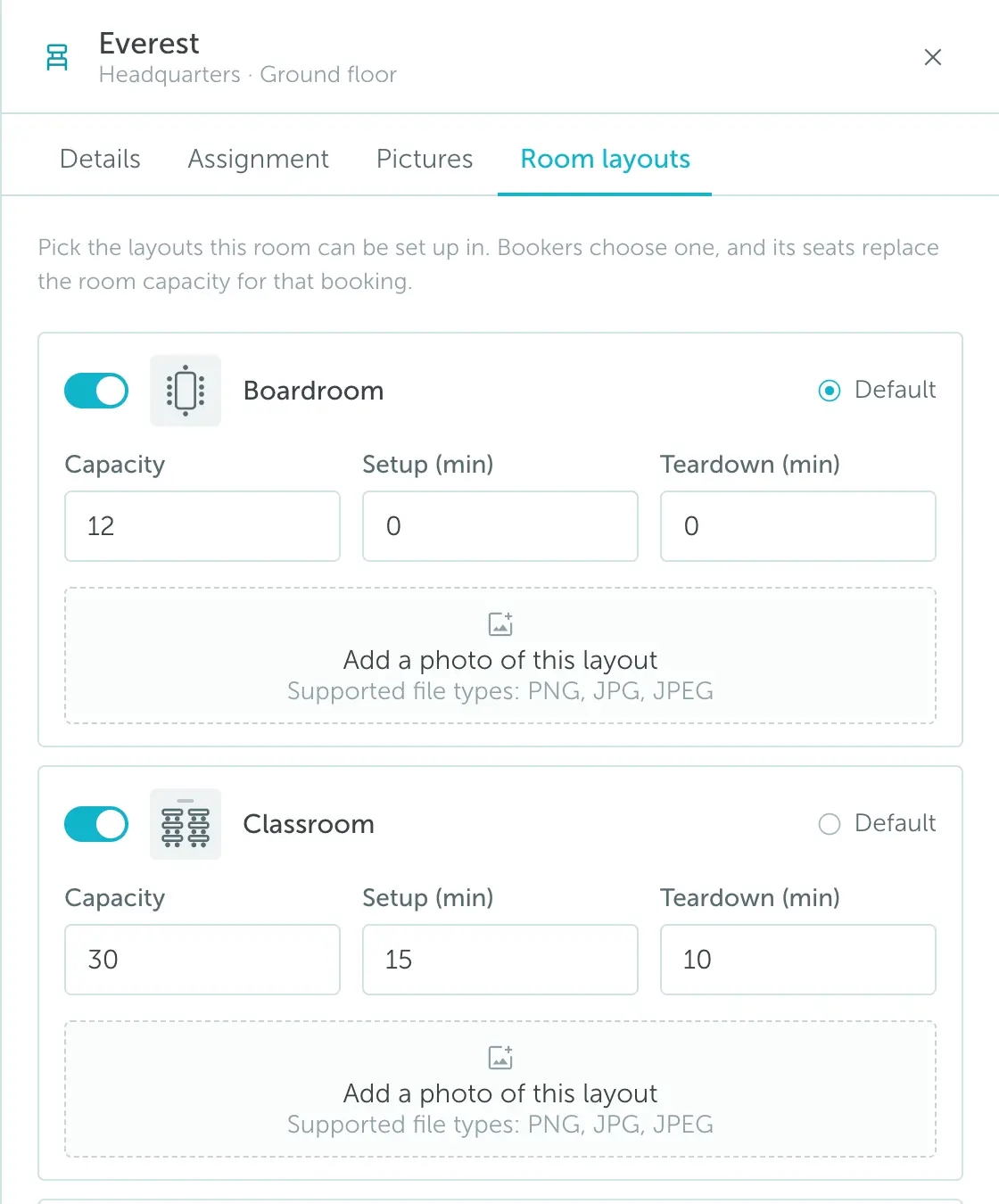
The tab lists every layout in the library. Turn on each layout the room can be set up in, then fill in:
- Capacity: the number of seats in this layout, at least 1. It replaces the room capacity for bookings in this layout.
- Setup (min) and Teardown (min): the time needed to set up the room before the meeting and to clear it after, from 0 to 1440 minutes.
- Add a photo of this layout (optional): a JPG or PNG photo of the room in this layout, under 10 MB and at most 2000 pixels on each side. Bookers see it in place of the diagram.
- Default: the layout new bookings get when the booker does not choose one. The first layout you turn on becomes the default.
Click Save changes to apply the settings.
Add a custom layout
If the library does not have the layout you need, click Add custom layout at the bottom of the Room layouts tab. Enter a Layout name, choose an Icon, and click Add layout.
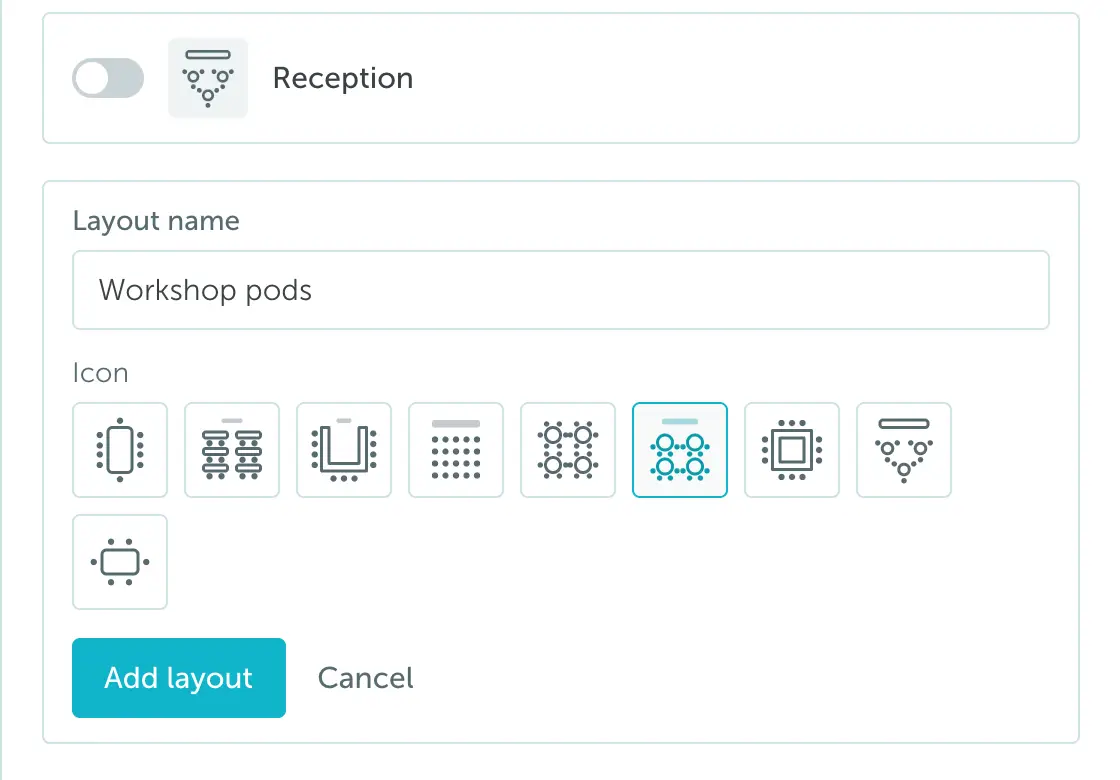
The new layout goes into the library of your organization, so you can turn it on in other rooms too. Each layout name must be unique.
Setup and teardown time
Setup time blocks the room before each booking in that layout, and teardown time blocks it after. The blocked time shows on the timeline next to the booking, and nobody can book the room during it. Teardown time is added on top of any buffer time of the space group.
- If a booker checks out early, the teardown time moves to start at the new end time.
- A booking keeps the setup and teardown time it was made with, even if you later change the layout.
What bookers see
When a booker opens the booking window for a room with layouts, the Room layout section shows each layout with its diagram (or photo), its seats, and its setup and teardown time. The default layout is preselected.
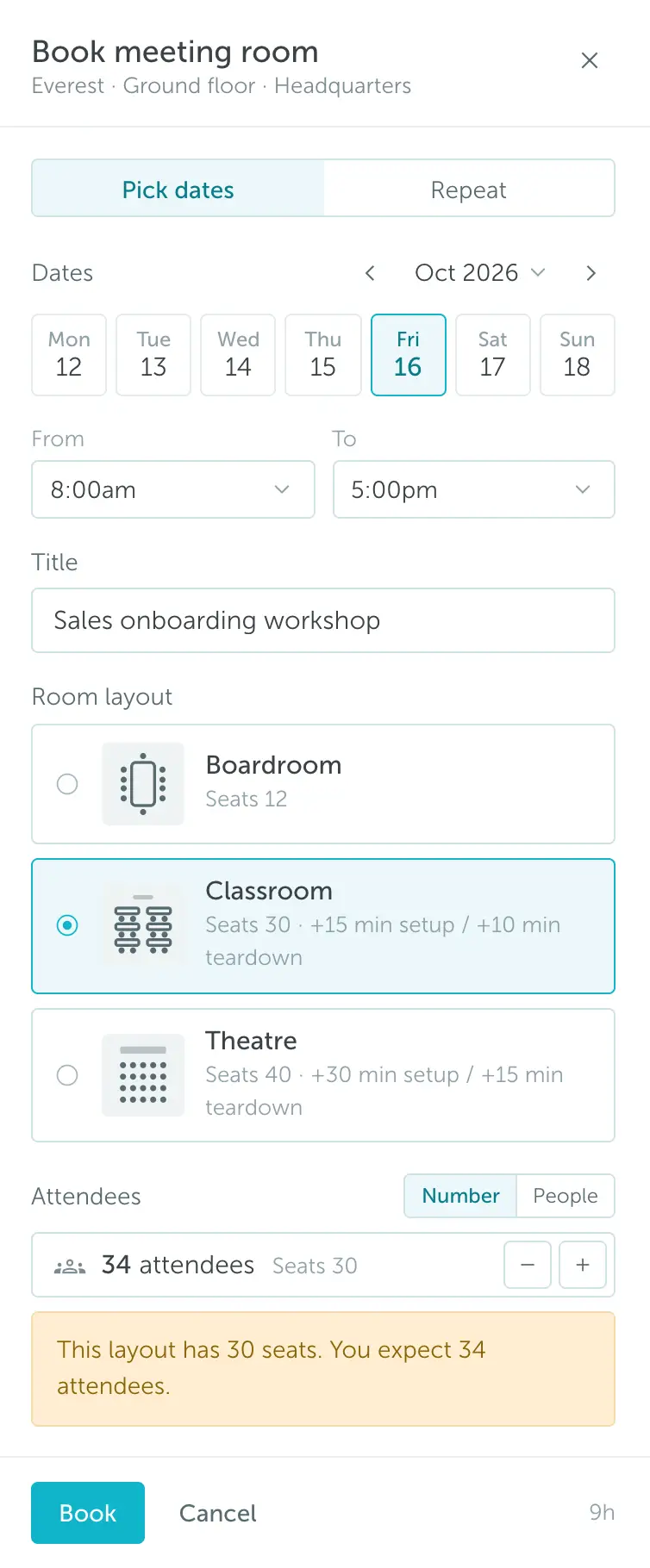
- The attendee count is checked against the seats of the chosen layout. If you enforce the room capacity, it applies to the layout capacity.
- If the setup or teardown time would overlap another booking, the booking window shows a warning, and the booking cannot be saved.
- A recurring booking uses one layout for all of its dates.
- If the booker moves the booking to another room, it keeps the same layout when the new room offers it. Otherwise it takes the new room’s default layout.
The layout also shows in the Outlook Add-in, in the booking details, in booking emails, and on the meeting room display.
Find a room by layout
In Find a space, choose a meeting room type and a Room layout to see only the rooms that offer that layout. Together with No. attendees, the layout must seat everyone, and each result shows the seats of that layout.

With Any layout, a room with layouts matches when one of its layouts seats everyone. A room without layouts matches on its room capacity.
Change or remove a layout
To stop offering a layout in a room, turn it off in the Room layouts tab and click Save changes. Existing bookings keep their layout, and the room stops offering it for new bookings. If you turn off the default layout, the next layout the room offers becomes the default.
Note: Rooms without layouts work as before, with the room capacity from the Details tab.