
Jump to:
Custom booking fields let you collect extra information with every booking, such as a client or project code, a room layout, or the equipment to set up. You create each field once in a shared library, then add it to the booking form of the space groups that need it.
Before you start
- Custom booking fields are part of the new workplace interface.
- To create and edit fields in the library, you need the Manage custom fields permission.
- To add fields to a space group’s booking form, you need the permission to manage space types and groups.
Create a field
Go to Settings → Custom fields. The Library tab lists every field of your organization. Click Add field and choose a type:
| Type | What the booker enters |
|---|---|
| Short text | Up to 255 characters |
| Long text | Up to 4000 characters |
| Number | A whole number, with an optional minimum and maximum |
| Yes / No | A checkbox |
| Single choice | One option from your list |
| Multiple choice | One or more options from your list, with an optional minimum and maximum |
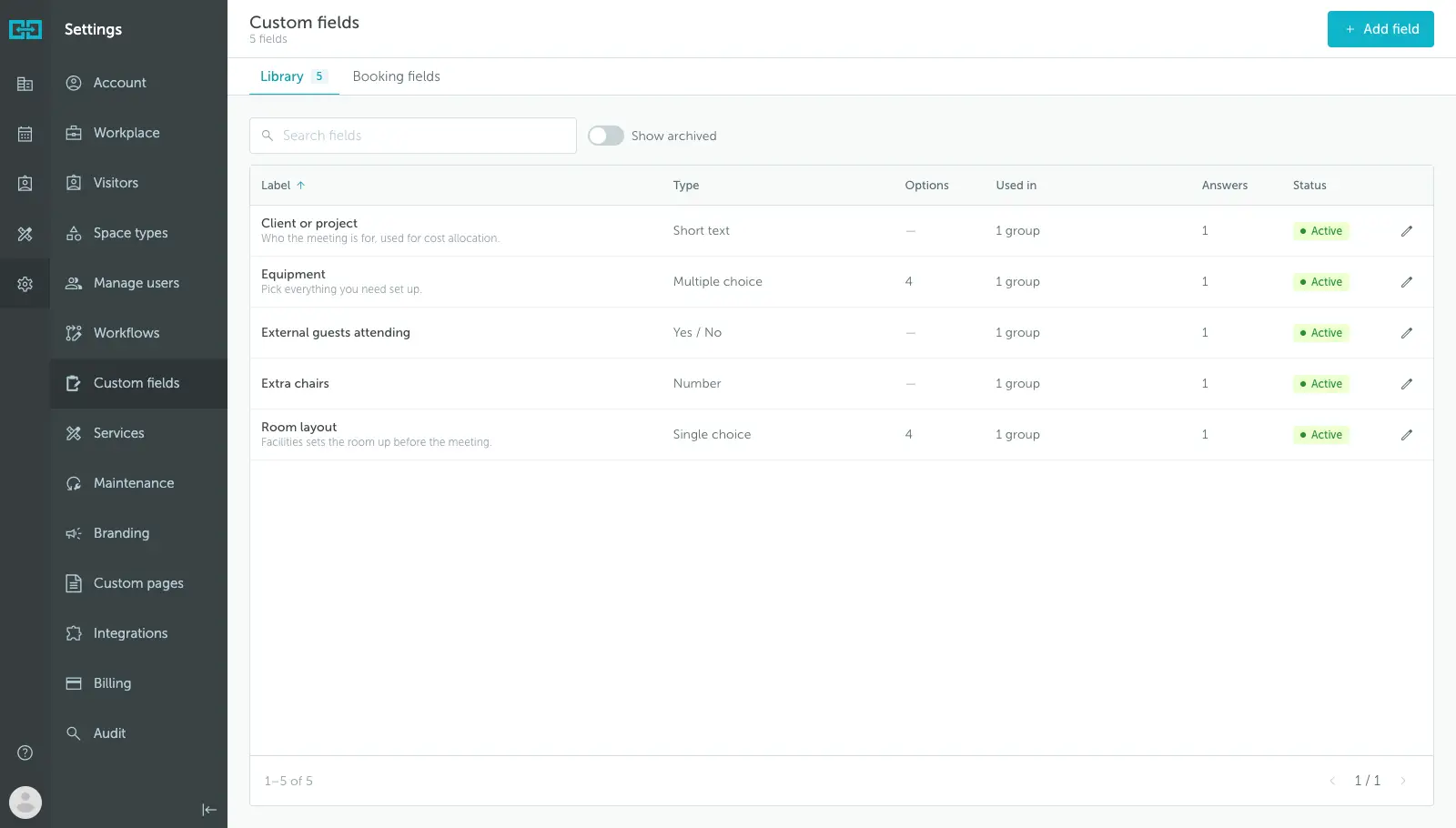
For each field, set:
- Label: the name bookers see, up to 100 characters. Each label must be unique and cannot match a built-in field such as Title or Note.
- Help text (optional): a short hint shown under the field in the booking form, up to 500 characters.
- Options (choice fields only): up to 50 options.
A new field does not appear in any booking form yet. Add it to a space group next.
Edit, archive, or delete a field
Click a field in the library to edit it. The editor shows which booking forms use the field, so you can see the impact of a change before you save it.
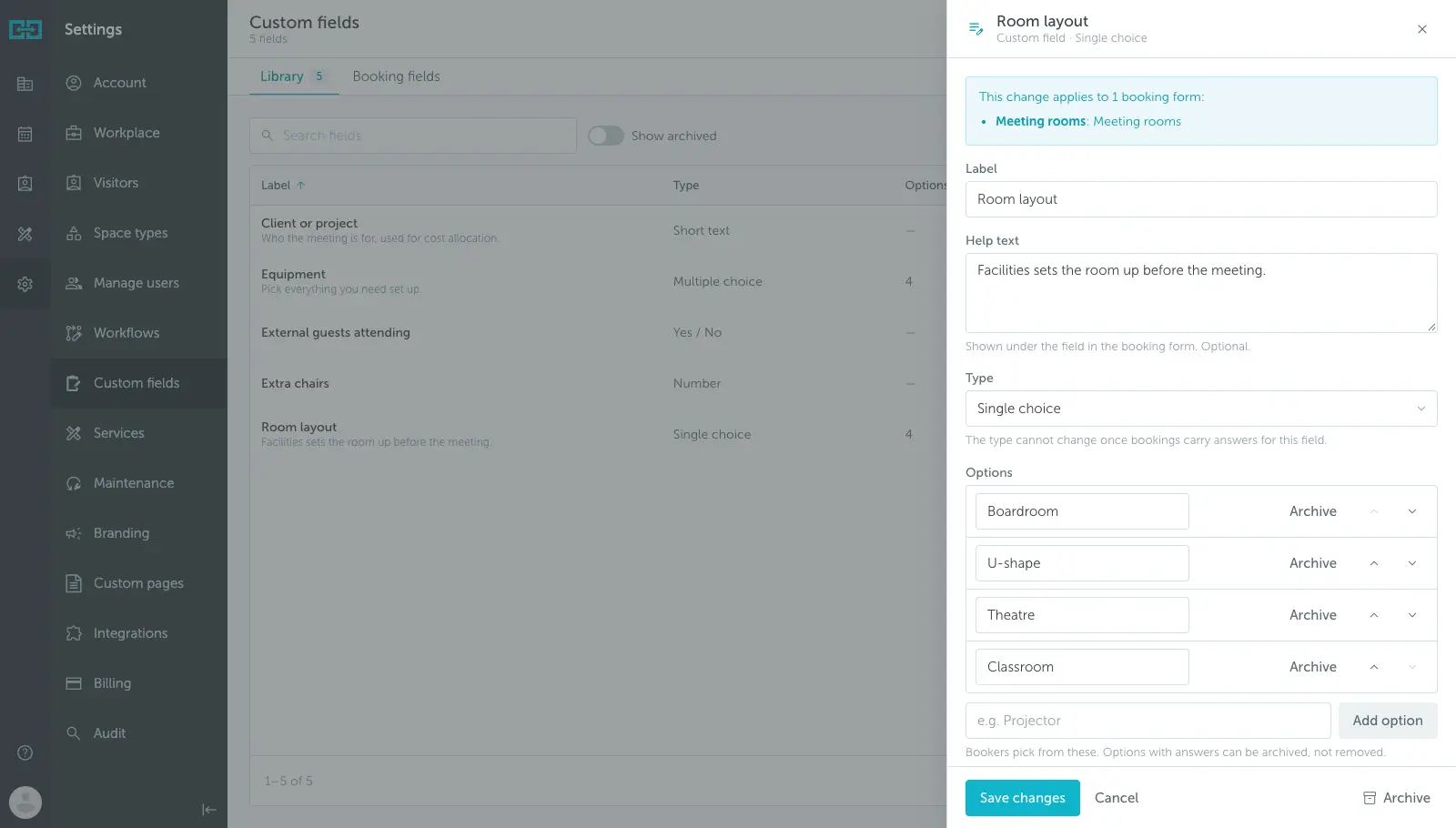
- Rename a field or an option at any time. Answers already saved on bookings keep the name they had when the booker answered.
- Change the type only while no booking has an answer for the field. After that, the type is locked.
- Archive an option that bookings already use. It is no longer offered, and existing answers stay.
- Archive a field to hide it from every booking form. Its answers stay on the bookings, and you can restore it later.
- Delete a field only when no booking has an answer for it.
Build a space group’s booking form
Each space group has its own booking form. Go to Settings → Space types → select the type → Groups → select the group and open the Fields tab.
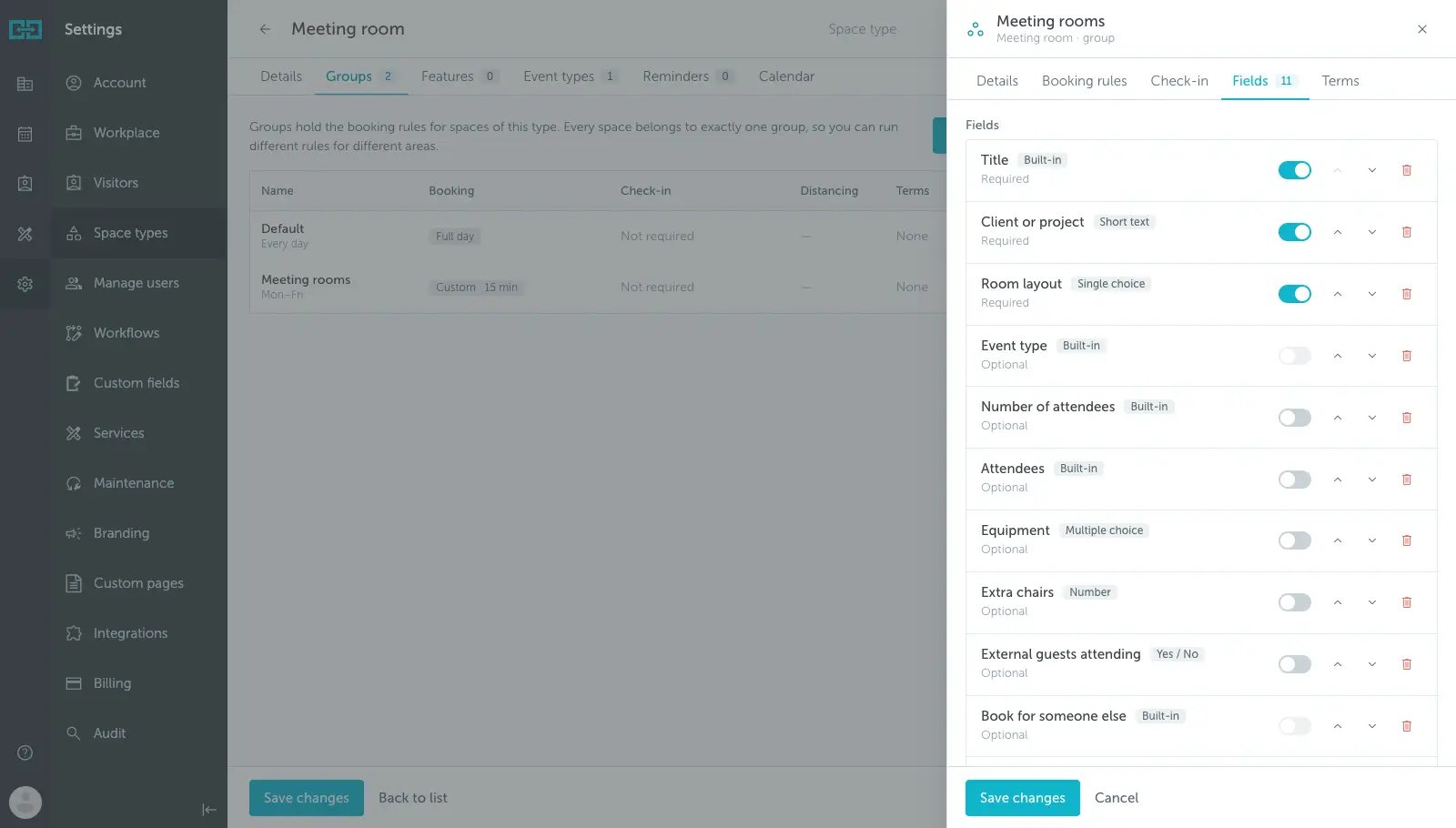
The tab lists the built-in fields (Title, Event type, Number of attendees, Attendees, Book for someone else, and Note) and the custom fields of the group. For each row you can:
- Turn Required on or off.
- Move the field up or down to change the order in the booking form.
- Remove the field. Removed built-in fields can be added back with Add back.
To add a custom field, choose it from Choose a field from the library. A group can have up to 20 booking fields.
Some built-in fields have rules of their own:
- Event type and Book for someone else cannot be required.
- Number of attendees and Attendees always move together.
- When Number of attendees is required, the booker must enter at least 1.
Add fields to many groups at once
To change many groups in one step, go to Settings → Custom fields and open the Booking fields tab. Choose a space type, then select the groups to change. The table shows which fields each group uses and whether they are required.
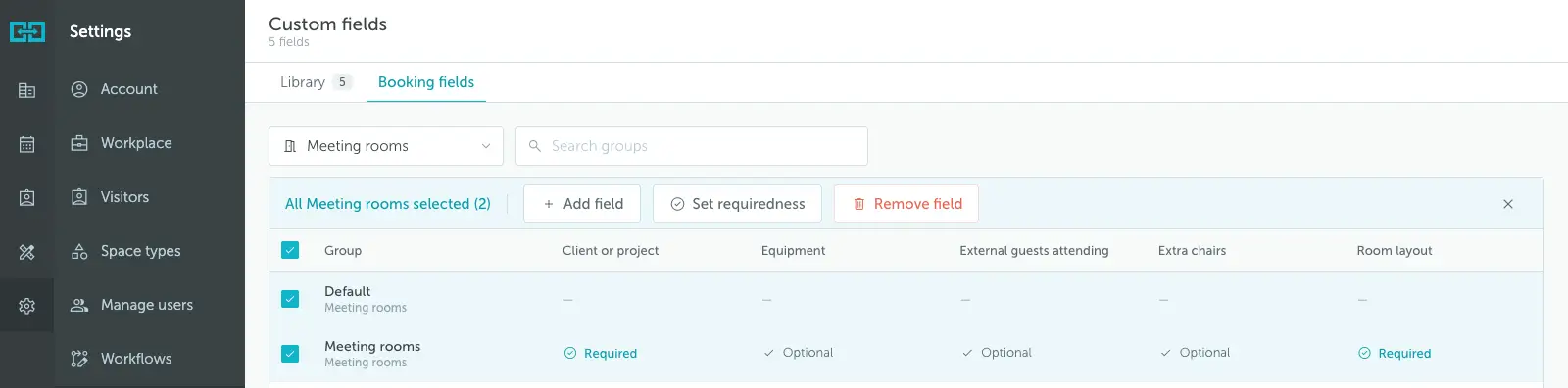
Choose an action:
- Add field: adds a custom field to every selected group.
- Set requiredness: makes a field optional or required in every selected group.
- Remove field: removes a custom field from every selected group.
Click Preview changes to review the result for each group, then click Apply. The change applies to all selected groups or, if one of them cannot take it, to none. Bulk changes work on custom fields only. Change built-in fields in each group’s Fields tab.
What bookers see
When a booker opens the booking window for a space in the group, the fields show in the order you set, with their help text. Required fields are marked with an asterisk, and the booking cannot be saved until they are filled in.
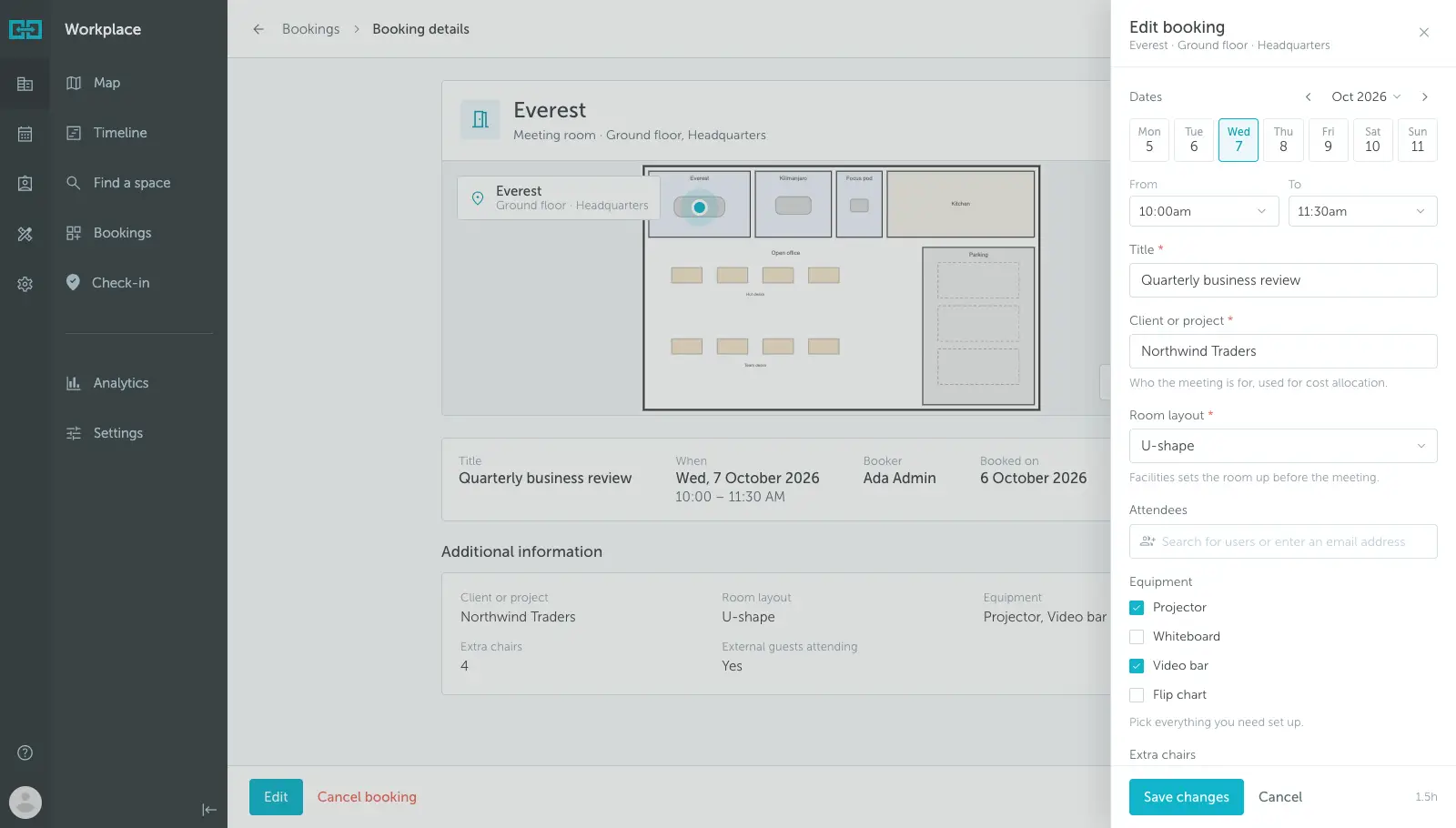
If a booker uses Instant book on a space whose group has required fields, YAROOMS opens the full booking window and asks them to fill in the required fields to finish the booking.
Bookings made outside the booking window, for example from Outlook, Google Calendar, the mobile app, or the API, cannot always ask for the answers. These bookings are saved as Incomplete, and the booker gets an email to add the missing information. Read Incomplete Bookings and Custom Field Exports to learn more.