
Jump to:
How it works
If two meeting rooms can be joined into one larger room, you can offer three booking options: Room A, Room B, and Room A+B. The combined option uses both rooms together; it is not a third physical room.
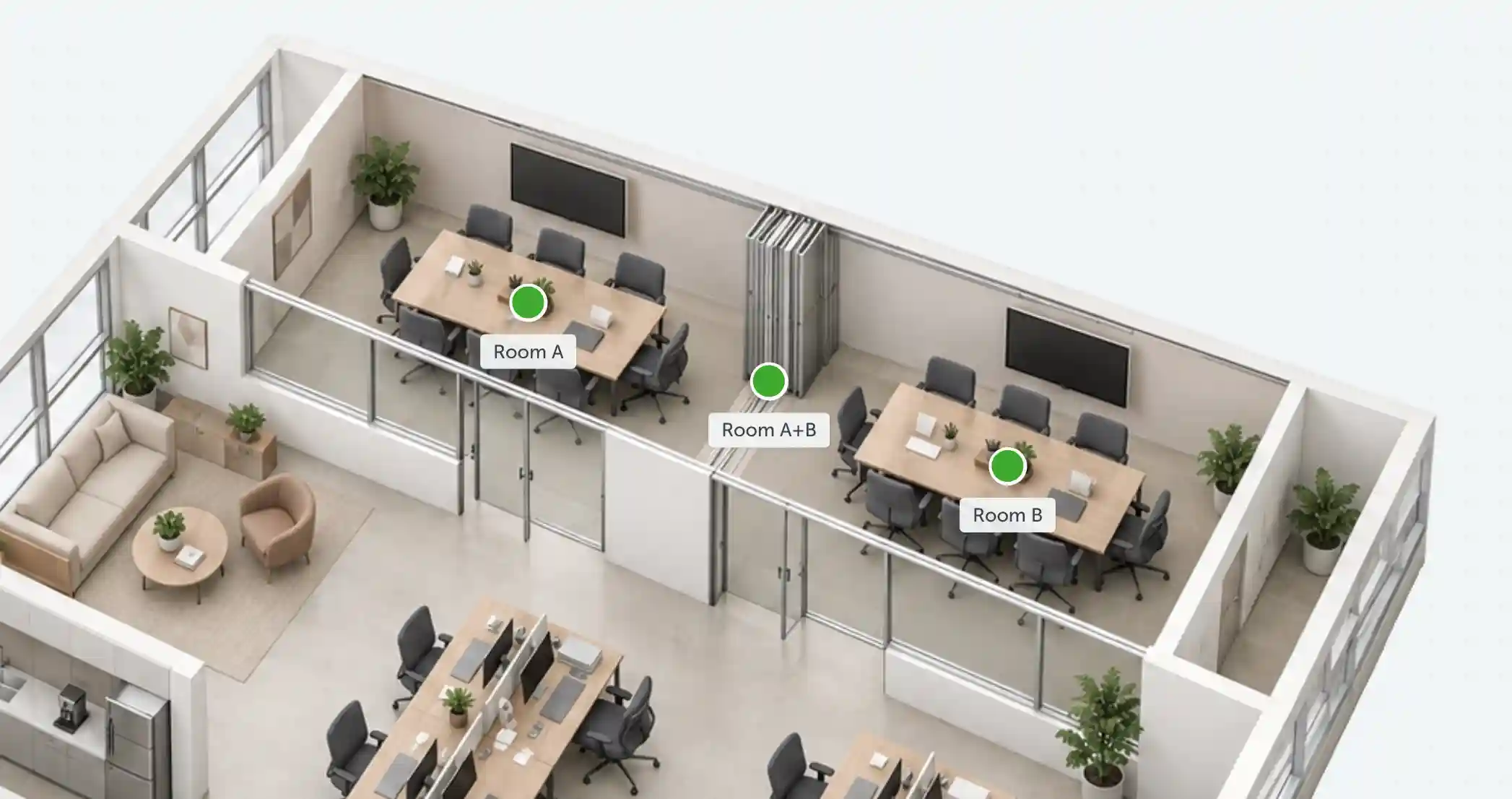
Booking Room A+B should make both smaller rooms unavailable for the same interval. Booking Room A should make only the combined option unavailable, leaving Room B free to book. The same applies in reverse.
This setup uses Physical distancing as a workaround, not a dedicated compound-room feature. The floor map's scale, the group's distance, and the positions of the space markers determine which booking options block each other.
1. Set the floor map scale
Open Settings → Workplace, select the location and floor, then open Edit floor → Floor map. Set Scale to the number of pixels that represent one meter on your floor plan and save your changes.
For the floor-editing path and how to calculate the value, see Physical Distancing: Scale.
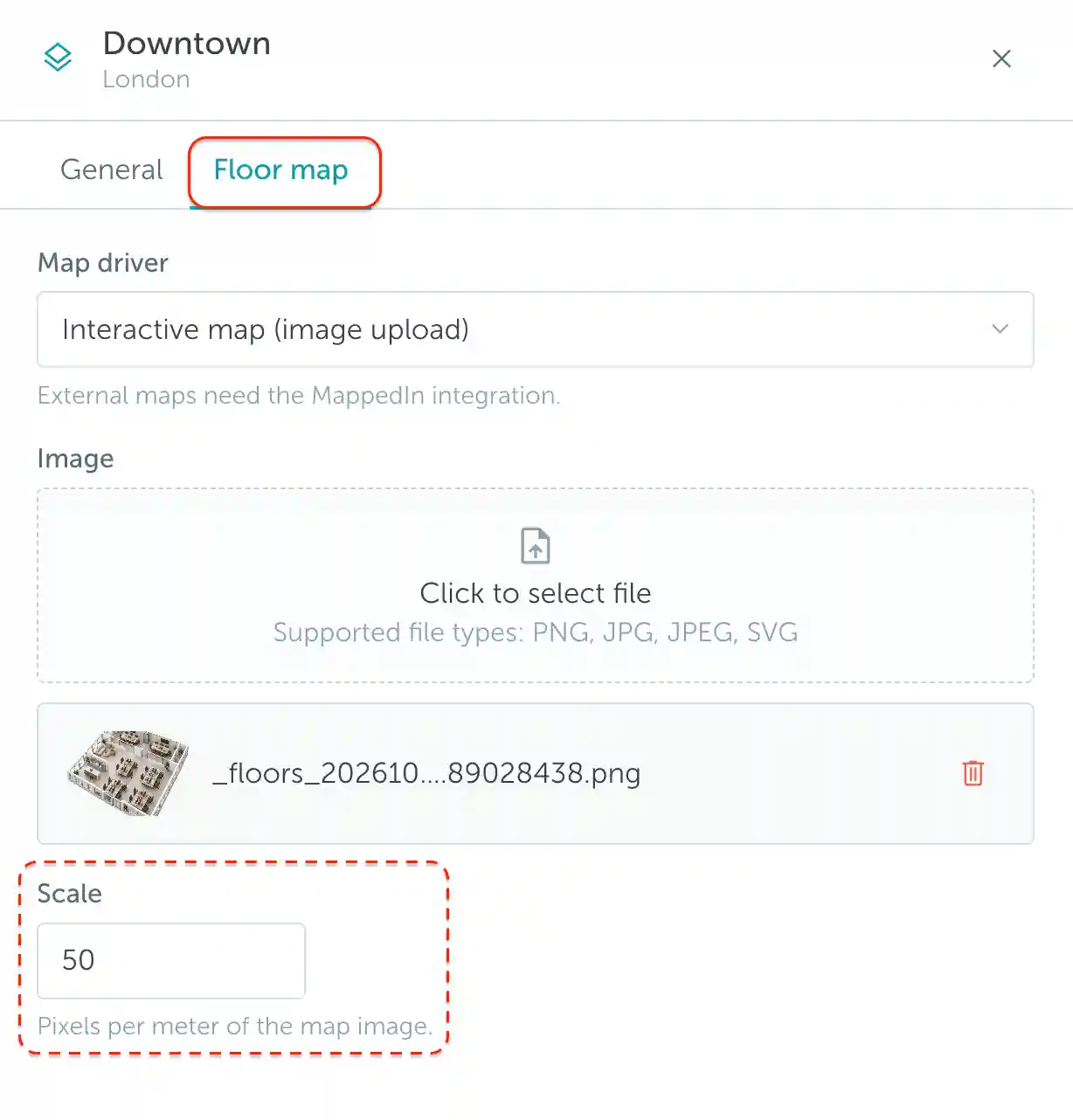
YAROOMS uses this scale to draw the distancing radius around each space. The 50 shown in the screenshot is an example, not a value to use for every floor plan.
2. Enable physical distancing
Go to Settings → Space types, open the meeting-room type, and select Details. Under Kind of space, enable Physical distancing, then save your changes.
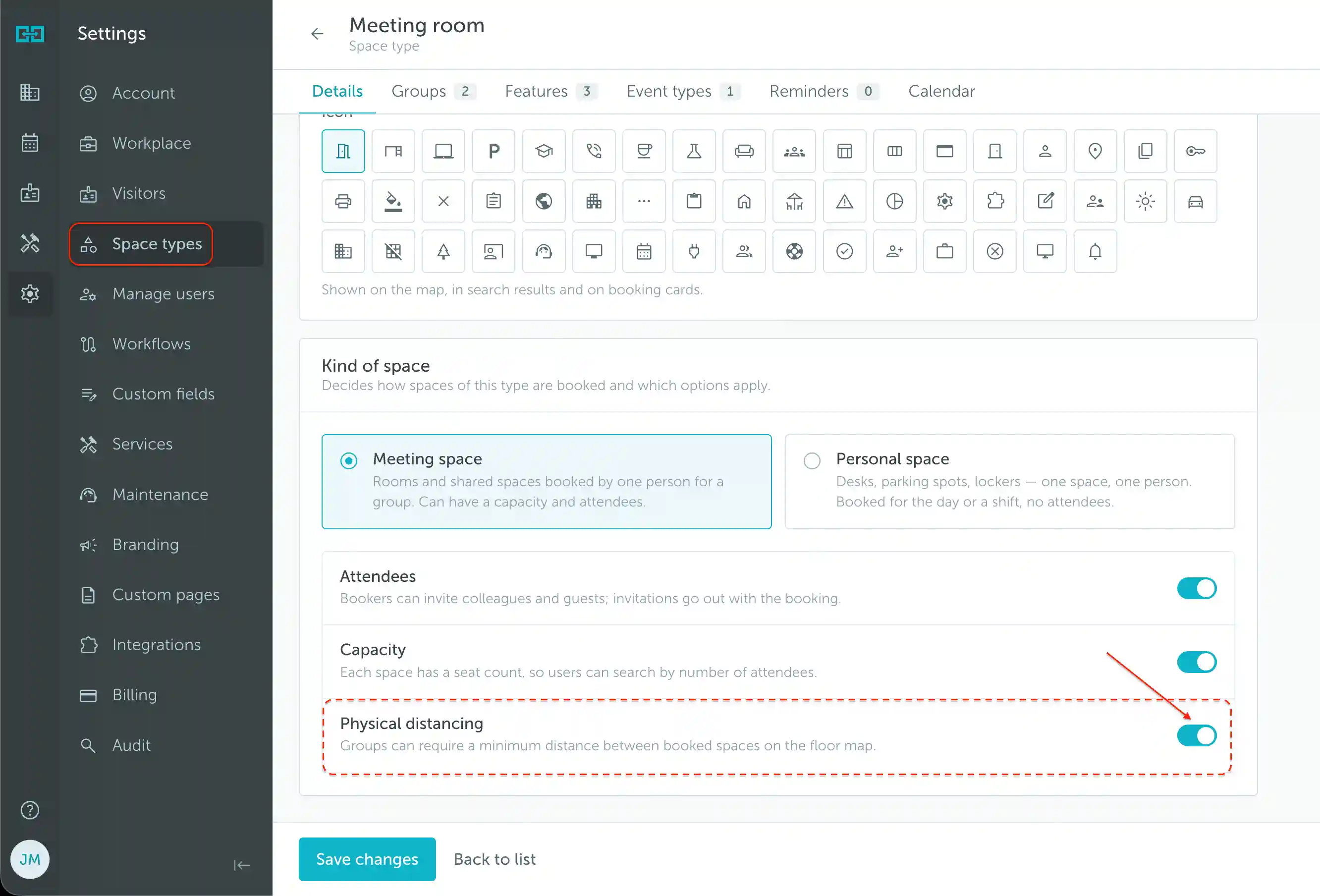
This enables distancing configuration for groups belonging to that space type.
3. Create a dedicated space group
In the same space type, open Groups and click Add group. Create a separate group, such as Compound rooms, for Room A, Room B, and Room A+B.
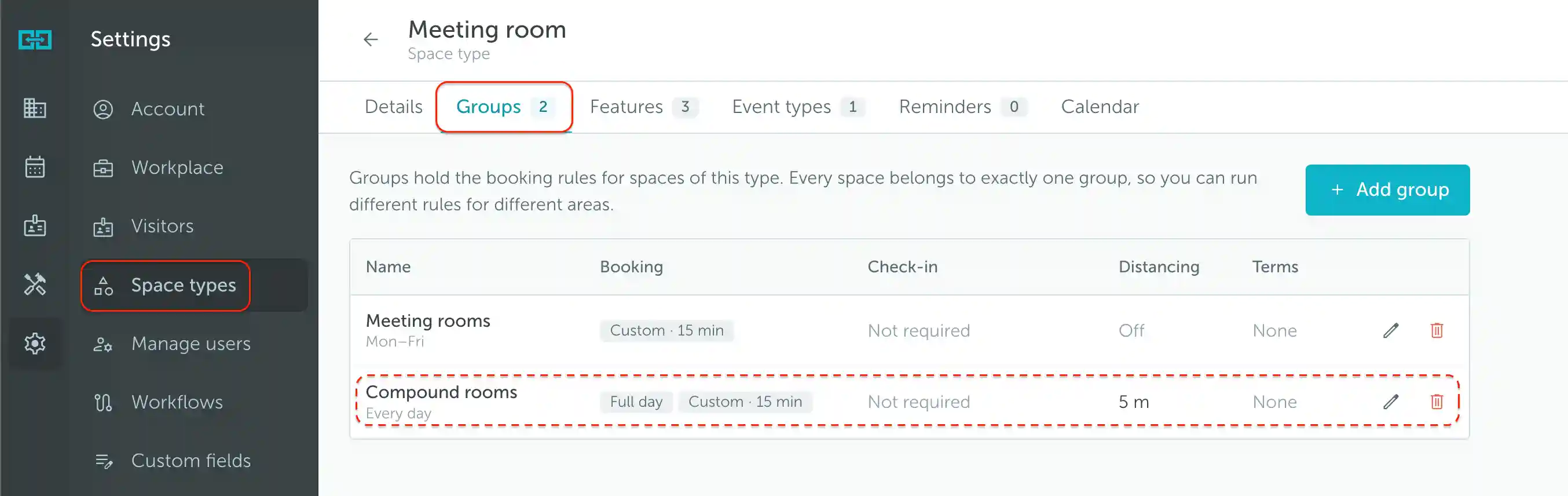
Keep these spaces in a dedicated group so you do not apply this special distancing setting to unrelated rooms. You will choose this group when creating all three booking options.
4. Set the group’s distance
Open the new group’s Booking rules and set Minimum distance between booked spaces. Start with a small value, such as 1 or 2 meters, then save your changes. You will adjust it after checking the markers on the map.
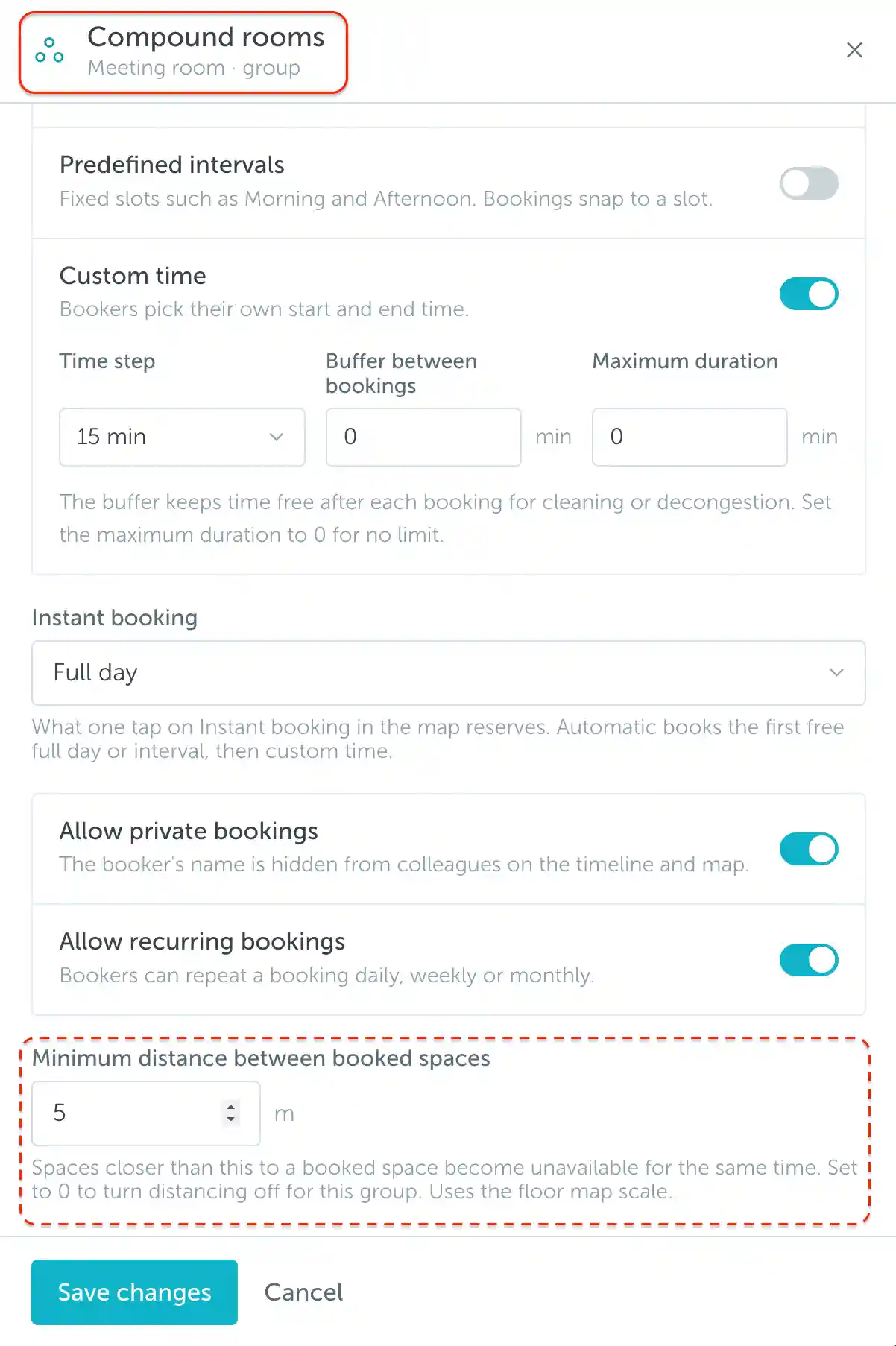
The screenshot shows 5 meters for this particular setup. There is no universal distance: the right value depends on the floor map’s scale and how far apart you place the markers.
5. Create and position the spaces
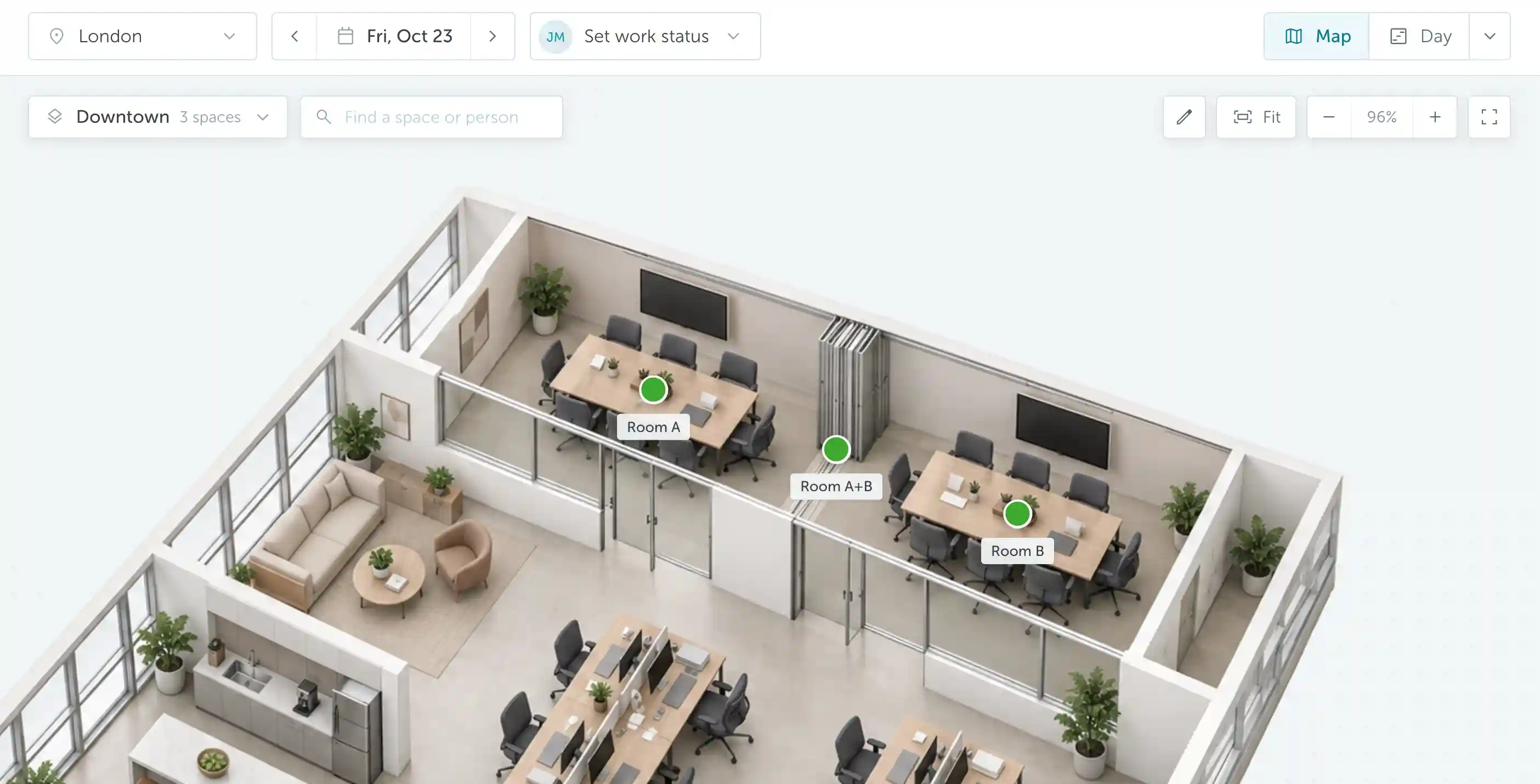
Open Workplace → Map, select the floor, and enter Edit mode. Create Room A, Room B, and Room A+B, choosing the meeting-room space type and your dedicated Compound rooms group for each. See How to add new spaces for the creation steps.
Place Room A on the left, Room B on the right, and Room A+B between them.
Once the spaces are created, click a space on the map to see its distancing radius. Think of its marker as the center of a circle. When that space is booked, other space markers inside its circle become unavailable for the same interval.
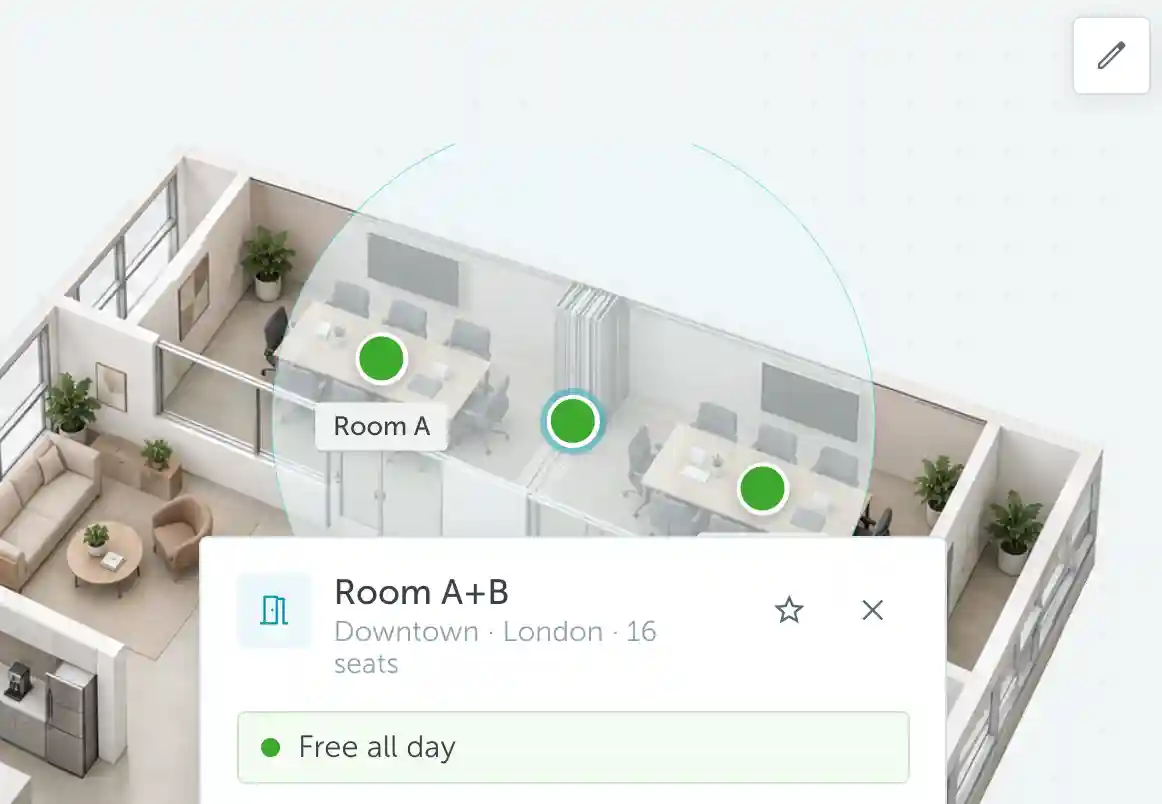
- Select Room A+B: its circle must reach both Room A and Room B. Booking the combined room then blocks both smaller rooms.
- Select Room A: its circle must reach Room A+B, but stop before Room B. Booking the left room then blocks the combined option, not the right room.
- Select Room B: its circle must reach Room A+B, but stop before Room A. Booking the right room then blocks the combined option, not the left room.
All three spaces share the group’s distance setting. The middle marker can reach both outer markers because it is closer to each of them than they are to one another. The combined room does not need a larger radius simply because it represents a larger room.
Adjust the group’s distance or the marker positions until all three checks work. Check whether each circle includes the other markers, not whether the circles overlap or cover the room walls.
6. Test the bookings
Exit Edit mode and make a test booking for Room A+B. For that same interval, Room A and Room B should become unavailable, as shown by the grey markers below.
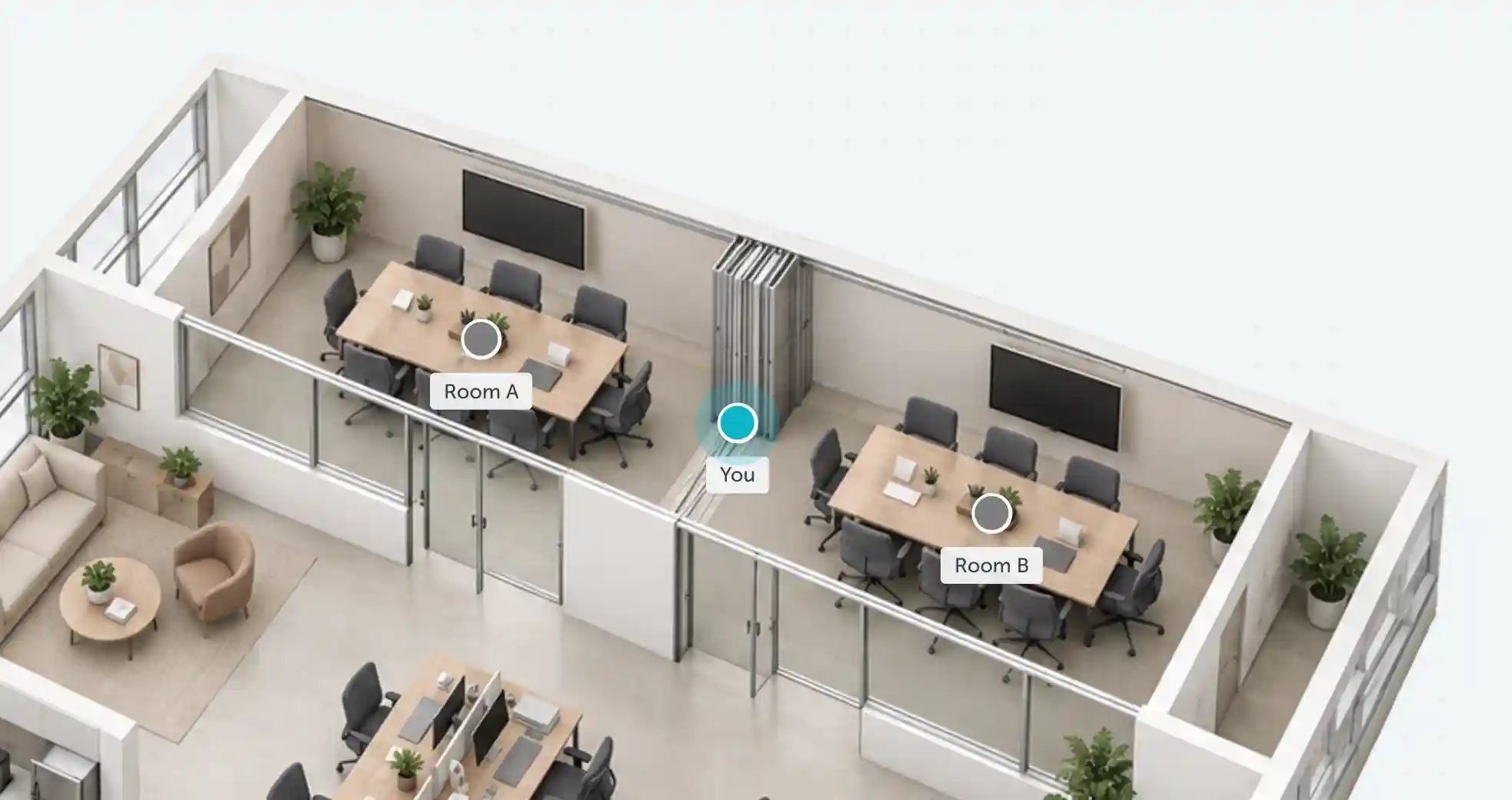
Cancel the test booking, then test each smaller room separately using the same interval:
| Booked space | Must become unavailable | Must remain independently bookable |
|---|---|---|
| Room A+B | Room A and Room B | Neither smaller room |
| Room A | Room A+B | Room B |
| Room B | Room A+B | Room A |
If booking Room A also blocks Room B, the distance is too large for their current positions. If booking Room A+B leaves either smaller room available, its radius is not reaching both markers. Review the distance and marker positions, then repeat the tests before making this setup available to users.