
Overview
Currently, YAROOMS workflows support 8 triggers: booking created, booking updated, booking canceled, booking checked in, booking checked out, booking marked as no-show, booking start, and booking end. You can set up approval workflows for 3 of them: booking created, booking updated, and booking canceled.
Example Workflow Setup
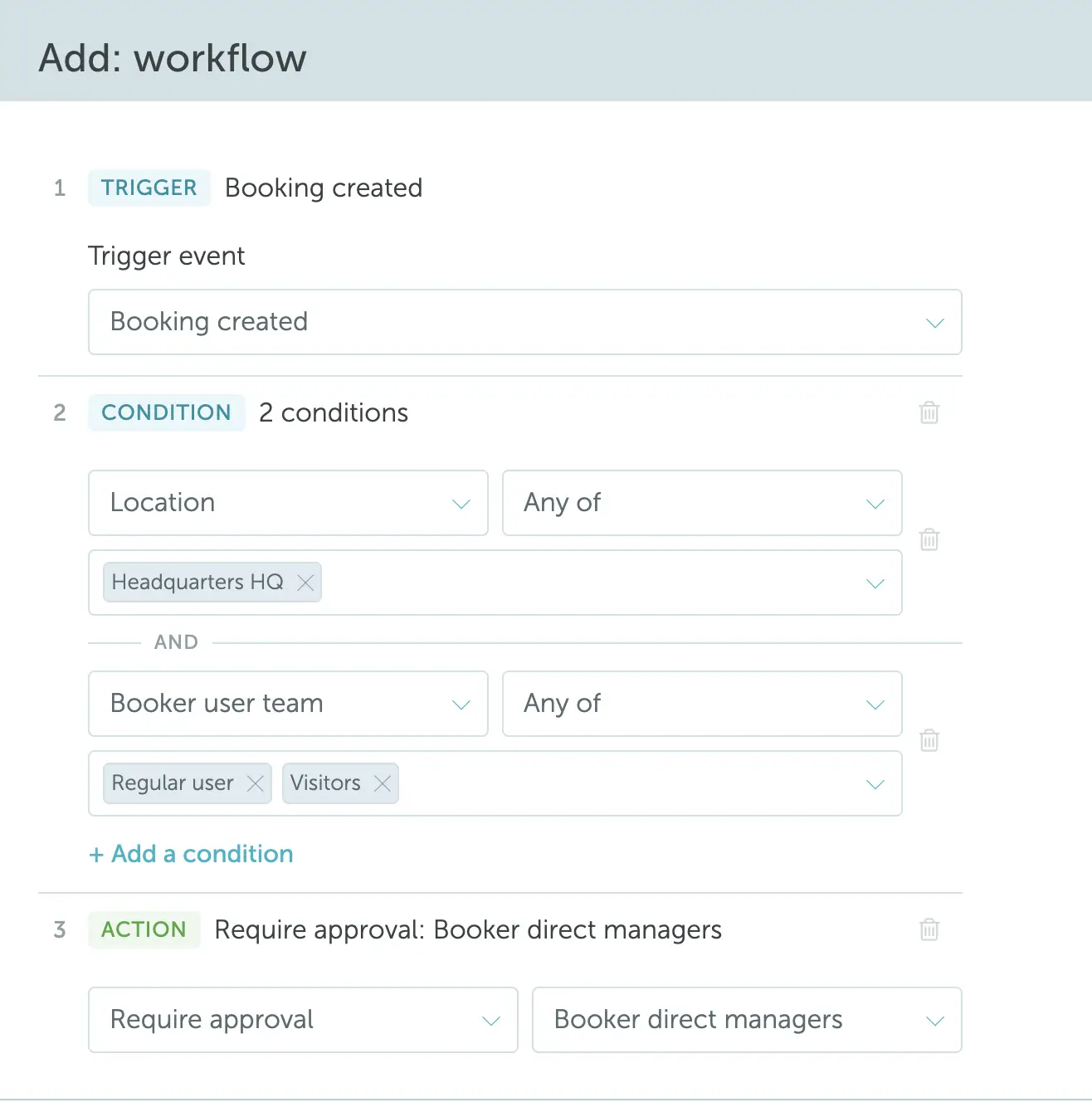
Let’s take “if a regular user creates a booking at the Headquarters HQ location, it should require approval from their direct manager” as an example.
- Start by going to Settings → Workflows and press Add+
- Define the workflow’s status, name, and priority.
- Select the trigger. In this case, it will be “Booking created”.
- Then, define the conditions (you can add more than one). In this case, you will add two: “Location, Any of, Headquarters HQ” and “Booker user team, Any of, Regular user”.
- Finally, define the action. In this case, it will be “Require approval → Booker direct managers”. Superusers are not the only ones who can approve or decline bookings that triggered the workflow; you can delegate any user for this task.
Save your selection. Your approval workflow is now set up.
Approval Process
The booking updates will be placed into the approval queue (Workplace → Approvals) of the selected approver. The approver (for example, user team manager) will receive a notification.
If the approver confirms the request, a confirmation email will be sent to the booker.
When declining the request, the approver can add the reason of refusal. It will be included in the email notification to the booker.