
Jump to:
1. What is a custom page
Custom pages let administrators author their own content inside YAROOMS without engineering involvement. Use them for handbooks, office policies, contact lists, FAQs, location info, or anything else that does not need a dedicated module.
Pages are written in Markdown, can be placed in the left menu of the portal, and are visible to every authenticated user in your tenant once published.
2. Creating a custom page
- Navigate to Settings → Custom pages.
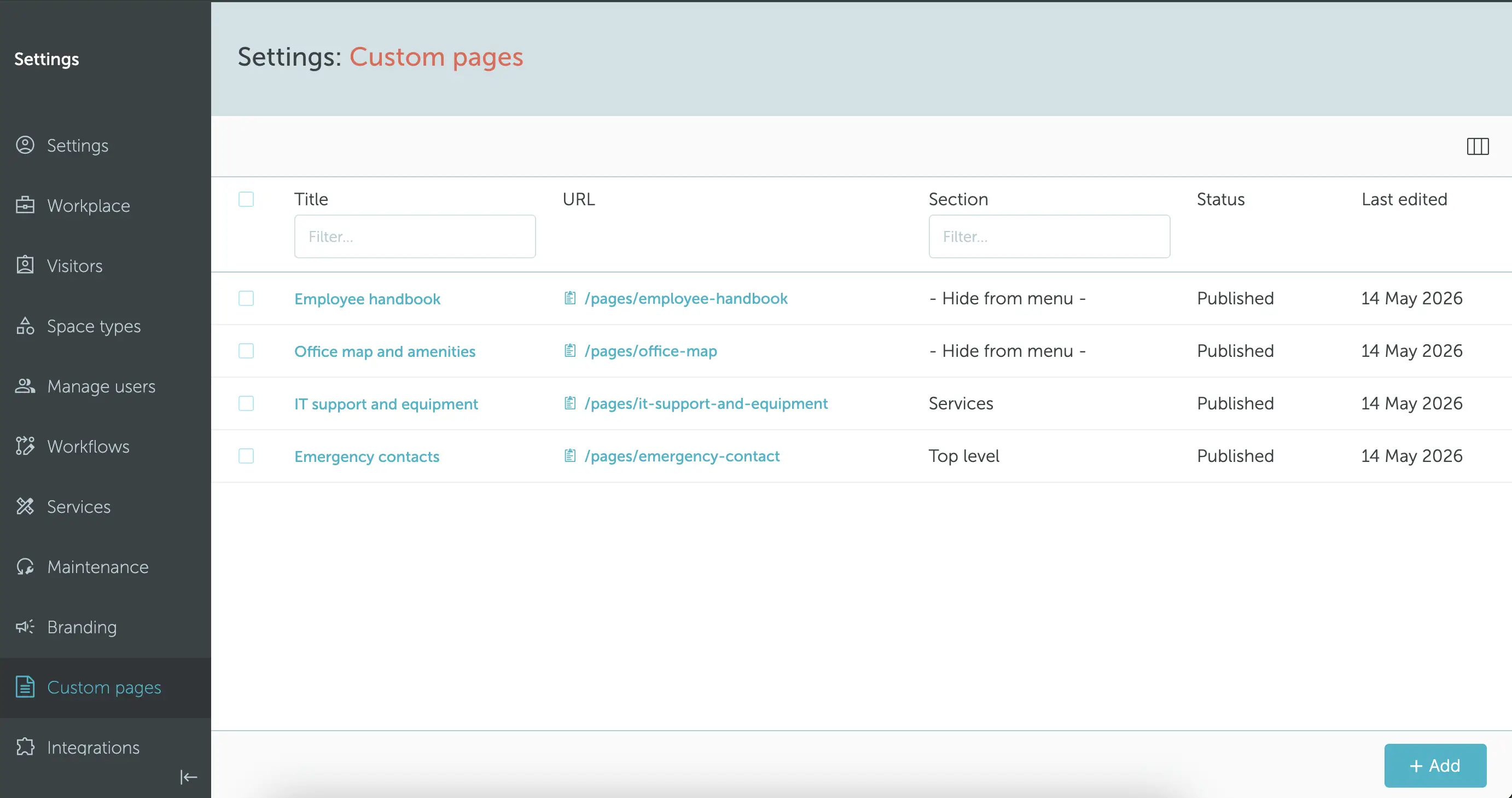
- Click + Add.
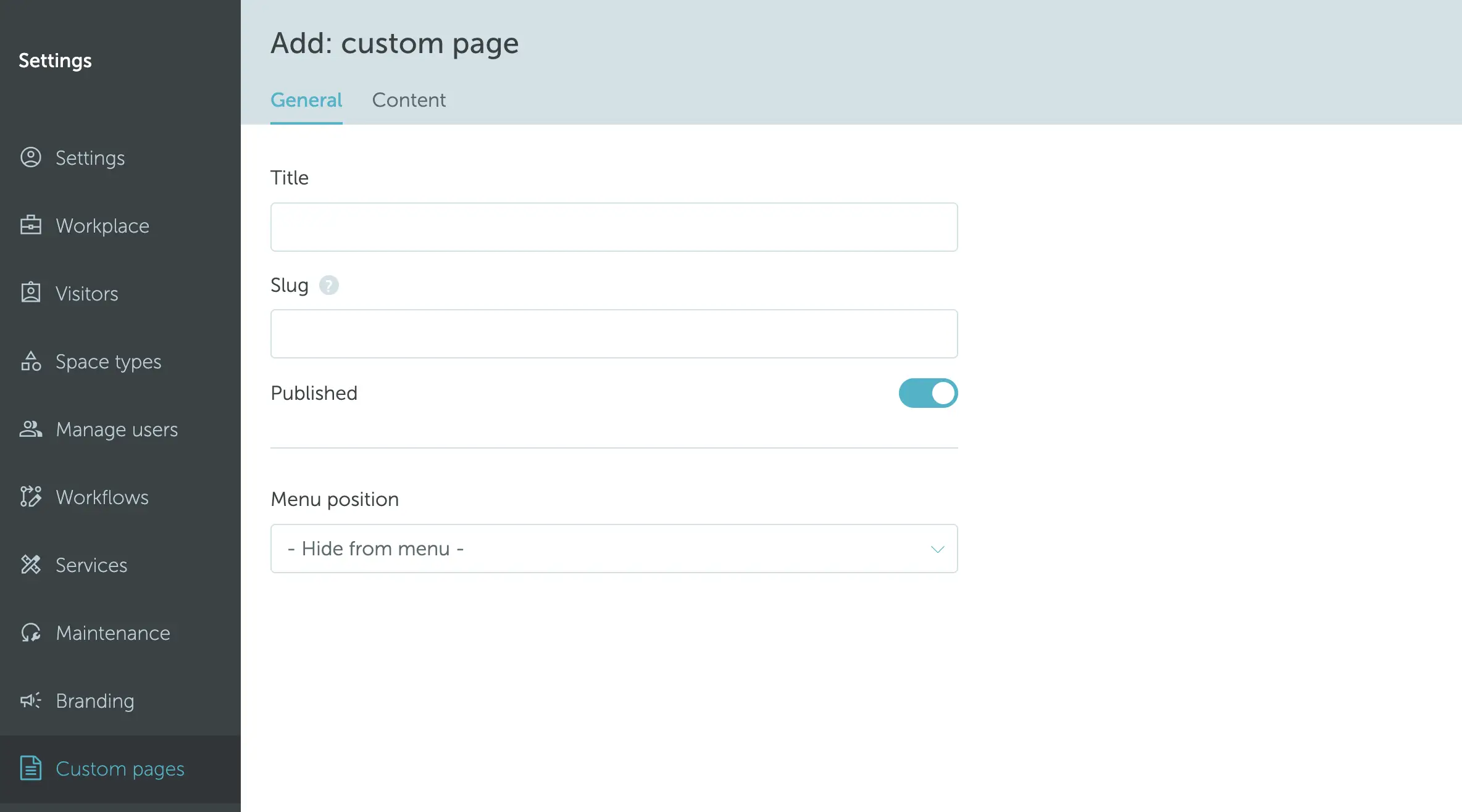
- Fill in the General tab:
- Title: the name of the page. Shown in the portal header and (if menu placement is enabled) in the left menu.
- Slug: the URL segment after
/pages/. Generated from the title on first save, editable later (with a warning that existing links will break). - Published: toggle on to make the page visible to readers; off to keep it editable but hidden.
- Menu position: see Menu placement below.
3. Writing content
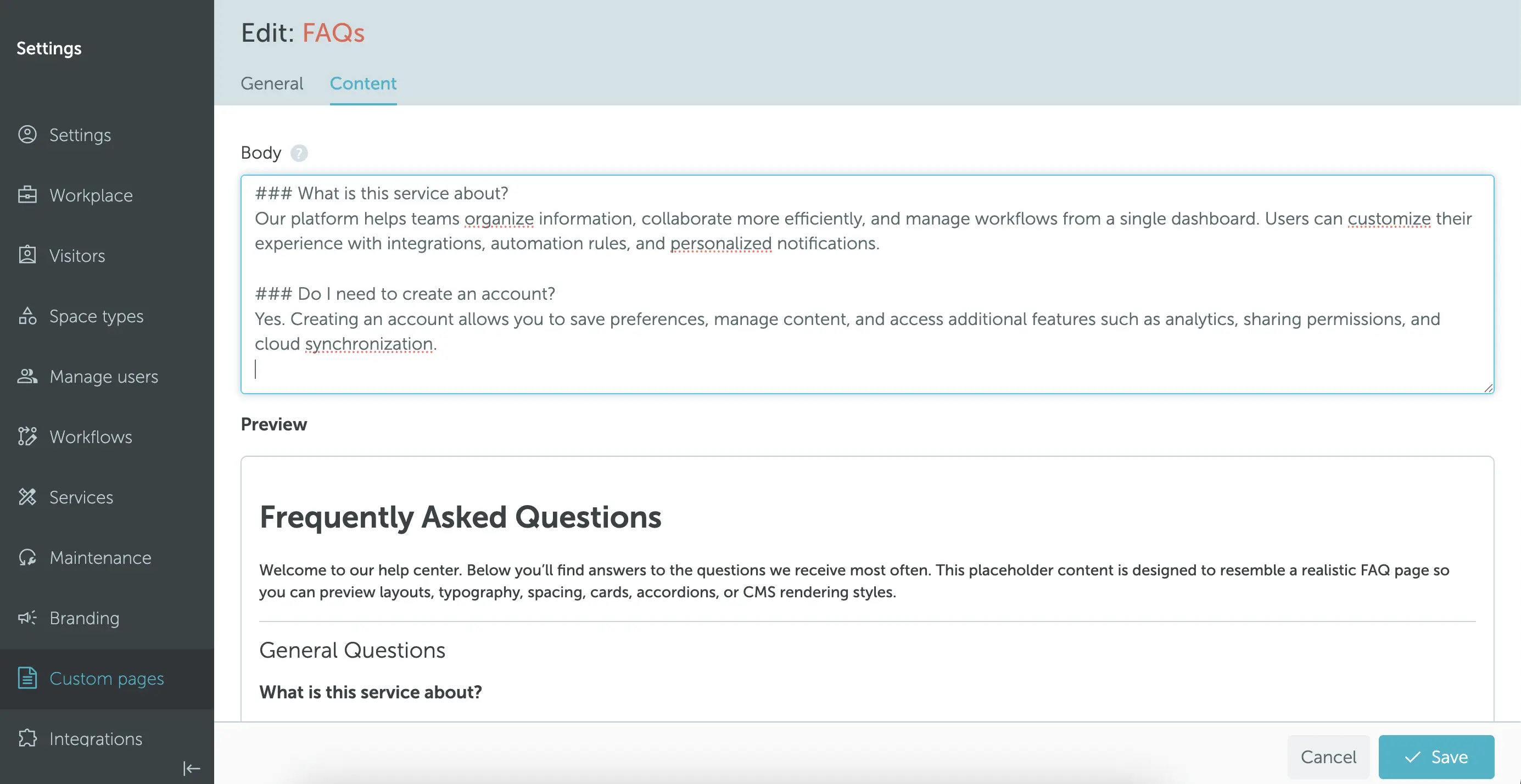
Switch to the Content tab to write the body. The left side is a Markdown editor; the right side is a live preview that updates as you type.
Supported Markdown features:
- Headings (
#,##,###, …) - Paragraphs and line breaks
- Bold, italic, bold italic
- Unordered and ordered lists, including nested
- Links
- Inline code and fenced code blocks
- Tables
- Blockquotes
- Horizontal rules
Note: Images are not supported.
4. Menu placement
Use the Menu position field on the General tab to control whether and where the page appears in the left menu.
Options:
- Hide from menu (default): the page is reachable only at
/pages/{slug}. Useful for deep-linked references that should not clutter the navigation. - In a section: pick one of the existing top-level sections (Workplace, Calendar, Visitor management, Services, Settings, Account). The page entry appears inside that section.
- As a top-level item: the page becomes its own entry at the top level of the menu.
When placing the page in a section, you can also pin it relative to an existing menu item:
- Before a specific item
- After a specific item
- Append at the end of the section
Tip: After saving, refresh the page to see the new menu entry. Menu changes are applied on the next page load.
5. Where readers see the page
Every authenticated user in the tenant can read a published custom page. There are no per-role or per-location filters.
- In the menu (if menu placement is set): the page appears in the chosen section with a shared “page” icon, interleaved with the static menu items.
- By direct link: the page is always reachable at
/pages/{slug}. - Hidden pages return a “Page not found” view.