
Some space booking processes may require special Terms & Conditions. You can specify them in Settings → Space types → click on type → Groups → click on group → Terms. Start by activating the feature and selecting how the Terms & Conditions will be displayed to users:
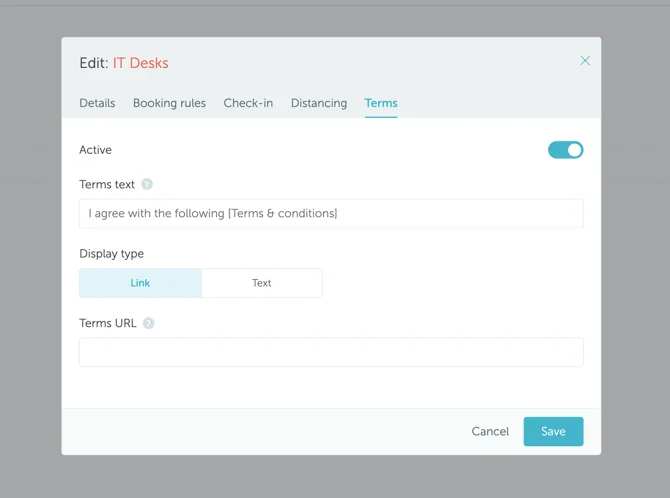
A) Link
Include a link to your Terms & Conditions page in the “Terms URL” field.
B) Text
Add your Terms & Conditions to the “Content” field to have it displayed directly in the YAROOMS UI.
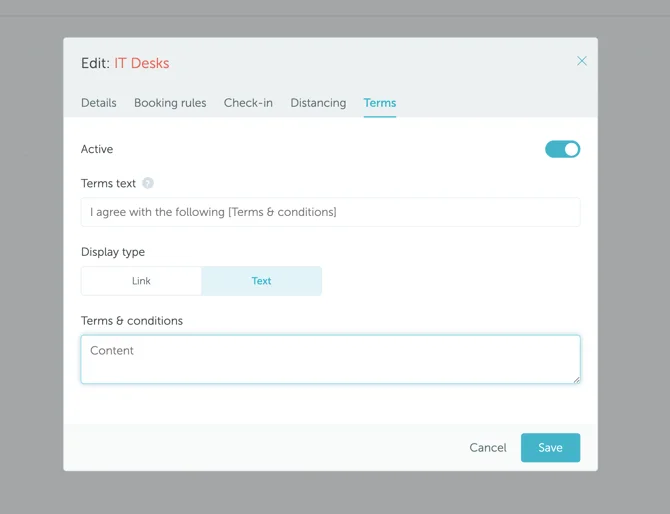
The agreement text can be customized in the “Terms text” field. Any text you place between the brackets will appear as a clickable link that directs users to the Terms & Conditions content.
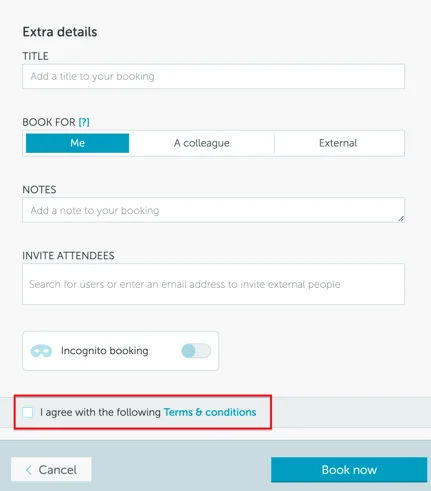
Once you define the Terms & Conditions and save the settings, users who want to reserve spaces in this space group will need to confirm their agreement with the specified T&C (example below). Otherwise, the booking will not be finalized.
If you are looking for more information about setting up space types and groups, read this article.