
Jump to:
Migrate to the new integration
The new integration replaces your self-managed Google OAuth app with a centralized Google app managed by YAROOMS. Your domain restrictions and user provisioning settings continue to work exactly as configured. Only the Client ID and Client Secret stop being used.
To migrate:
Log in to YAROOMS as an administrator and navigate to Settings → Integrations → Login with Google.
At the top of the page, click Migrate now in the yellow banner.
Review the summary of what will change, then click Continue.
Click Test new login method to open the new sign-in flow in a new tab. Confirm you can sign in with a Google account from an allowed domain.
Back in the migration popup, tick “I have tested the new login method and confirm it works. I am ready to switch to the YAROOMS Google Client for login.”
Click Migrate to YAROOMS Identity. The page will reload and your workspace will be using the centralized integration. Your Google Client ID and Client Secret will no longer be used and can be removed from your Google API Console if you wish.
After migration, refer to the centralized Login with Google article for the new integration’s settings.
Step 1. Configure the Google API Console Project
Before you can integrate Google Sign-In into your website, you must have a Google API Console project. In the project, you will create a client ID.
To create a Google API Console project and client ID, follow these steps:
- Go to the Google API Console
- From the project drop-down, select an existing project, or create a new one by selecting Create a new project.
- In the sidebar under “APIs & Services”, select Credentials, then select the OAuth consent screen tab. Choose an Email Address, specify a Product Name, and press Save.
- Note: Use a single project to hold all platform instances of your app (Android, iOS, web, etc.), each with a different Client ID.
- In the Credentials tab, select the Create credentials drop-down list, and choose OAuth client ID.
- Under Application type, select Web application.
- Register the origins from which your app is allowed to access the Google APIs, as follows. An origin is a unique combination of protocol, hostname, and port.
- In the Authorized JavaScript origins field, enter the origin for your app. You can enter multiple origins to allow for your app to run on different protocols, domains, or subdomains. You cannot use wildcards. In the example below, the second URL could be a production URL.
- http://localhost:8080
- https://myproductionurl.example.com
- The Authorized redirect URI field does not require a value. Redirect URIs are not used with JavaScript APIs.
- Press the Create button.
- From the resulting OAuth client dialog box, copy the Client ID. The Client ID lets your app access enabled Google APIs.
Step 2. Configure the Integration in YAROOMS
Login to your YAROOMS domain as an administrator. Navigate to Settings → Integrations → Login with Google and start the integration process.
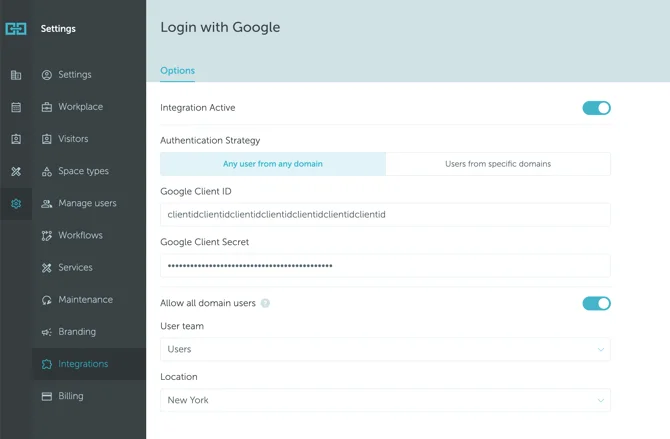
Activate Integration and fill in the fields as follows:
- Authentication Strategy: define if access is restricted to certain domains or open to all domains.
- Google Client ID: The Client ID obtained at Step 1.
- Google Client Secret: the Client Secret obtained at Step 1.
Configure default settings for new YAROOMS users and click Save.