
Jump to:
Login with Google is now powered by YAROOMS Identity, a centralized Google OAuth app managed by YAROOMS. You no longer need to create a Google API Console project or manage your own Client ID and Client Secret. Just activate the integration, pick your domain policy, and you’re done.
Activate the integration
Log in to YAROOMS as an administrator and navigate to Settings → Integrations → Login with Google.
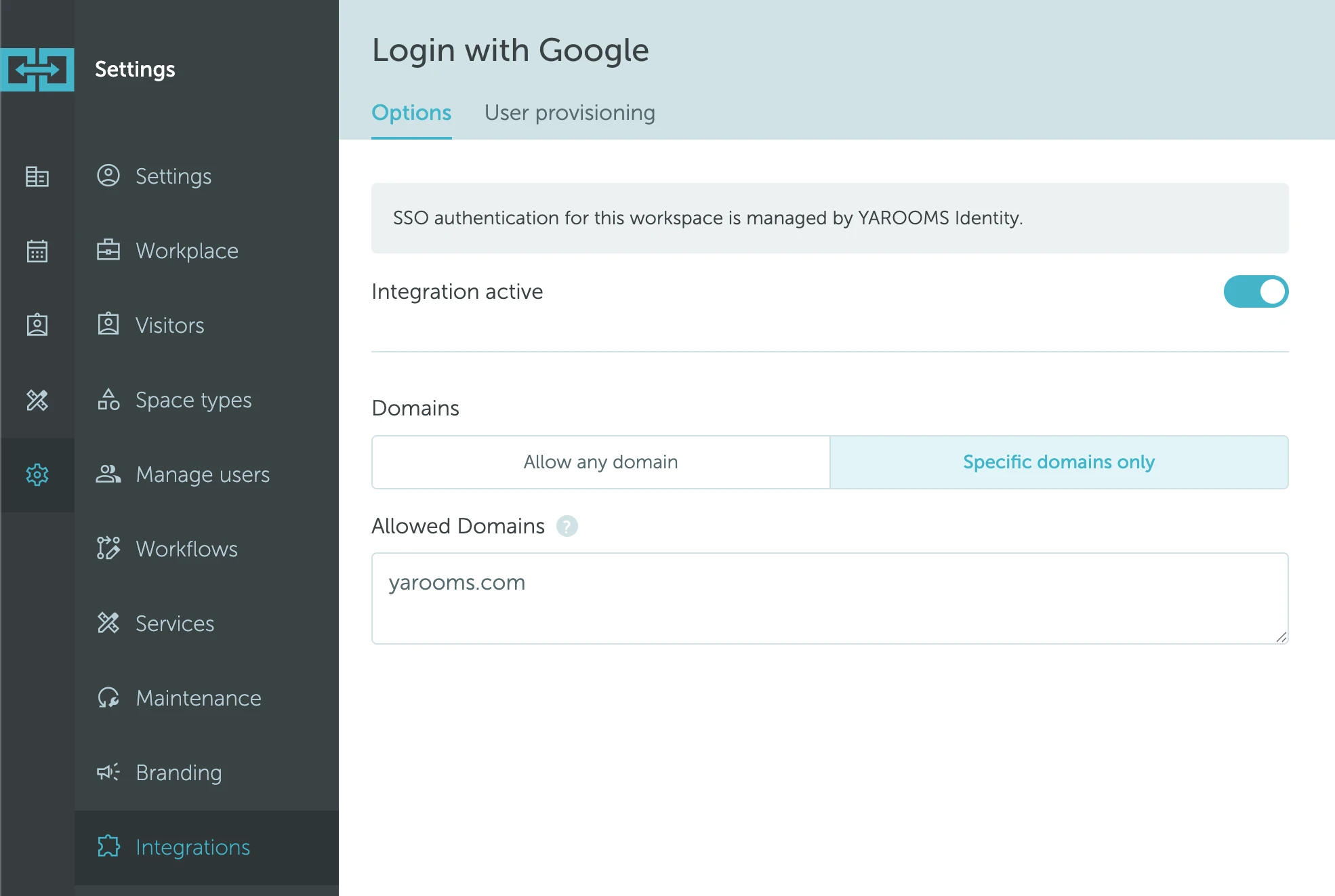
Turn on Integration active to enable sign-in with Google for your workspace.
Configure domain restrictions
Under Domains, choose how Google accounts are allowed to sign in:
- Allow any domain: any Google account can sign in, provided the user exists in your YAROOMS workspace (or user provisioning is enabled, see below).
- Specific domains only: only Google accounts from the domains you list can sign in. Enter one domain per line, for example:
example.com
example.org
Configure user provisioning
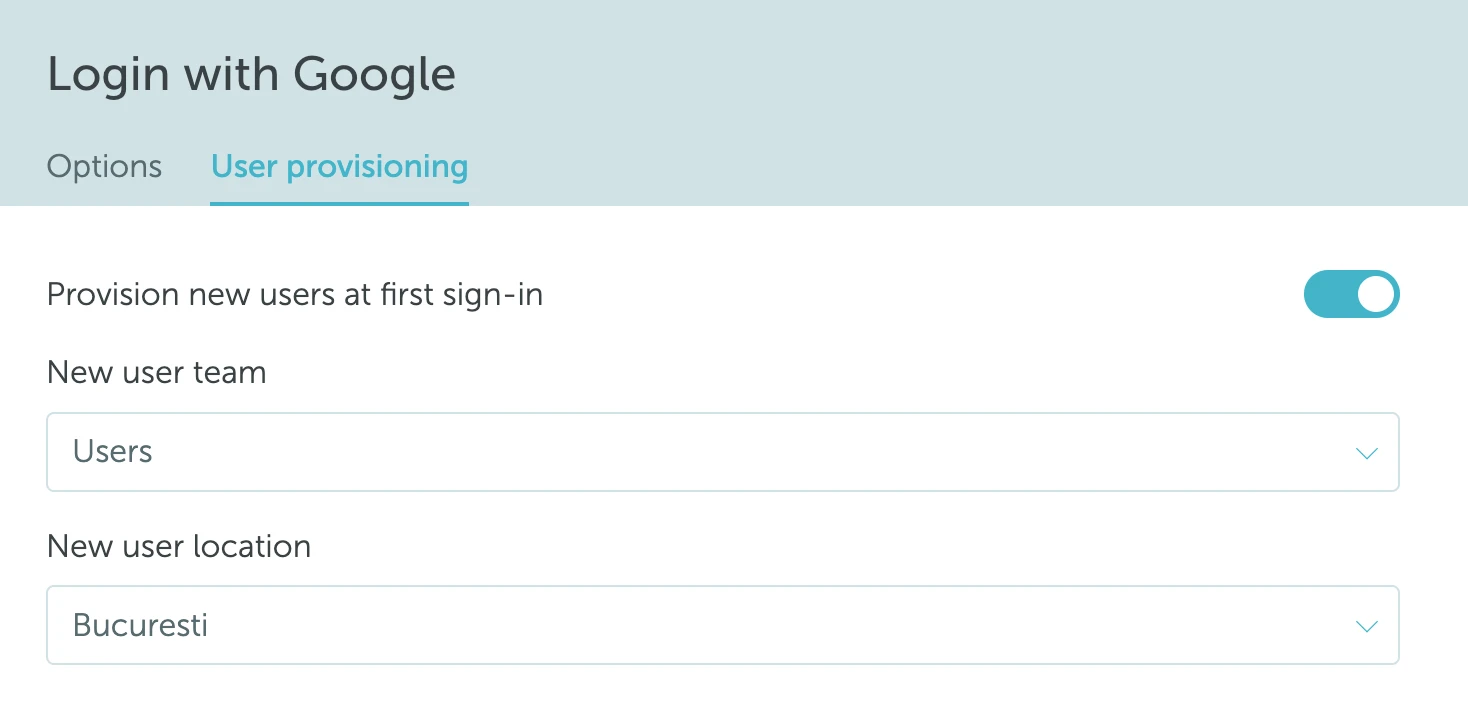
Open the User provisioning tab to control what happens when someone signs in with Google for the first time.
- Provision new users at first sign-in: when enabled, a YAROOMS user is created automatically the first time a matching Google account signs in. When disabled, only users that already exist in YAROOMS can sign in.
- New user team: the team newly provisioned users are added to.
- New user location: the default location assigned to newly provisioned users.
Public workspace risk. If you enable provisioning while Domains is set to Allow any domain, anyone with a Google account can sign in and be auto-provisioned as a user in your workspace. This effectively makes your workspace public.
We strongly recommend setting Domains to Specific domains only and whitelisting the domains your organization controls whenever user provisioning is enabled. If you cannot restrict by domain, keep provisioning off so only pre-existing YAROOMS users can sign in.
Click Save to apply the integration settings.
Verify the integration
To confirm the integration is live, open your YAROOMS login page in a private/incognito window (or sign out first) and look for the Continue with Google button above the email and password fields.
Click Continue with Google and sign in with an allowed Google account. If the button is missing, double-check that Integration active is turned on and that you saved the settings. If sign-in fails, verify that the account’s domain matches your Domains policy and that the user exists in YAROOMS (unless user provisioning is enabled).
Looking for the legacy integration?
If your workspace is still using a self-managed Google OAuth app (your own Client ID and Client Secret), see the Google SSO: Login with Google (Legacy) article for legacy configuration and migration instructions. The legacy integration is being phased out; all clients are required to migrate by 30 June 2026.