Jump to:
1. What is Google Meet integration?
The Google Meet integration facilitates the creation of a Google Meet conference along with a YAROOMS meeting and ensures the Google Meet conference stays updated as the YAROOMS meeting is modified or cancelled.
2. How to set up Google Meet integration?
Requirements:
- Google Workspace
- Administrator with access to Google Workspace console
- Access to Google Developers Console
- Administrator with access to YAROOMS
Google Meet setup:
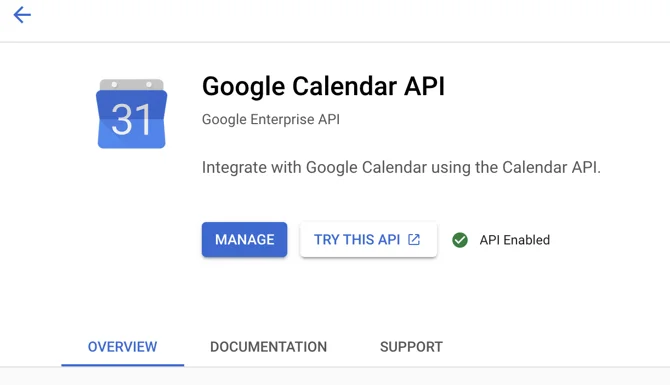
- Enable Google Calendar API from Google Cloud Console → Library → Calendar API at https://console.cloud.google.com/apis/library/calendar-json.googleapis.com
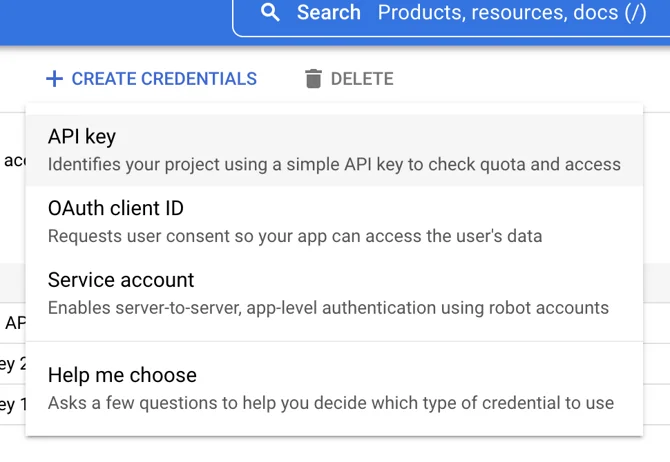
- Create a service account from https://console.cloud.google.com/apis/credentials (Create Credentials → Service Account)
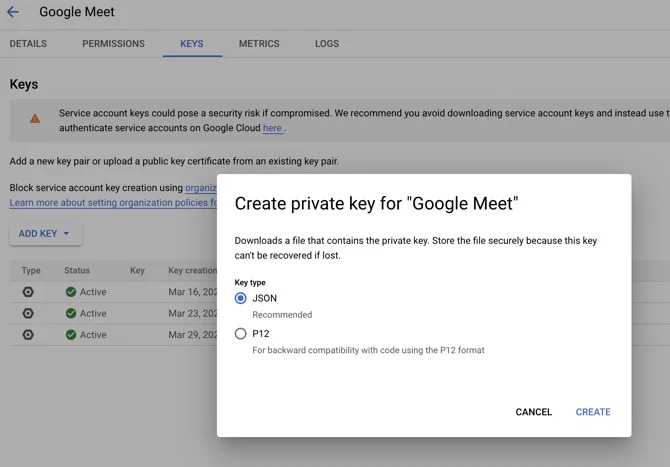
- On the “Keys” tab, generate a new key in JSON format and save it
Delegate access for service account domain-wide by following this guide (enter this OAuth Scope: https://www.googleapis.com/auth/calendar)
Create a Gmail user that will hold all Google Meet events (ensure other users cannot access this account’s calendars–this stores all Google Meet links)
YAROOMS setup:
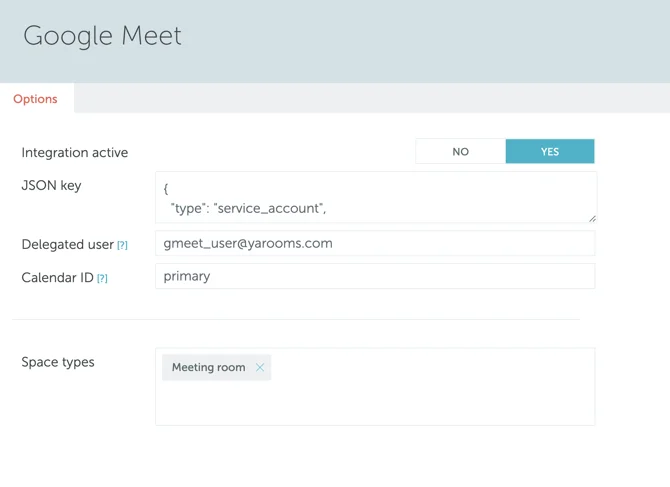
- Go to Settings → Integrations → Google Meet
- Json Key: paste the content of the JSON file downloaded earlier
- Delegated user: enter the email of the user created in the previous step
- Calendar ID: leave empty or use “primary” as default, or specify a different calendar ID the user has access to
- Space types: select which space types will have this integration available
3. How it works: create a meeting with YAROOMS and Google Meet
- Navigate to Map or Timeline Views and click a space with a selected type
- In the booking panel, scroll down to find the Conference button and select Google Meet
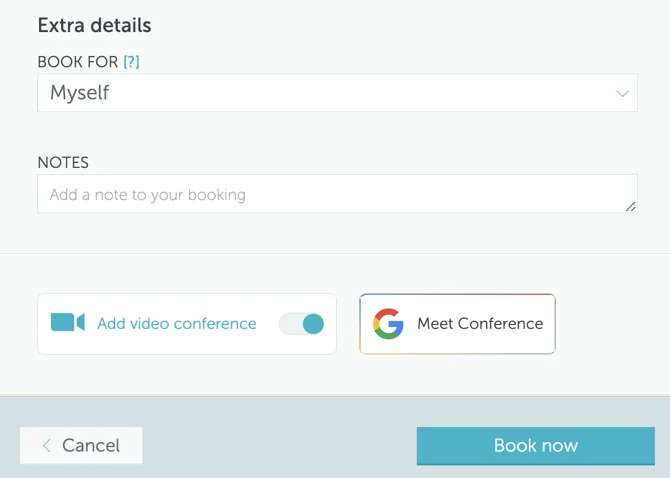
- Select the Google Meet conference type and create the booking
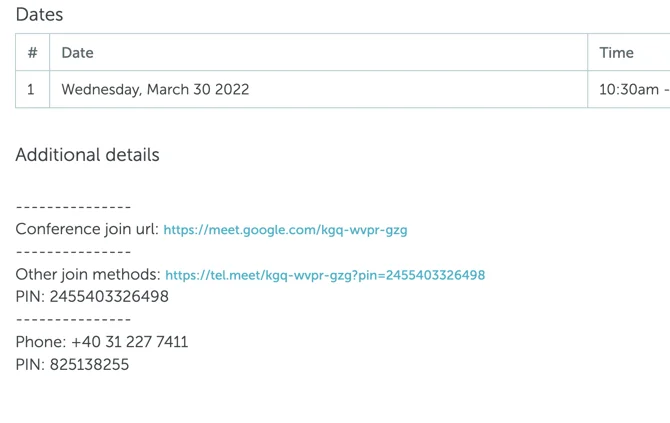
- View Google Meet information in the booking details page description