
1. What is the Google Calendar integration
This integration enables synchronization between Google resources and YAROOMS spaces. You can map spaces in YAROOMS with resources in your Google tenant to enable automatic synchronization of events from and to YAROOMS.
2. Requirements
Enable APIs for your project
Any application that calls Google APIs needs to enable those APIs in the API Console.
To enable an API for your project:
- Open the API Library in the Google API Console.
- If prompted, select a project or create a new one.
- Select Google Calendar API, then click the Enable button.
Create a service account
Any application that uses OAuth 2.0 to access Google APIs must have authorization credentials that identify the application to Google’s OAuth 2.0 server.
The following steps explain how to create credentials for your project. Your applications can then use the credentials to access APIs that you have enabled for that project.
- Go to the Credentials page.
- Click Create credentials → Service Account.
- Fill in a name and description.
- Open the newly created service account, go to Keys → Add key → Create new key, and choose JSON.
- Store the downloaded JSON file securely. You will paste its contents into YAROOMS later.
- Configure domain-wide delegation as described below.
Then, a super administrator of the Google Workspace domain must complete the following steps:
- From your Google Workspace domain’s Admin console, go to Security → Access and data control → API controls.
- In the Domain wide delegation pane, select Manage Domain Wide Delegation.
- Click Add new.
- In the Client ID field, enter the service account’s Client ID. You can find your service account’s client ID in the Service accounts page.
- In the OAuth scopes (comma-delimited) field, enter
https://www.googleapis.com/auth/calendar.readonly,https://www.googleapis.com/auth/calendar.events. - Click Authorize.
Create room resources (optional)
If your rooms are not already available as Google Workspace resources, follow Google’s room resource setup guide. You can use existing resources instead of creating new ones.
Create a delegated account
Choose or create a Google Workspace user that the service account will impersonate to manage events in the mapped resource calendars. Make sure this user has permission to read and manage events in those calendars.
The delegated user is a Google Workspace user, not the service account email address. Check its access to the resource calendars before configuring the mappings.
3. Creating the Google Calendar integration
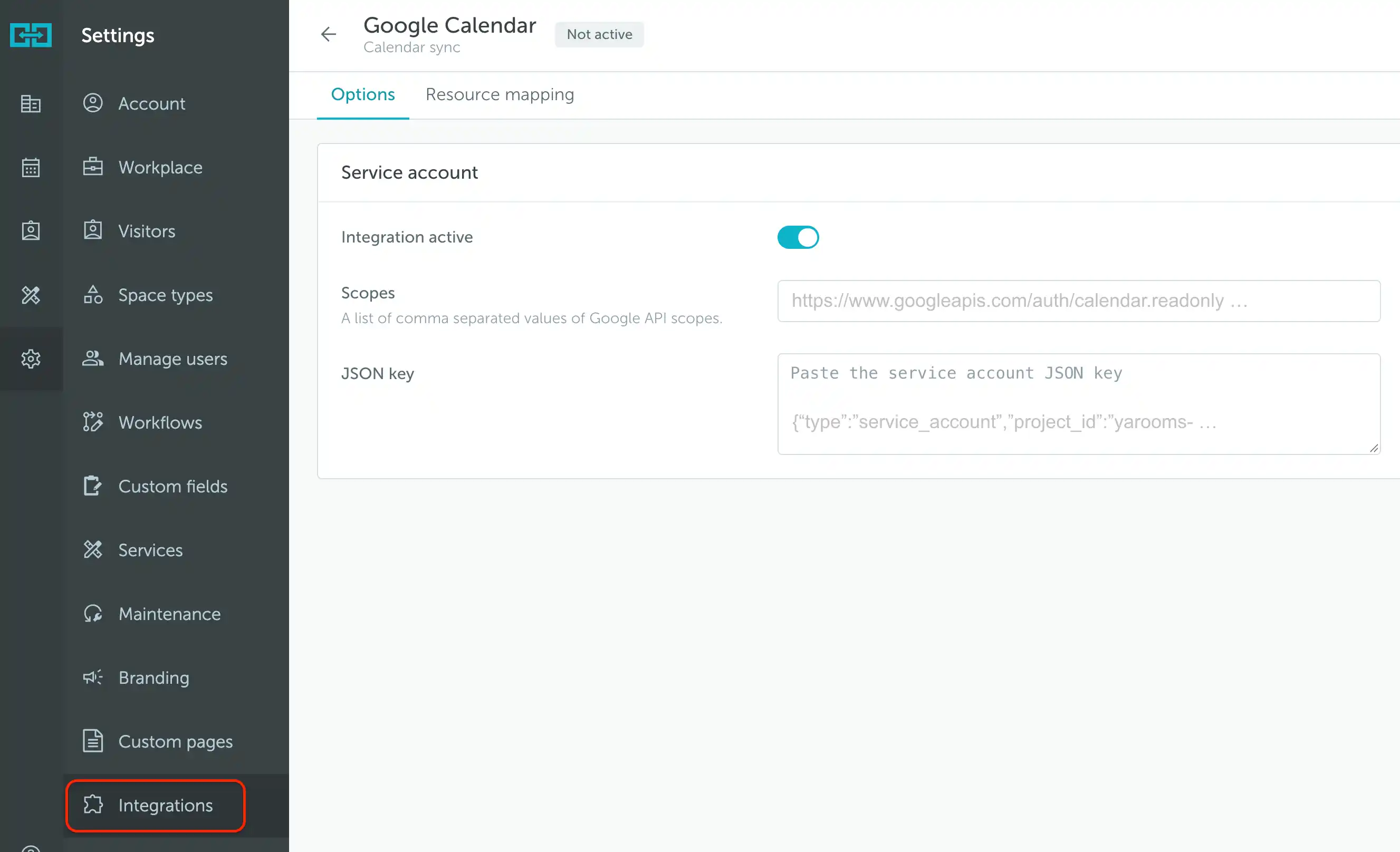
Go to Settings → Integrations → Google Calendar.
Options tab
Under Service account, complete the following:
- Turn on Integration active.
- In Scopes, enter the scopes you authorized in Google Workspace during setup, separated by commas.
- In JSON key, paste the full contents of the file downloaded when creating the service account key, not the filename.
Warning: The JSON file contains a private key. Keep it secure and do not include its contents in screenshots or shared documents.
Resource mapping tab
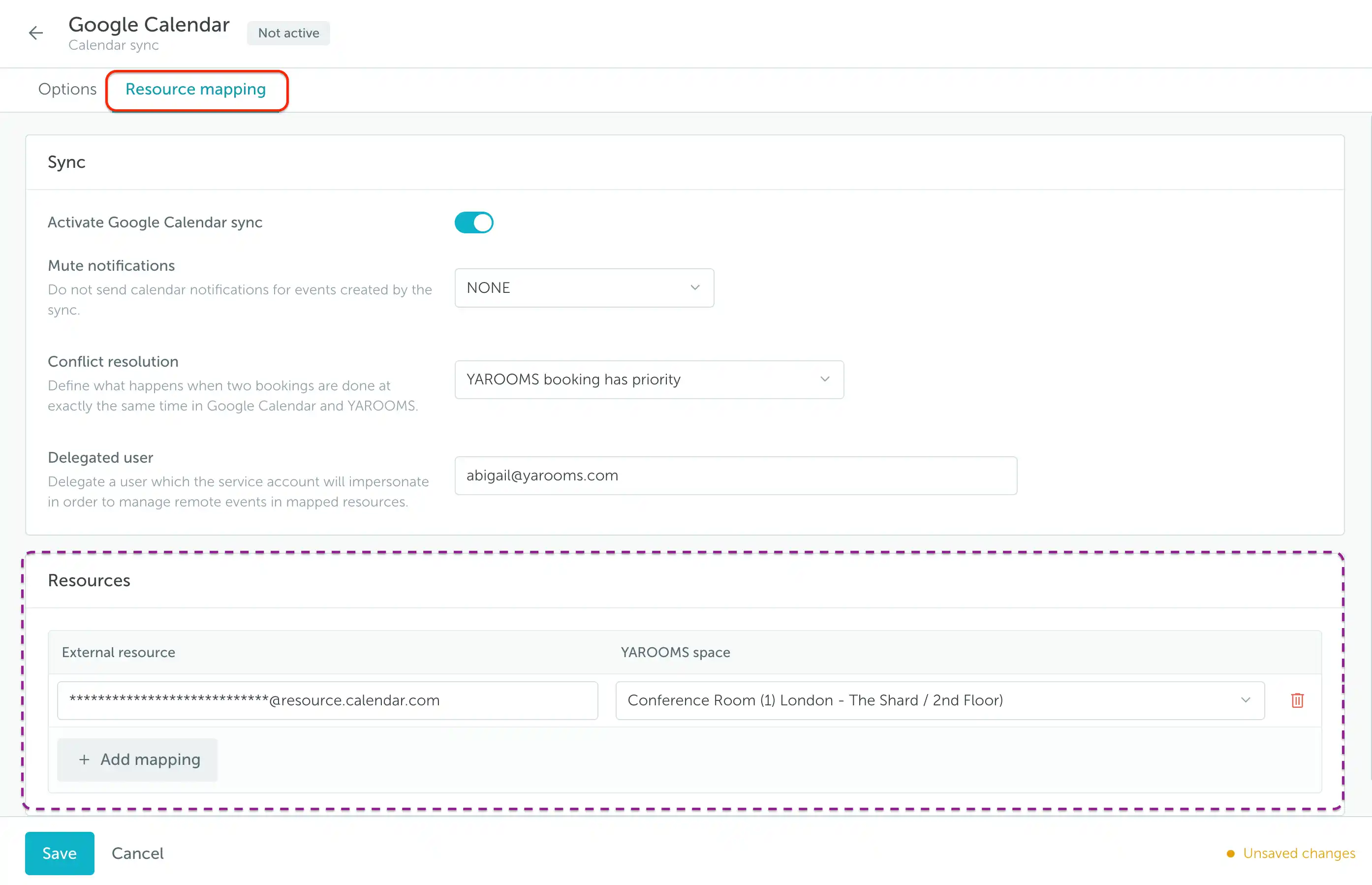
Open Resource mapping and configure the Sync section:
- Turn on Activate Google Calendar sync.
- Mute notifications: Choose whether to suppress notifications from YAROOMS or Google for events created by synchronization. Leave NONE selected if you do not want to mute them.
- Conflict resolution: Choose which system takes priority when conflicting bookings are created in Google Calendar and YAROOMS.
- Delegated user: Enter the email address of the Google Workspace user that will manage events in the mapped calendars.
Warning: Conflict resolution can replace bookings. With YAROOMS priority, the conflicting Google booking is deleted and replaced with the YAROOMS booking. With Google priority, the conflicting YAROOMS booking is deleted and replaced with the Google booking. Choose the policy carefully before enabling synchronization.
Map resources to spaces
- In Resources, click Add mapping to add a row.
- In External resource, enter the Google room resource’s email address.
- In YAROOMS space, select the corresponding space.
- Repeat for the other resources you want to synchronize, then click Save.
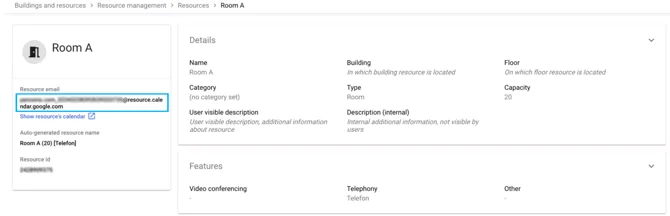
You can find the resource email in Google Admin console → Buildings and resources, by opening the resource and locating Resource email.
To remove a mapping, use the trash icon on its row and save your changes.