How to enable work statuses for a user team
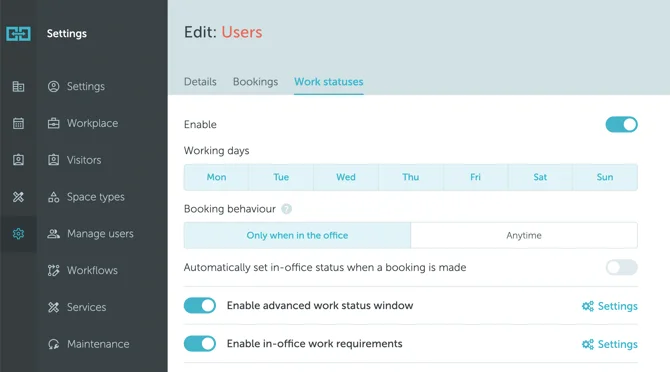
To get started, go to Settings → Manage Users → Teams → click on the team’s name → Work statuses. Then, define the work style settings for the selected user team.
Working days
These are days of the week that are considered working for this team. They can be different than the working days of the Location. This may help implement alternate working scenarios with employees working Mon-Wed-Fri vs Tue-Thurs.
When a day of the week is not selected, it will appear as greyed out on the work statuses page.
Booking behaviour
You can choose to let employees book workspaces only when their status is “In the office” or allow bookings at any time.
Automatically set in-office status when the booking is made
When enabled, booking a workspace will automatically set the user’s work status to “In office” for that day.
Enable advanced work status window
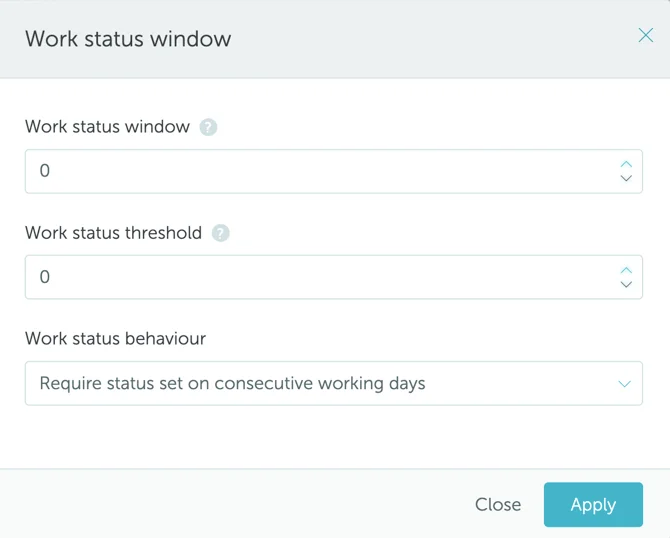
Here you can set some additional settings related to the work status window:
- Work status window: Define how many days in advance users can set their work status.
- Work status threshold: Set the maximum number of unplanned days allowed in advance.
- Work status behaviour (require status set on consecutive working days or allow change of status on any day).
Enable in-office work requirements
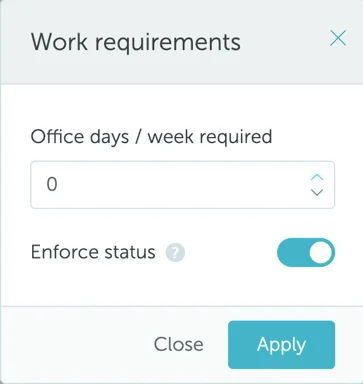
Here you can set some additional settings related to in-office requirements:
- Set the number of required office days per week.
- Enforce status - when activated (set to YES), the user is required to schedule the minimum number of office days per week.