1. Create the app
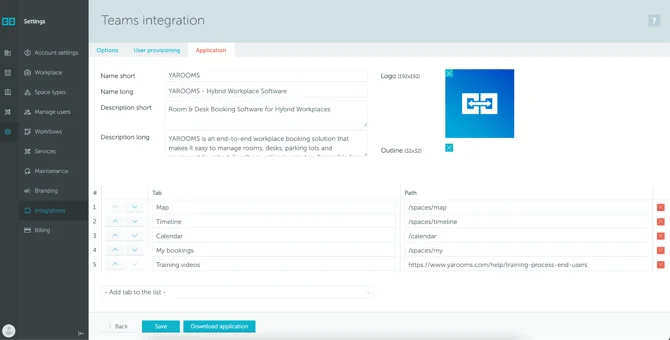
Go to Settings → Integrations → Teams → Application, and fully customize the app:
- Add the app’s name, description, and logos in the designated fields.
- Customize and add new tabs
When you are done, click the “Download application” button.
2.1 Adding a new app
Requirements:
- An existing Teams integration.
- Permissions to access Teams Admin that has an active license for Teams.
- A Teams sidebar app which can be downloaded from Teams Integration page (Settings → Integrations → Teams).
Add the app:
- Navigate to Teams Admin - Managed Apps.
- Press “Upload”.

- Press “Select a file”
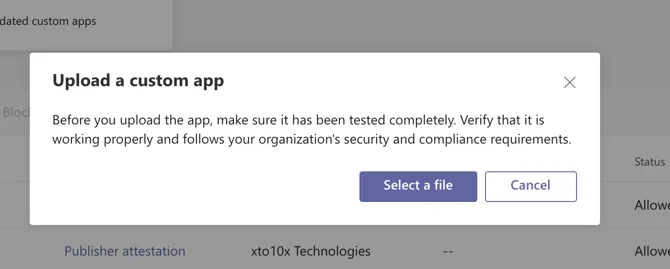
- Select the zip file, provided by YAROOMS, and upload it to the system.
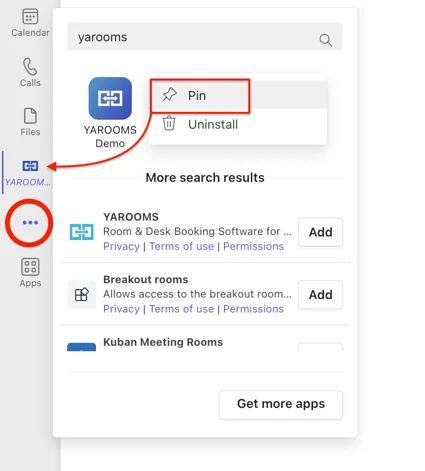
- Finally, click on the ellipsis from the left side menu, search for the app, right click on it and click on PIN. After you do that, the app will remain visible in the Teams left sidebar.
2.2 Update the app to a newer version
Note: This step applies when you’ve made changes to your Teams app and want those changes updated in the Teams sidebar.
- Locate the YAROOMS app by using the ‘Search by name’ field (the ‘Custom app’ column should have the ‘Yes’ value)

- Click on the app
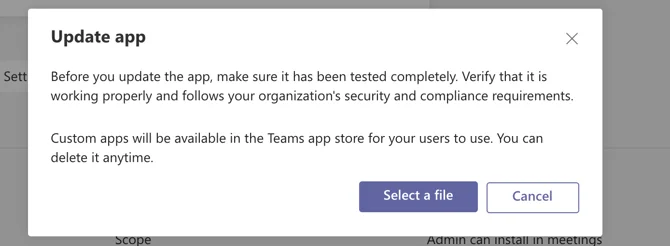
- Click on the ‘Update’ button next to the logo
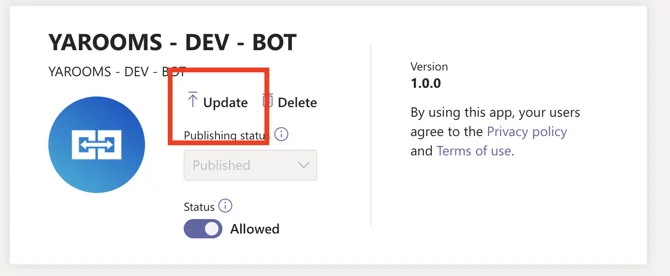
- Find and select the provided zip file.