
Jump to:
1. What are points of interest?
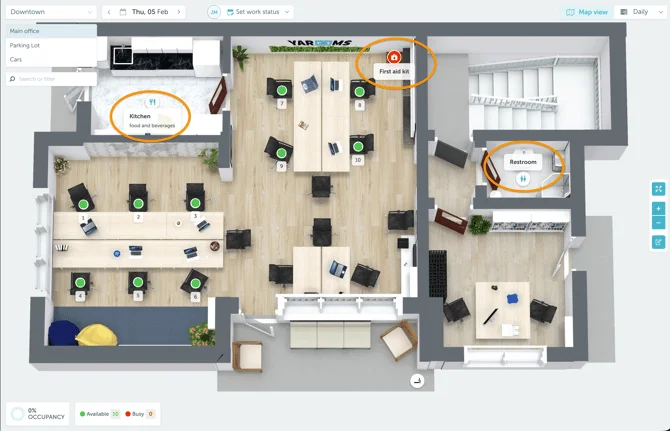
Points of Interest (POIs) are markers you add to your floor plans to highlight important locations beyond desks and meeting rooms, like printers, coffee stations, restrooms, or safety equipment.
POIs help people quickly locate the amenities and resources they use every day, reducing confusion and making navigation easier.
2. How to access the POI Edit mode
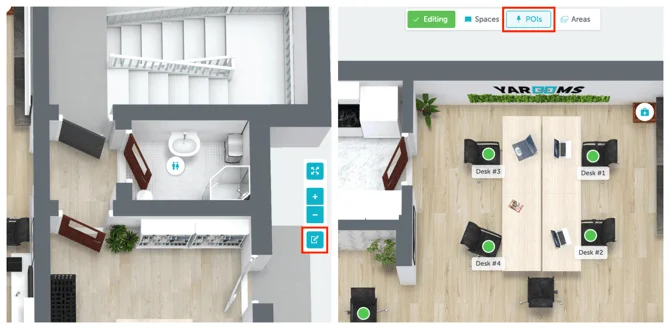
To add or manage POIs, switch to the POI Edit mode in the Map Editor:
- Open the Map Editor for your floor plan
- Find the POIs option in the top-level selector (alongside Spaces and Areas)
- Select POIs to enter editing mode
When you’re in POI mode, all existing spaces and areas are locked – you can’t accidentally move or edit desks and rooms. The floor plan stays visible as your canvas for placing and managing POIs.
3. Add a new Point of Interest
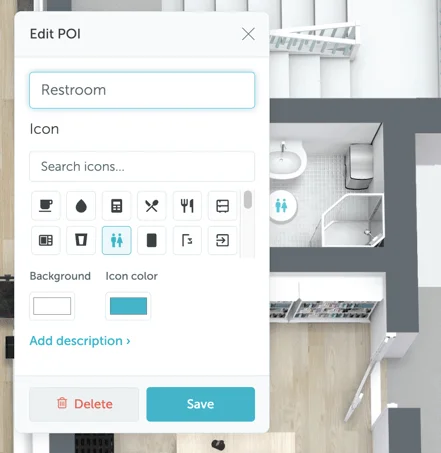
- In the POI Edit mode, click the exact location where you want to mark an amenity
- A popup appears at that spot with:
- A grid of icons to choose from (printer, coffee, restroom, etc.)
- A text field to name your POI
- Select an icon and add a name
- Confirm to place the POI, or cancel to dismiss
4. Editing an existing Point of Interest
- In the POI Edit mode, click an existing POI on the floor plan
- The same popup opens with the current icon and name pre-populated
- Update the icon, name, or both
- Save your changes
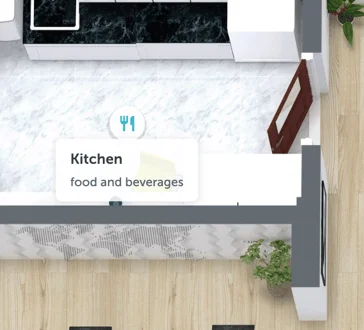
The POI updates immediately on the floor plan.
5. Repositioning a Point of Interest
- In the POI Edit mode, click and drag any POI to a new location
- The POI moves in real-time as you drag
- Release to drop it in the new position
The position updates automatically and saves with your other map changes.
6. Deleting a Point of Interest
- In the POI Edit mode, click the POI you want to remove
- Click the Delete button in the popup
- Confirm the deletion when prompted
The POI is removed from the floor plan immediately.